General : Adding Tips after Batch Close
Note: This involves the following:
1. Logging in and navigating to the "Reporting" section
2. Locating the transaction using filters and search
3. Saving payment method and selecting "Reprocess"
4. Entering cardholder participation and tip amount
5. Processing the updated transaction
Step by Step
Adding A Tip Transaction After Batch Close:
*Login to your Cardpointe Account:
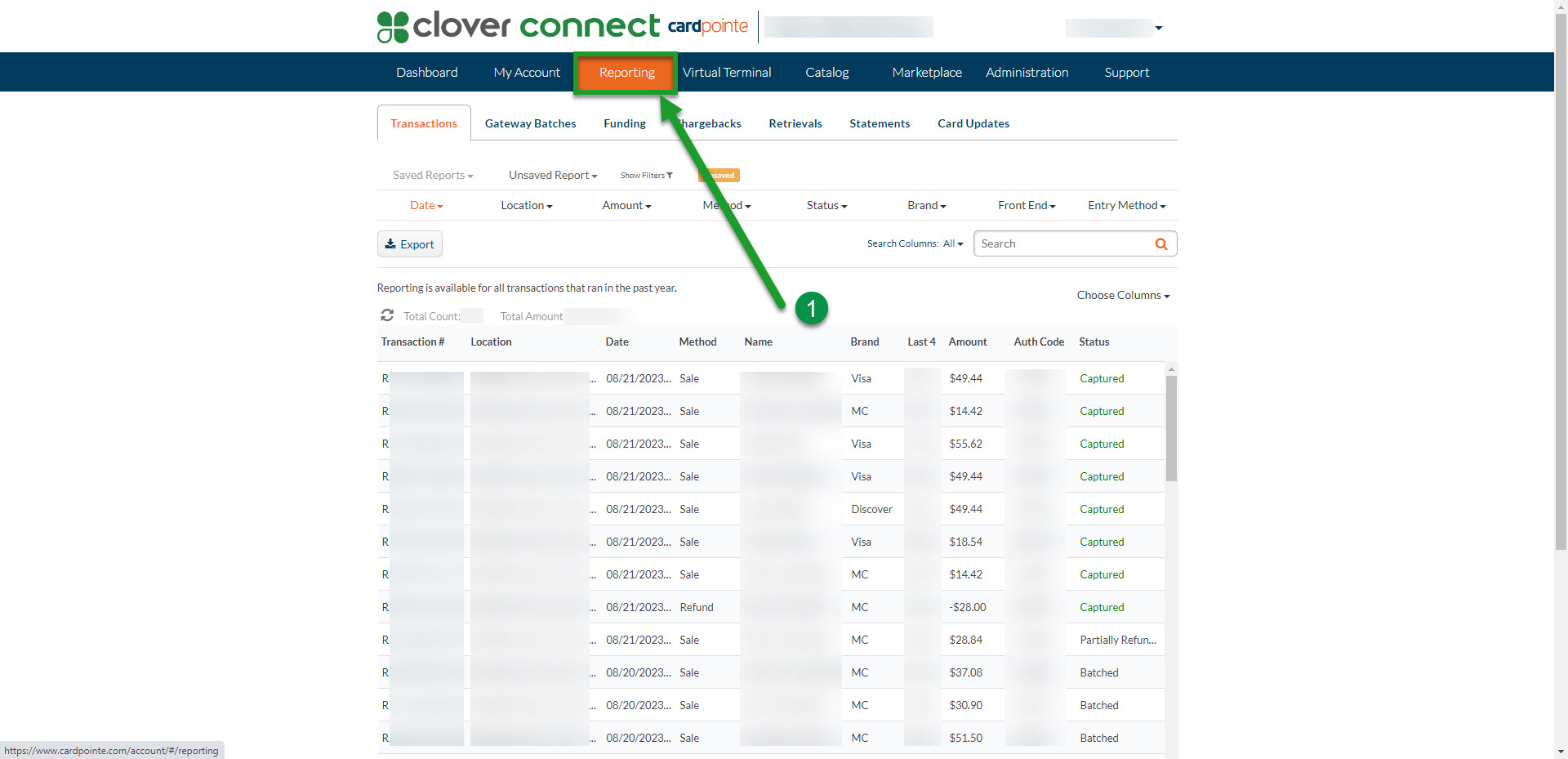
Step 1: Across the main navigation bar across the top, selecting "Reporting."
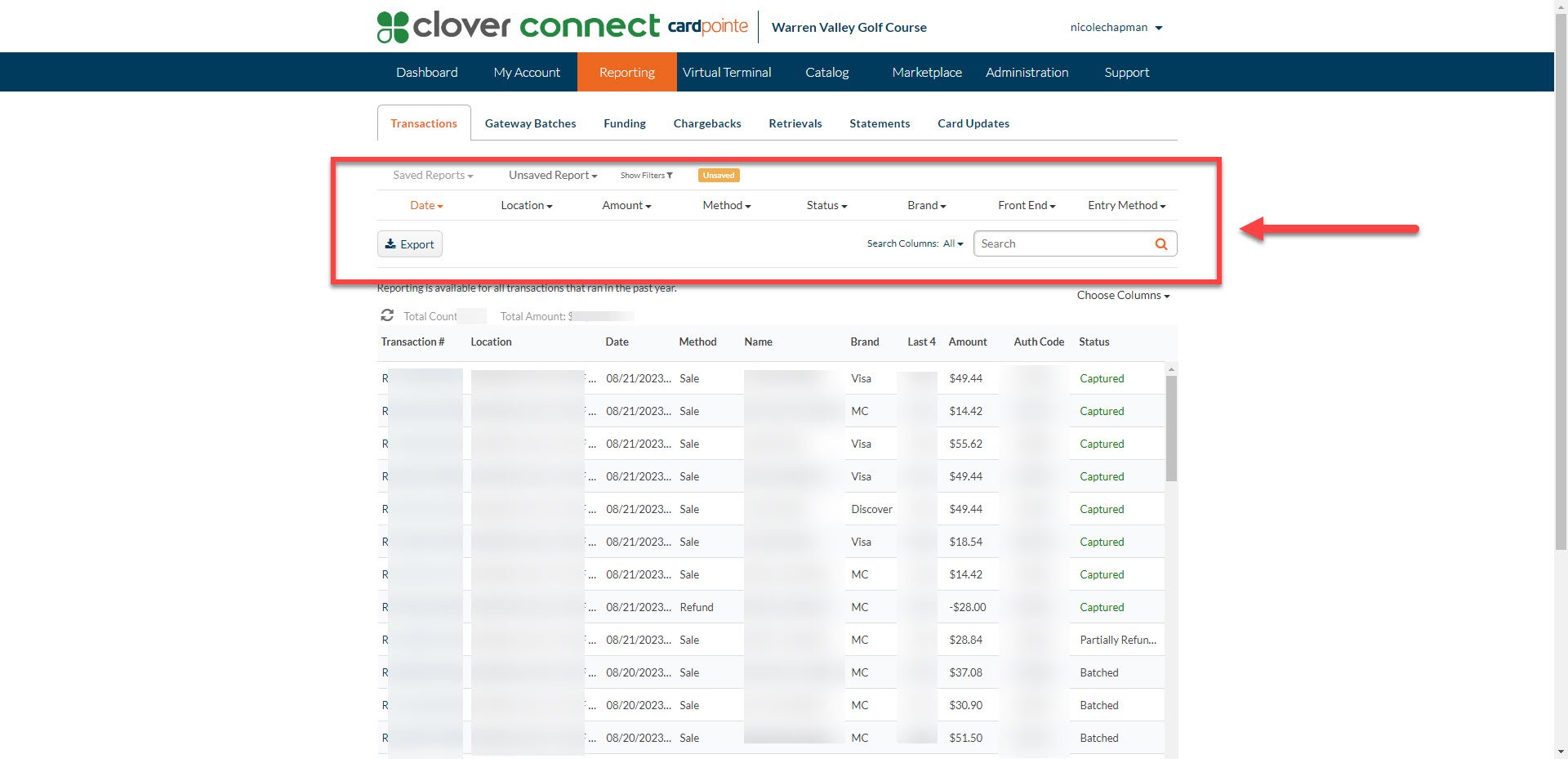
Step 2: You can use the filters alongside the search bar to locate specific transactions by searching for any data field point:
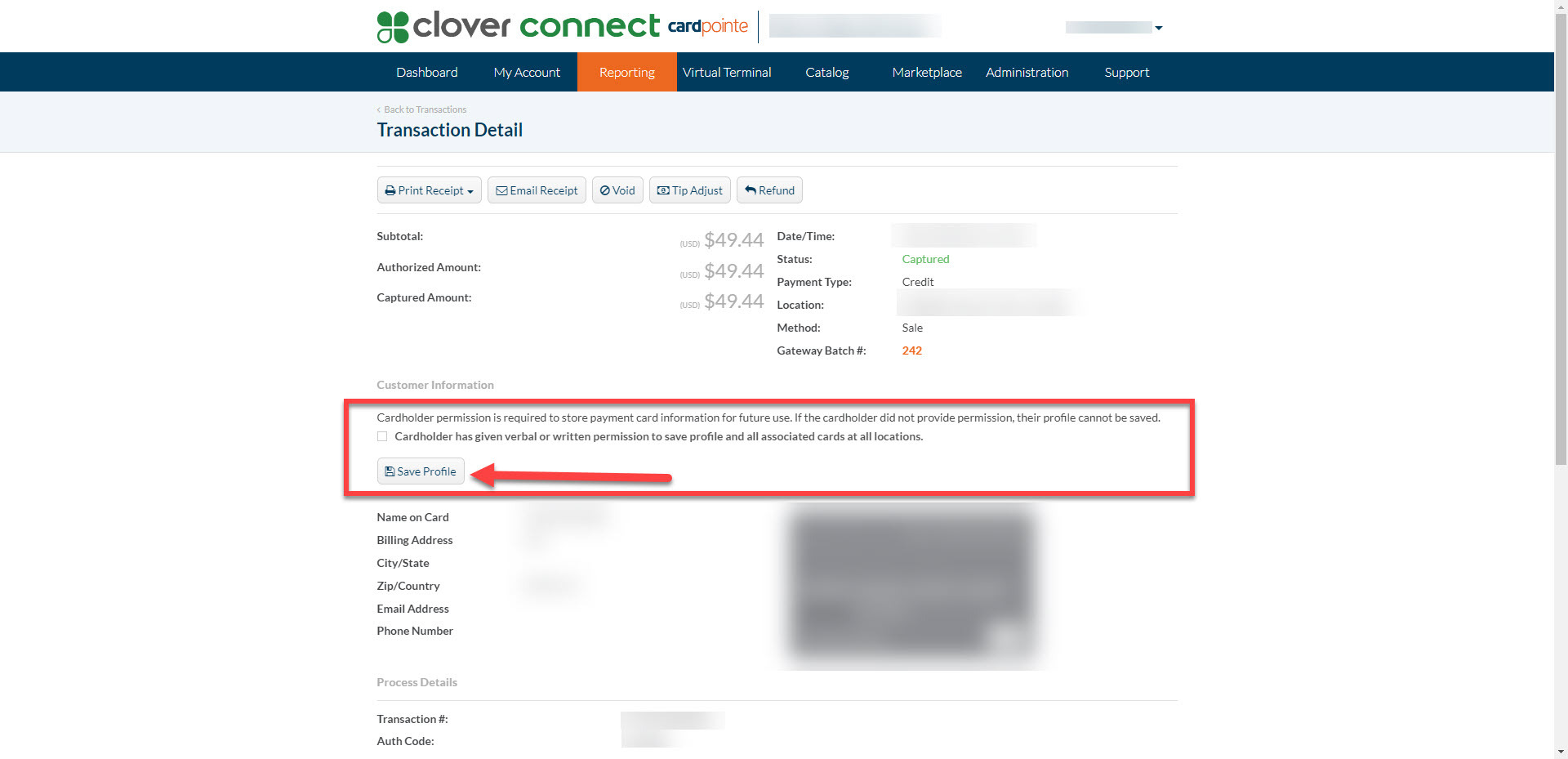
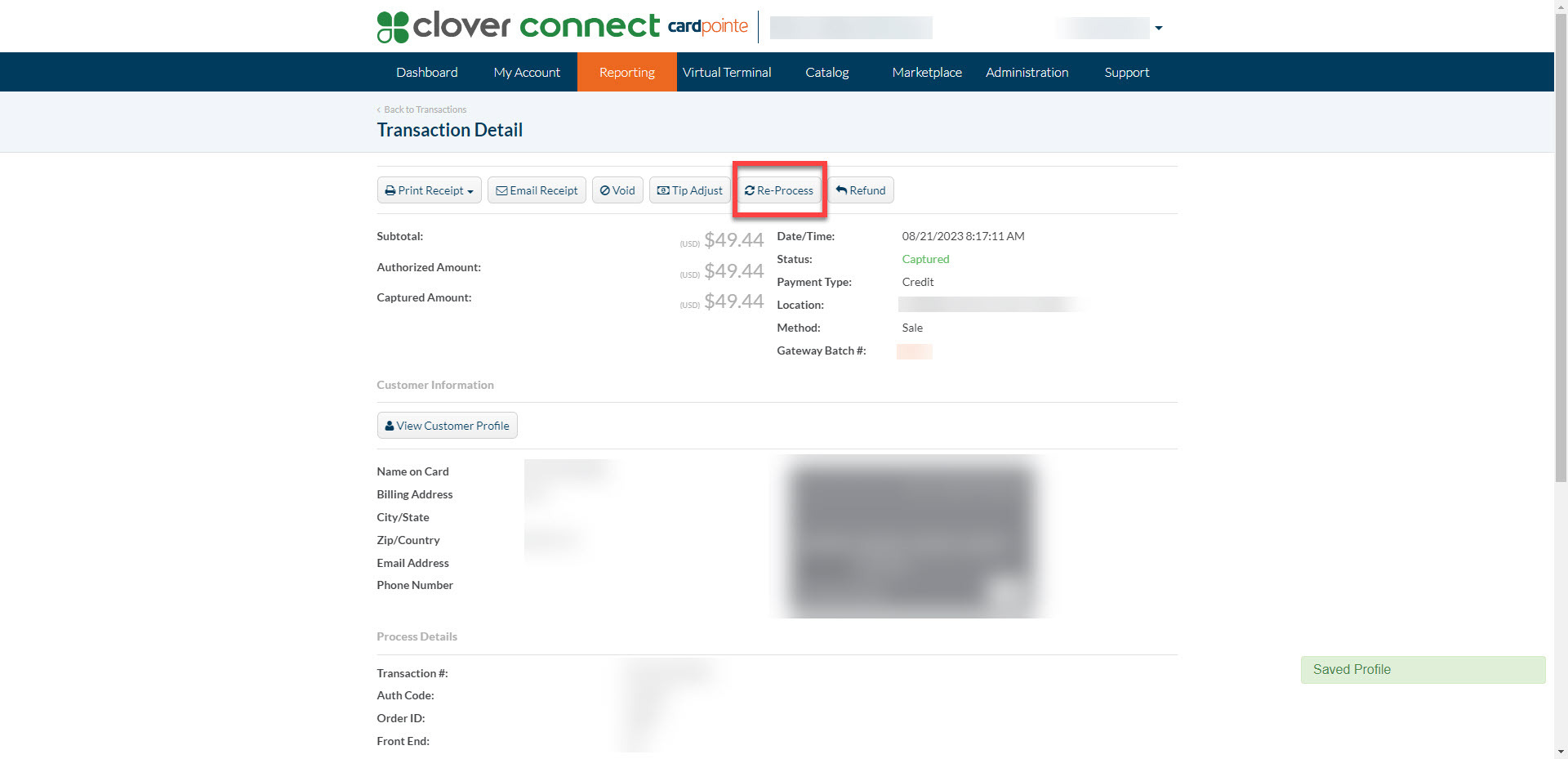
Step 3: Clicking into a transaction, you would select the save payment method to the profile.
Step 4: You'll then select "Reprocess" at the top of the page and enter the cardholder participation as in-person and the respective amount before selecting process transaction.
Related Articles
General : Clocking In and Out
Article Contents: This article will guide you on the process of how to clock in and clock out within the software Step by Step Step 1: Access the Time Clock by clicking the clock icon in the top right-hand corner of your screen. Step 2: Enter your ...General : How to Login to Jonas Synergy
This video tutorial provides a step-by-step guide on logging in and clocking in using the Jonas Synergy software for food and beverage operations. Step-By-Step: Step 1: Navigating to the Jonas Synergy login screen and selecting the appropriate ...General : Understanding the General Info Tab (Video)
In this video, we will provide an overview of the General Info Tab:General : Time Log Management
Article Contents: This article guides how to "Clock in" and "Clock Out", how to add Tips, how to Add time card and how to see total hours of the working report. Step by Step Step 1:- Click on the "Clock" icon from the right top corner of the window. ...General : Using the Auto-Updater
Article Contents: This article contains step-by-step instructions on how to update your Jonas Synergy golf management system through the built-in updater. Step-By-Step: Step 1: The auto-update prompt will appear when the golf management system is ...