General : Time Log Management
Step by Step
Step 1:- Click on the "Clock" icon from the right top corner of the window. The system will open a new window to enter an Employee pin. Enter the pin, the new "Time Log" window will open.
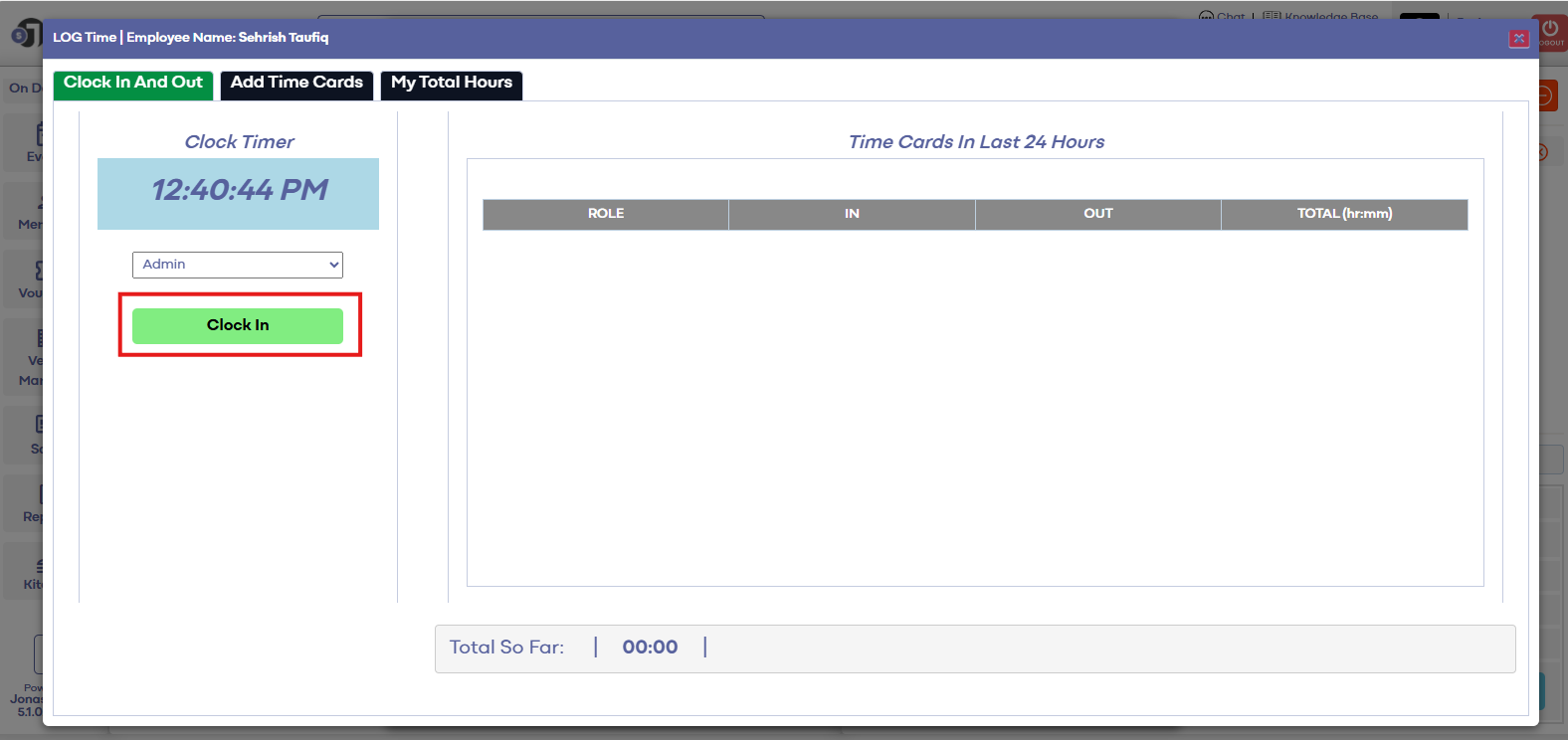
Step 2: - In the time log window you can see Running digital clock under the "Clock In and Out" tab. Under this tab, you can "Clock in" and "Clock Out". You can add cash tips and on the right-hand side, you can see the summary of the time log and total cash tips you have earned.
You can click on "Clock in" to start your In time and can click on "Clock out" at the time of Out time. You can "Clock in" and "Clock out" multiple times a day.
|
Clock Out:-
Step 3:- Click on the next tab "Add Time Cards" to add your time log details manually. Select the Start Date and End Date, Start Time and End Time, Add Cash tips earned and can add comments then click on "Save Time Card".
You can see manually added time log details on the right-hand side. The status of this summary will be pending and will change in Approved once the time card is approved by admin.
After saving the time Card:-
After Approved by admin:-
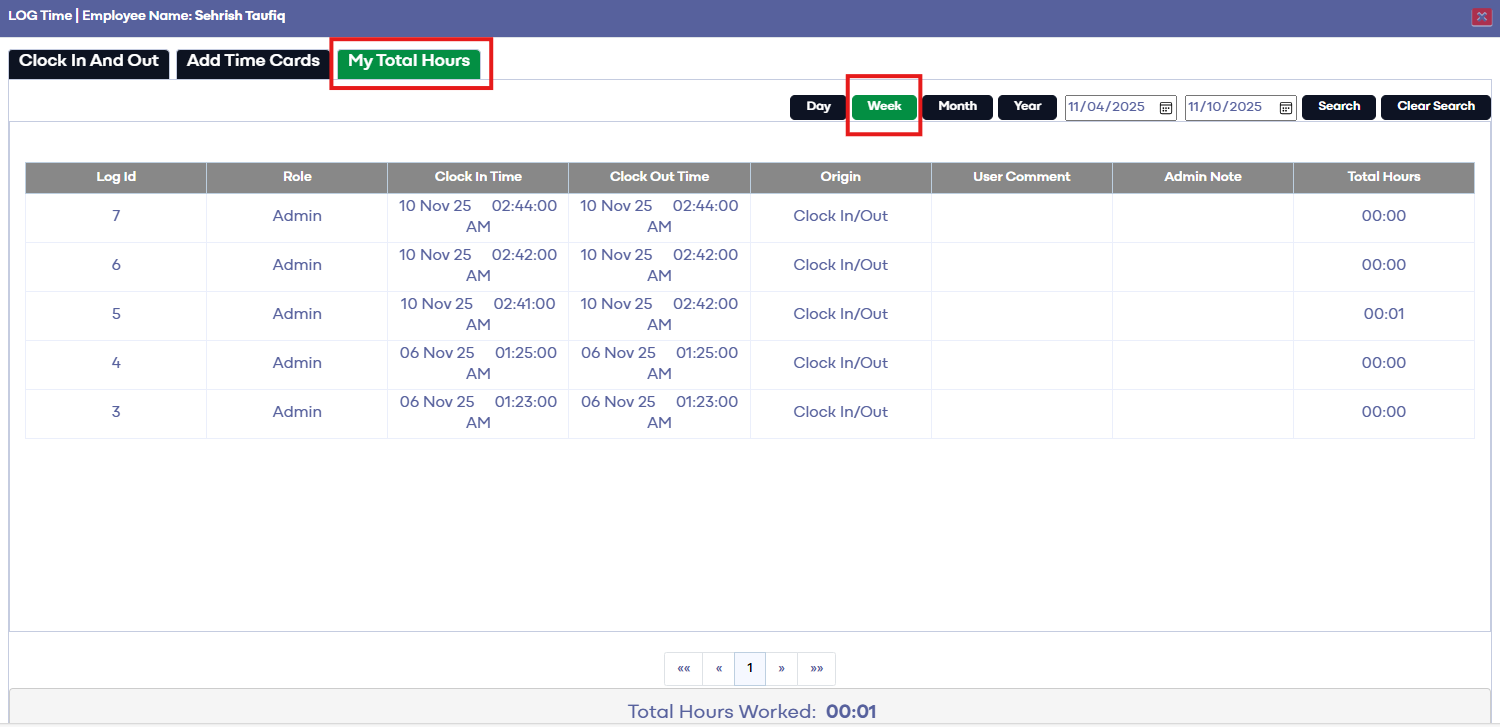
Step 4:- If you want to see a summary in detail click on the "My Total Hours" tab. Under this tab, you can see a time log summary for a specific period by selecting the Start Date and End date from the calendar icon.
You can see "My Total hours" report by Day, Week, Month, and year.
You can view the total hours' report by "This Week", "This Pay period", "Last pay period" and "Daily Total"
Related Articles
General : Sending Log Files
Article Contents: This article summarizes the steps on how to send log files. Note: When you are reporting issues, it may be necessary that the following log files be sent in order to dig into your request further. It is important to ensure that the ...General : Fixing Incorrect Time Zones in Google Calendar Bookings
Article Contents: This article provides a detailed guide on how to differentiate between Google Calendar event notifications/requests and tee time reminders, specifically addressing issues related to time zone discrepancies in auto-generated bookings ...General : Clocking In and Out
Article Contents: This article will guide you on the process of how to clock in and clock out within the software Step by Step Step 1: Access the Time Clock by clicking the clock icon in the top right-hand corner of your screen. Step 2: Enter your ...General : Downloading Jonas Synergy
Article Contents: This article will walk through the step by step process on how to download Jonas Synergy and log in to your facility's golf management software. Step by Step Step 1: To download the Synergy software head over to the link: ...General : Using the Auto-Updater
Article Contents: This article contains step-by-step instructions on how to update your Jonas Synergy golf management system through the built-in updater. Step-By-Step: Step 1: The auto-update prompt will appear when the golf management system is ...