General : Using the Auto-Updater
Step 2: When the golf management system is opened, a pop-up will appear showing the current version and indicating if an update is available. Users will have the option to be reminded later, install the update immediately, or skip this version (not recommended).
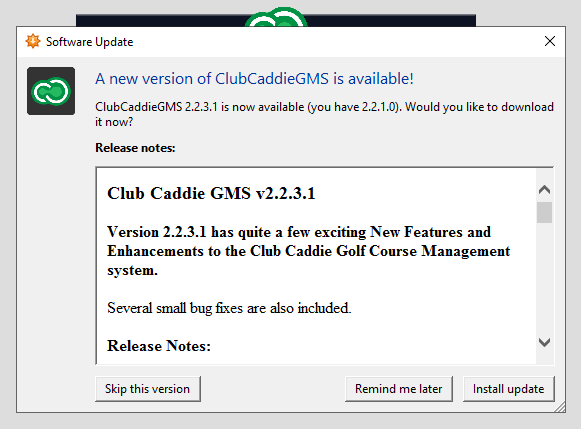
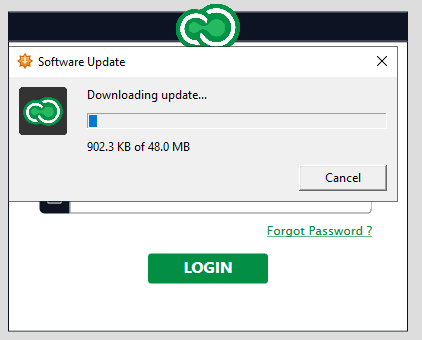
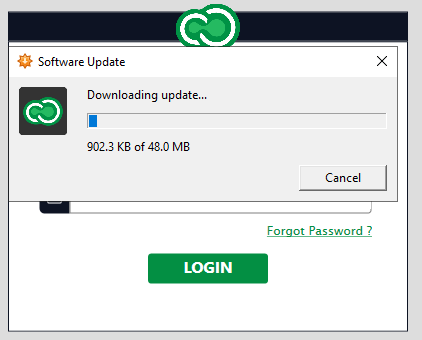
Step 3: Click on the 'Install Update' button to begin the update's download.
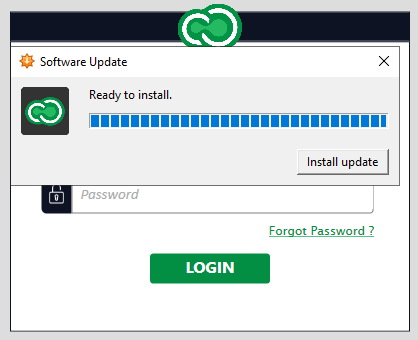
Step 4: Once the download has been completed, click on the 'Install Update' button to initiate the installation.
Step 5: Click on 'Next'.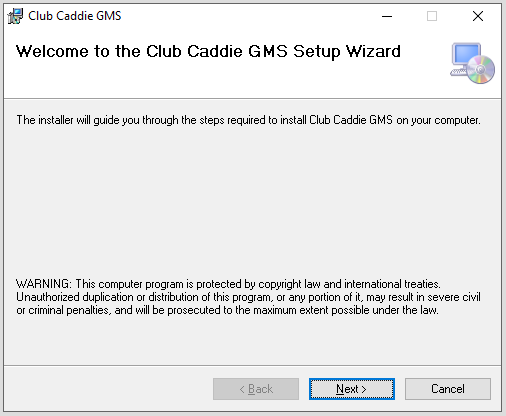
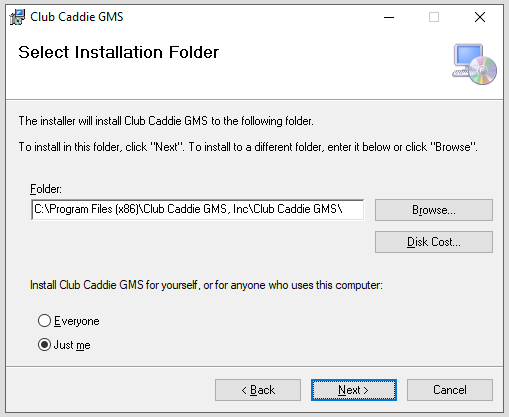
Step 6: Specify the download location. Typically, it is recommended to leave the default location. Click on the 'Next' button.
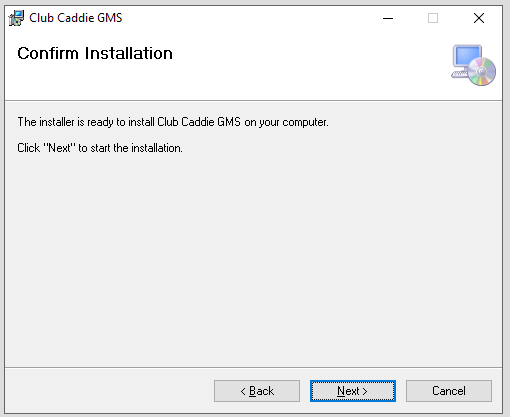
Step 7: At this time, please close the currently open instance of Jonas
Synergy, then click on 'Next'.
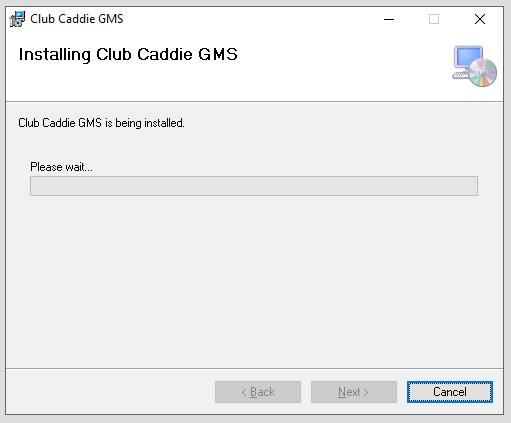
Step 8: Installation will begin and should be complete in around 30 seconds to 1 minute. During this process, you may be asked to allow the program to make changes to your computer.
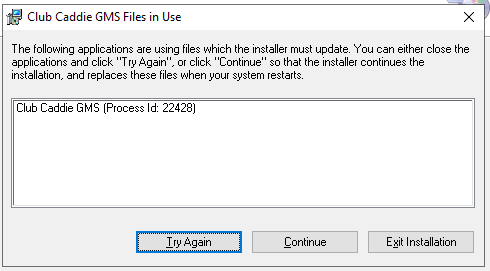
Step 9: If you have not closed Jonas Synergy during the installation process you will be asked to do so now to continue the installation. Kindly close the Jonas Synergy golf management system and click on 'Try Again'.
 Step 10: Once the installation process is completed you will be given the 'Installation Complete' pop-up. Click 'Close'.
Step 11: You may then search for Jonas Synergy in the windows search bar or locate the icon on your desktop to open your newly updated golf management system.
Related Articles
General : Understanding the General Info Tab (Video)
In this video, we will provide an overview of the General Info Tab:General : Firewall Allow List
Article Contents: If you are on a restricted network environment, you might need to allow outbound/Inbound traffic between your network and Jonas Synergy to ensure that your environment can connect to our servers. Note: Domains listed in this article ...General : Clocking In and Out
Article Contents: This article will guide you on the process of how to clock in and clock out within the software Step by Step Step 1: Access the Time Clock by clicking the clock icon in the top right-hand corner of your screen. Step 2: Enter your ...General : Scheduling a Nightly Reboot
Article Contents: This article guides you on how to schedule your computer to reboot automatically at a specific time using the task scheduler. Step by Step Step 1: Press "Win + R" to open the Run dialog box. Type `taskschd.msc` and press Enter. This ...General : How to Login to Jonas Synergy
This video tutorial provides a step-by-step guide on logging in and clocking in using the Jonas Synergy software for food and beverage operations. Step-By-Step: Step 1: Navigating to the Jonas Synergy login screen and selecting the appropriate ...