Configuring a Cash Drawer
Step-By-Step:
Here's how you can set up your printer to open your cash drawer:
Step 1: Plug in the RJ12 connector cable (which looks similar to a phone line) from the cash drawer into your receipt printer.
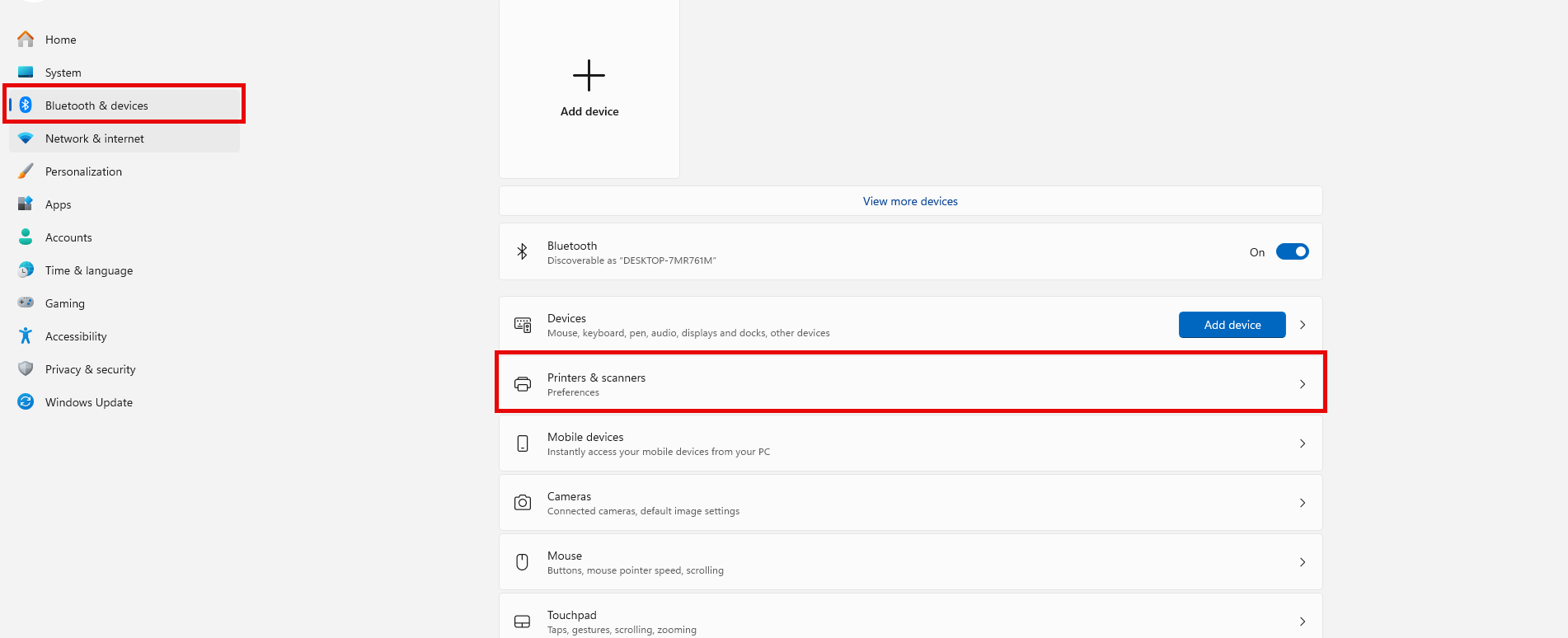
Step 2: Next, go to the
Settings menu in Windows 10+, select
Devices, and select
Printers & Scanners on the left-hand menu.
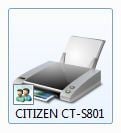
Step 3: Select the printer you'd like to configure, in this case the Citizen CT-S801.
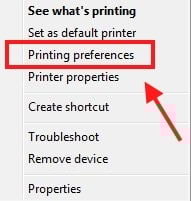
Step 4: Navigate to Printing Preferences
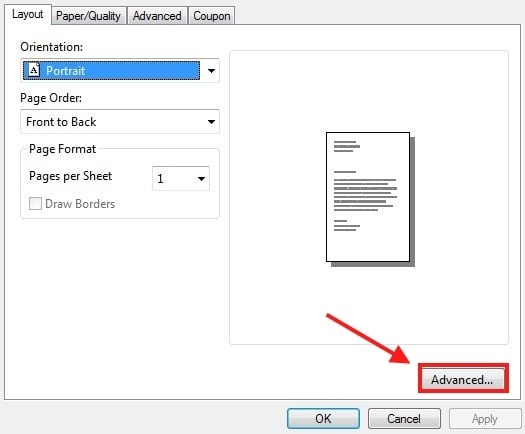
Step 5: Under the Printing Preferences menu, select Advanced...
Step 6: Expand Document Options.
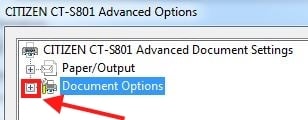
Step 7: Expand Printer functions.
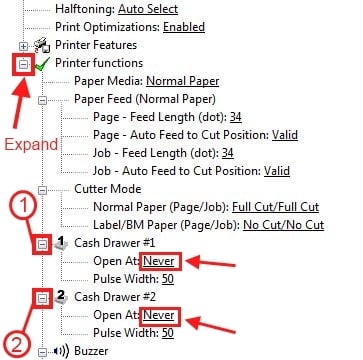
Step 1: Expand the Cash Drawer #1 setting and ensure the Open at: field is set.
Step 2: Expand the Cash Drawer #2 setting and ensure the Open at: field is set.
Step 8: Press OK to exit.
Note: If you want the cash drawer to trigger before the receipt prints, select "Document Top" in Peripheral Units 1 and 2.
Related Articles
Configuring a Cash Drawer
Article Contents: The below guide will walk you through configuring a cash drawer to automatically open. Step-By-Step: (If you are using an EPSON TM30, see the bottoms steps) Step 1: Plug in the RJ12 connector cable (which looks similar to a phone ...Epson : Epson TM-20 Receipt Printer Troubleshooting and FAQs
This article provides troubleshooting tips for the Epson TM-T20ii thermal receipt printer, addressing issues such as the printer not printing receipts, being offline, or not connecting to the cash drawer. If you're having issues with your Epson ...Installing a Star TSP100
Article Contents: This article provides a step-by-step guide on installing a Star TSP100 receipt printer on Windows 8 and later versions. Step-By-Step: Step 1: Download the Driver 1. Visit the Star Micronics website before powering on your Star ...Printer Paper Settings
Article Contents: This guide outlines the steps required to adjust the paper settings to use 72mm x receipt paper. Step-By-Step: Accessing Printer Settings Step 1: Open the Control Panel and left-click on “View devices and printers” under the ...Long Receipts Cutting Off in Windows
Article Contents: This article will guide users through the process of configuring printer settings to prevent long receipts from being cut off Step-By-Step: Step 1: Open the Devices and Printers panel on the computer. The steps to access the Devices ...