Configuring a Cash Drawer
Step-By-Step:
Step 1: Plug in the RJ12 connector cable (which looks similar to a phone line) from the cash drawer into the back of your receipt printer.
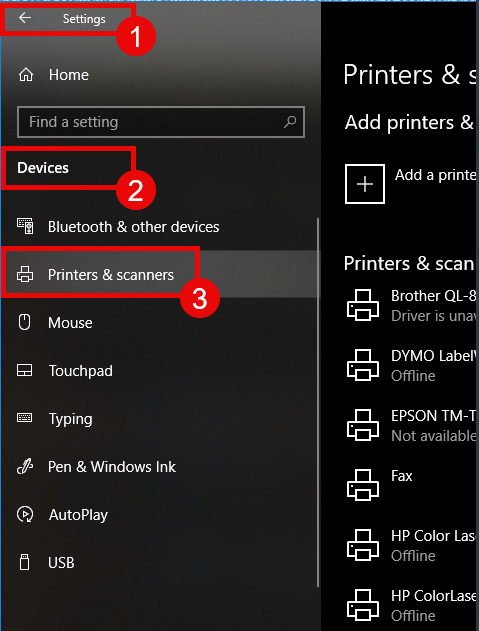
Step 2: On your computer, go to the SETTINGS menu, select DEVICES and select PRINTERS & SCANNERS from the left-hand menu.
Step 3: Select the printer you'd like to configure and click on the MANAGE button.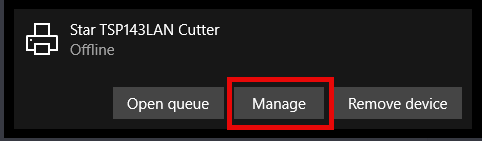
Step 4: Click on the PRINTER PROPERTIES link and a window will open. From here, select the DEVICE SETTINGS tab.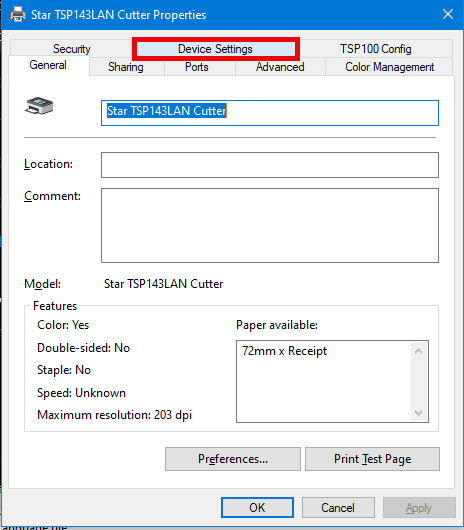
Step 5: Under INSTALLABLE OPTIONS, find the PERIPHERAL UNIT TYPE and change it to "Cash Drawer."
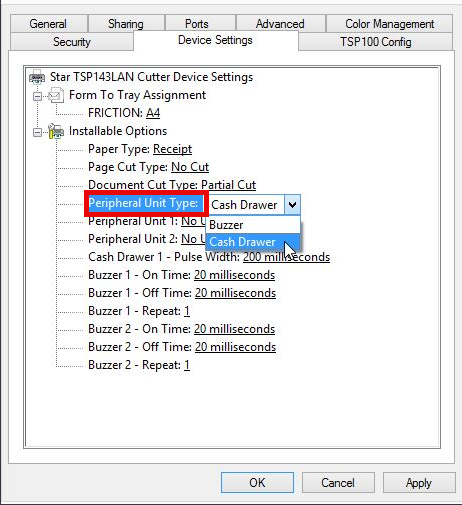
Step 6: Change the PERIPHERAL UNIT 1 and the PERIPHERAL UNIT 2 fields to "Document Bottom" to have the drawer open after the receipt starts to print. Click OK to save these settings and perform a test sale to see if it's been configured properly.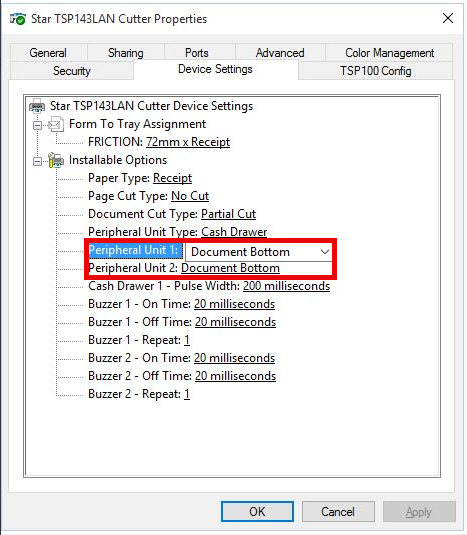
Tip: If you want the cash drawer to trigger before the receipt prints, select "Document Top" for both Peripheral Unit 1 and 2.
IF YOU ARE USING AN EPSON TM30, PLEASE FOLLOW THE BELOW:
Step 1: Plug in the RJ12 cable (which looks similar to a phone line) from the cash drawer to the back of your receipt printer.
Step 2: On your computer, go to the SETTINGS menu, select DEVICES and select PRINTERS & SCANNERS from the left-hand menu. 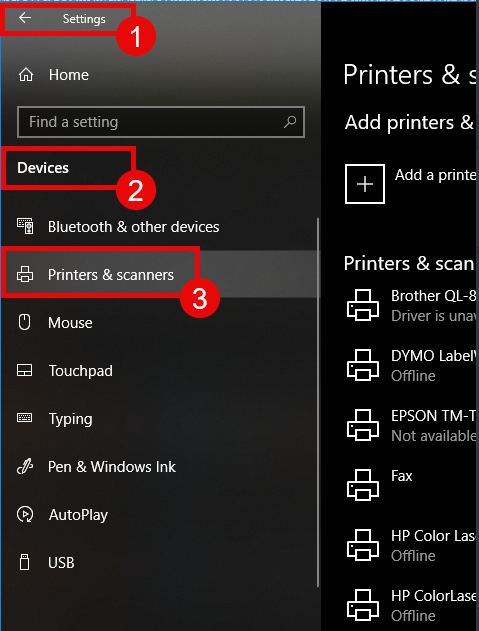
Step 3: Select the printer you'd like to configure and click on the MANAGE button.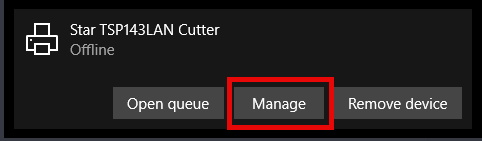
Step 4: Click on PRINTER PROPERTIES link and a window will open. From here, under the GENERAL tab, click on PREFERENCES.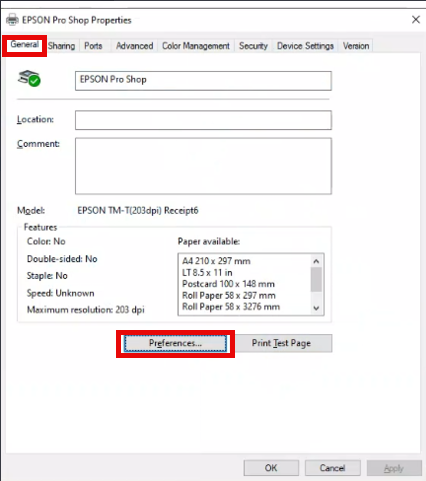
Step 5: Under Preference Options, find the PERIPHERALS tab and click on the drop down menu to select "Cash Drawer." Make sure the OPEN option is selected under the Cash Drawer 1 and 2 options.
Click OK to save these settings and perform a test sale to se if the printer has been configured properly.
Related Articles
Configuring a Cash Drawer
Article Contents: Your cash drawer can be configured to automatically open when you print a receipt. The below guide will walk you through configuring the cash drawer. Step-By-Step: Here's how you can set up your printer to open your cash drawer: ...Epson : Epson TM-20 Receipt Printer Troubleshooting and FAQs
This article provides troubleshooting tips for the Epson TM-T20ii thermal receipt printer, addressing issues such as the printer not printing receipts, being offline, or not connecting to the cash drawer. If you're having issues with your Epson ...Installing a Star TSP100
Article Contents: This article provides a step-by-step guide on installing a Star TSP100 receipt printer on Windows 8 and later versions. Step-By-Step: Step 1: Download the Driver 1. Visit the Star Micronics website before powering on your Star ...Printer Paper Settings
Article Contents: This guide outlines the steps required to adjust the paper settings to use 72mm x receipt paper. Step-By-Step: Accessing Printer Settings Step 1: Open the Control Panel and left-click on “View devices and printers” under the ...Long Receipts Cutting Off in Windows
Article Contents: This article will guide users through the process of configuring printer settings to prevent long receipts from being cut off Step-By-Step: Step 1: Open the Devices and Printers panel on the computer. The steps to access the Devices ...