How to Calibrate a Windows 10 Touch Screen
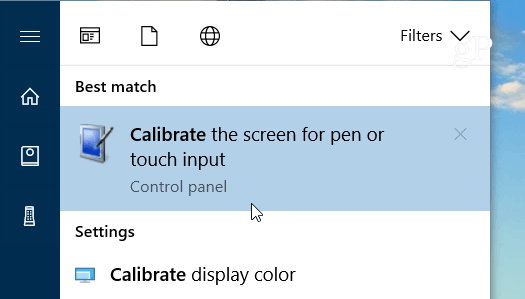
Step 2: Or, hit the Windows key and type: calibrate and select the “Calibrate the screen for pen or touch input” result at the top.
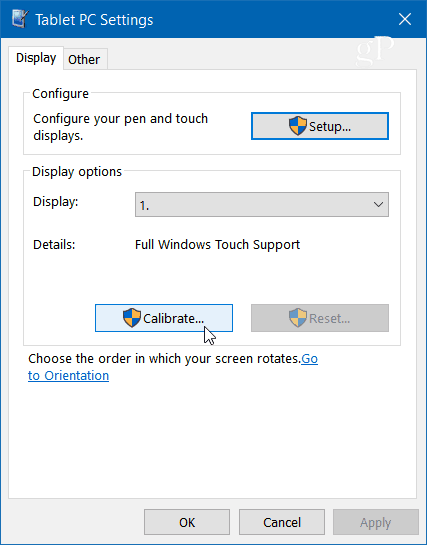
Step 3: It will have two tabs if you only have a touchscreen, but if you have configured a pen device, you will have three tabs. In the following example, I only have a touch screen – select the Calibrate button under the Display tab.
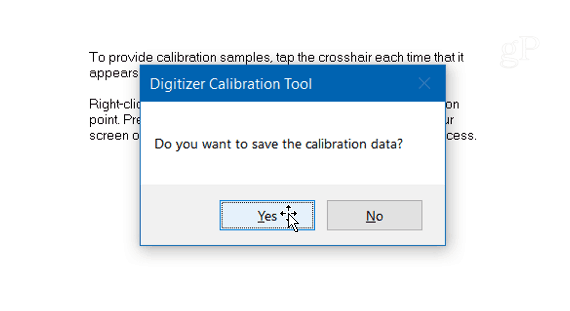
Step 4: Next, your screen will go white and display instructions for going through the calibration process. It’s a simple process. A crosshair will appear on the screen and each time you tap it will move to a different spot. Continue through the entire process, and when you’re finished, you’ll be prompted to save the results. The touch screen should now be more responsive and accurate when you interact with it.
Note: This process ensures that your touches are detected with the highest level of precision, enhancing overall user experience.
Related Articles
Show the Built-In Touch Keyboard
Article Contents: This article provides a step-by-step guide on how to access and use the built-in touch keyboard in the Windows operating system Step-By-Step: Enabling the Touch Keyboard: Step 1: Right-click an empty area on the Taskbar. Step 2: ...Installing Jonas Synergy on Windows 11 Home in S Mode
Article Contents: This article covers the steps on how to install Jonas Synergy on a Windows 11 laptop running in S mode, which initially only allows installations from the Microsoft Store. Step-By-Step: Step 1: Determine if your Windows 11 is ...Epson : Downloading and installing the Epson driver for Windows
Downloading and installing the Epson driver for Windows. Step 1: Download the latest printer drivers. This is specialized software that helps the printer run correctly on your computer. To download this, go to Epson's website and select Windows ...No Drag and Drop Touch in Google Chrome
Article Contents: This article summarizes no drag and drop touch within Google Chrome Step-By-Step: Step 1: Google has changed the way Chrome works with touch-based devices. Chrome will need to be launched with a shortcut that has the--touch-events ...Epson : Long Receipts Cutting Off in Windows
Article Contents: This article covers how to deal with long receipts cutting off for Epson printers. Step-By-Step: Step 1: Option 1 - Using the Control Panel. Click on the Start Menu and locate the Control Panel. From within the Control Panel, double ...