Installing Jonas Synergy on Windows 11 Home in S Mode
Step-By-Step:
Step 1: Determine if your Windows 11 is running in S mode
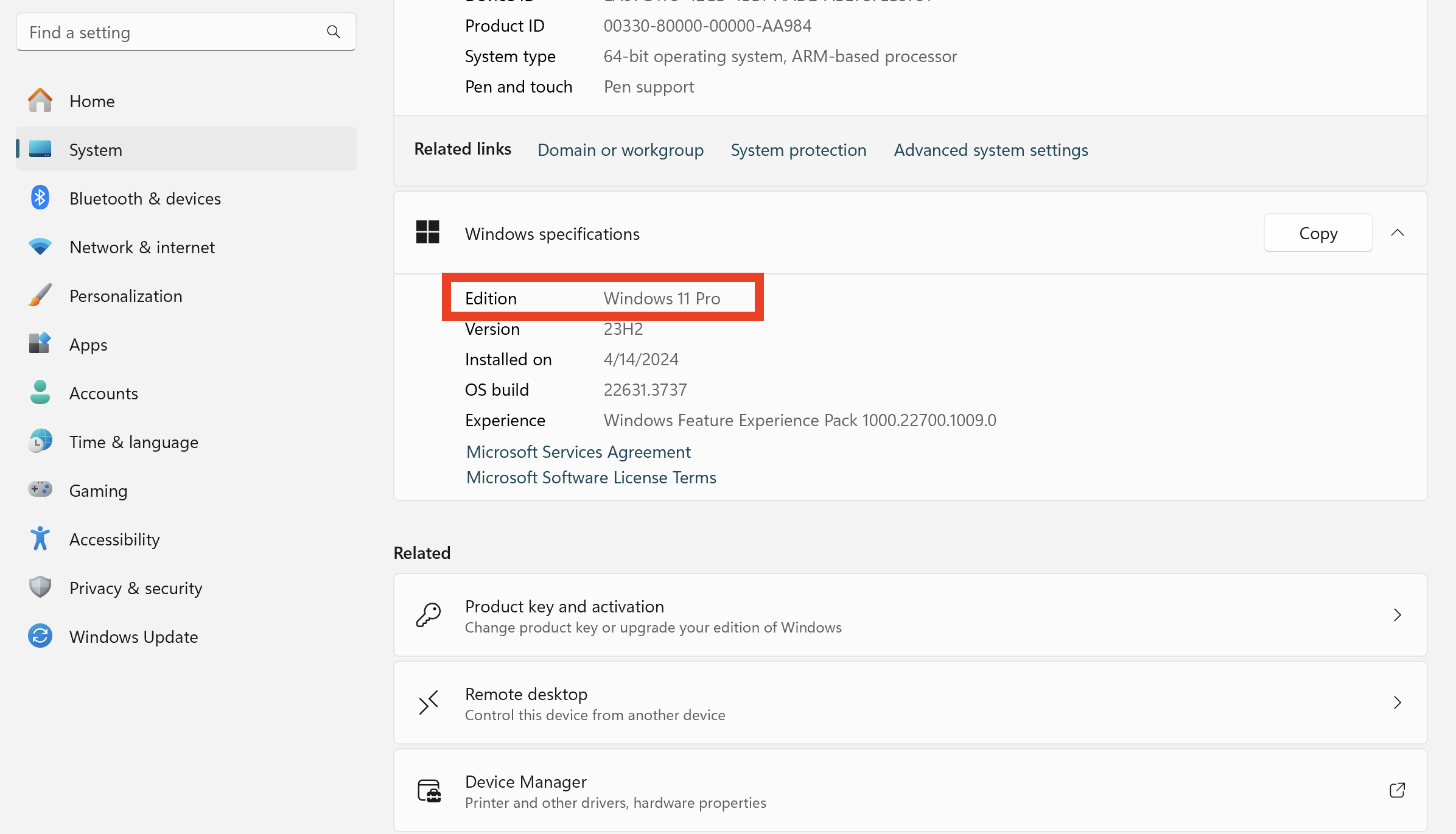
1. Open the Start menu and go to Settings > System > About
2. Under "Windows specifications," check the edition and version of Windows
3. If it says "Windows 11 Home in S mode," proceed to the next step
Step 2: Switch out of S mode
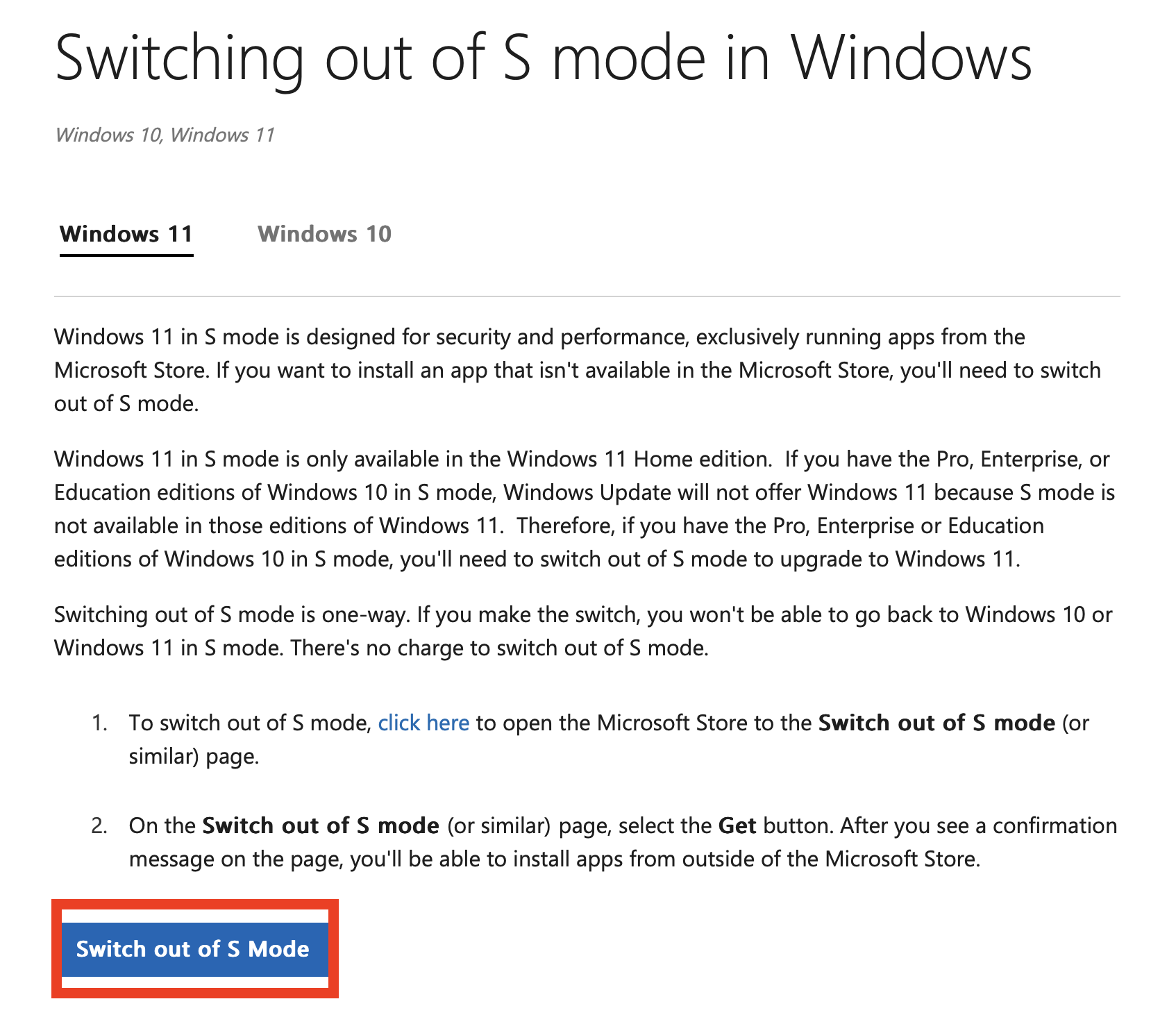
1. Visit the following Microsoft support page: https://support.microsoft.com/en-us/windows/switching-out-of-s-mode-in-windows-4f56d9be-99ec-6983-119f-031bfb28a307
2. Click the "Switch out of S mode" button and follow the on-screen instructions
3. This process is one-way and cannot be reversed, but it will allow you to install apps from outside the Microsoft Store
Related Articles
Using the Jonas Synergy App
Article Contents: This is a step by step guide on how to use the Jonas Synergy app on the Clover Flex. Step-By-Step: Step 1: Logging into the Jonas Synergy App. - Select Environment: Open the Jonas Synergy app and select the appropriate environment. ...Epson : Downloading and installing the Epson driver for Windows
Downloading and installing the Epson driver for Windows. Step 1: Download the latest printer drivers. This is specialized software that helps the printer run correctly on your computer. To download this, go to Epson's website and select Windows ...Installing a Star TSP100
Article Contents: This article provides a step-by-step guide on installing a Star TSP100 receipt printer on Windows 8 and later versions. Step-By-Step: Step 1: Download the Driver 1. Visit the Star Micronics website before powering on your Star ...Pairing a new Clover Device with Jonas Synergy
This article outlines the steps to pair a Clover device with Jonas Synergy. CLOVER INTEGRATION WITH JONAS SYNERGY GUIDE First you will want to ensure that the customer has activated the device and it is powered on and connected to Wi-Fi. Next you ...How to Calibrate a Windows 10 Touch Screen
Article Contents: This article summarizes the steps needed to ensure your touch screen is calibrated. Step-By-Step: Step 1: Open the Control Panel and select Tablet PC Settings. Step 2: Or, hit the Windows key and type: calibrate and select the ...