Edit Rates
Step-By-Step:
Step 1: Log on to your member portal. Then select My Reserved Tee Times from the left-hand-side menu.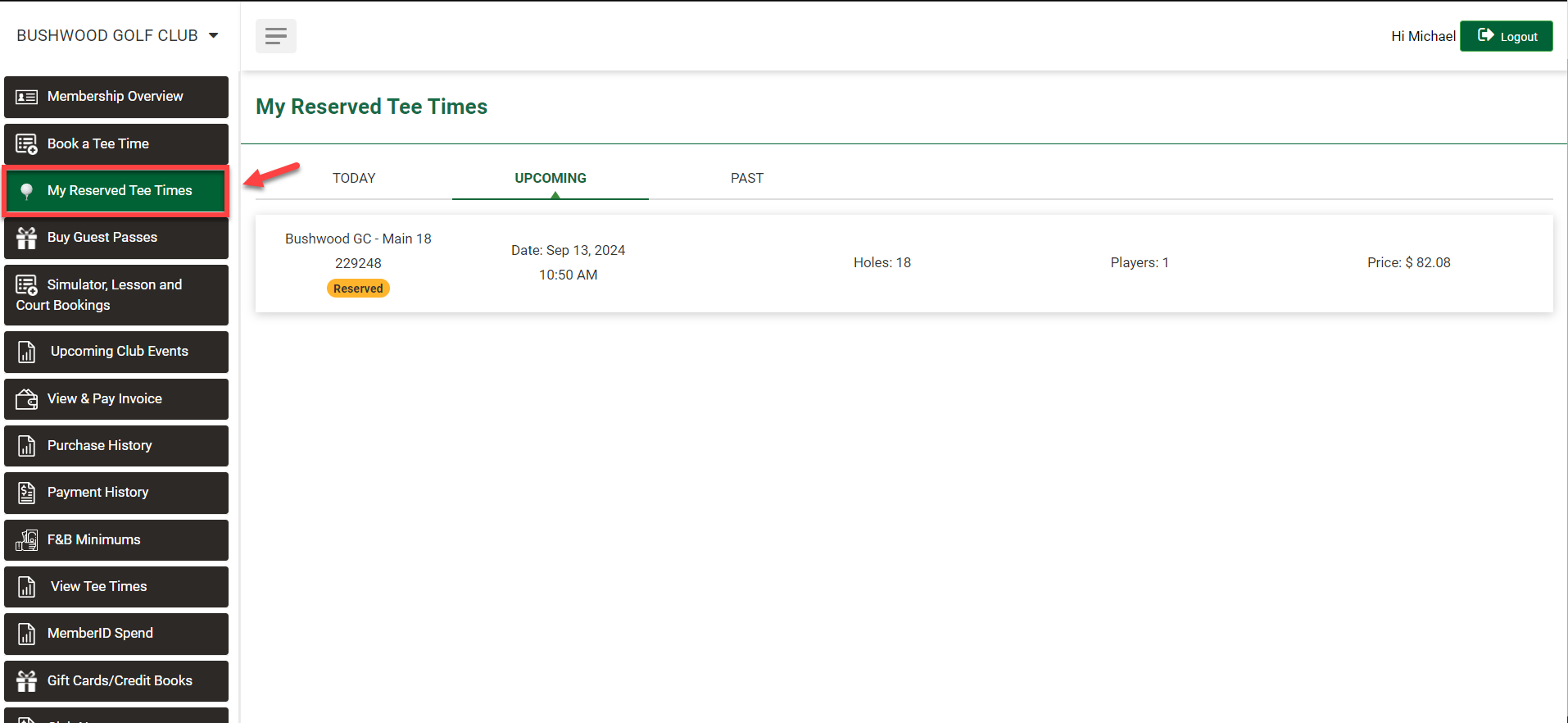
Step 2: Select the tee time you want to edit, then click on Edit Booking.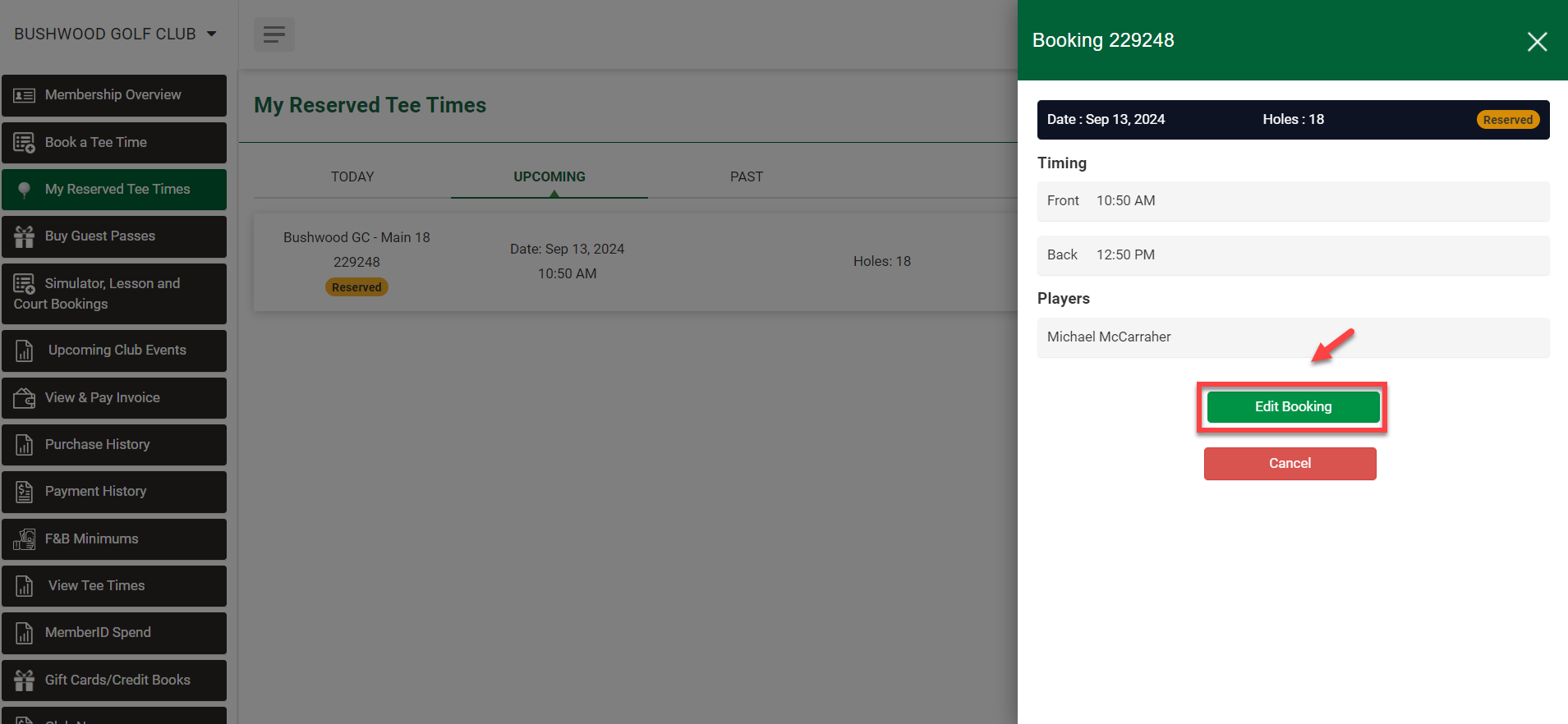
Step 3: Here you will be able to update the players and rates. Once the information has been entered correctly, click Save.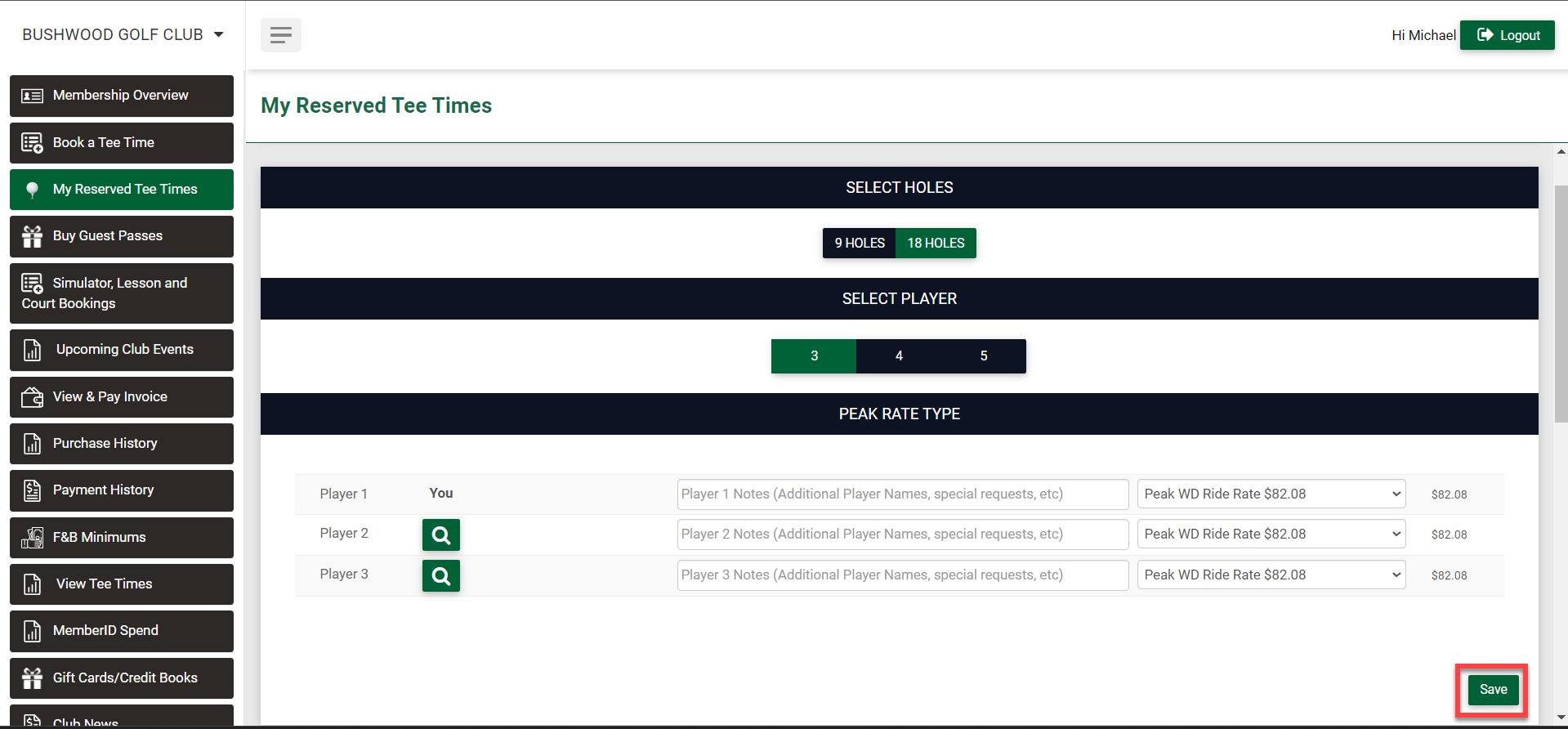
Related Articles
Secondary Email for Invoice
Users can add a secondary email address to receive invoices. This option provides flexibility in determining who receives the invoice communication. Step-By-Step: Step 1: Navigate to Members > Guests > Action > View/Edit. Step 2: Then, Scroll down ...Reset Member Passwords
This article contains step-by-step instructions on how to reset member passwords. Step-By-Step: Step 1: Select the Guest module from the module navigation menu, then click on guest from the left-handed menu. Step 2: Click on the View/ Edit button ...Add a Sub-Member
Article Contents: This article explains how to add sub-member to the primary members. Step-By-Step: Step 1: Click on the "Guests" then click on "Members". Step 2: Select Particular member that you want to add sub-member and click on Action -> ...Online Profile Password Reset
Article Contents: This article contains step-by-step instructions on how to reset member passwords online. Step-By-Step: Step 1: Select the Members module from the module navigation menu, then click on Guests from the left-hand menu. Step 2: For the ...Member List
Article Contents: This article contains a step-by-step guide on how to view your member list. Step-By-Step: Step 1: Click on the Members Tab on the left pane. Step 2: Click on the Members button on the left side of the window to go to the member ...