Ending a Membership
Step 1: Expire Membership Classes.
1.1 Select the GUESTS module from the module navigation menu. Then, double click on the intended guest. The system will open a GUEST PROFILE window.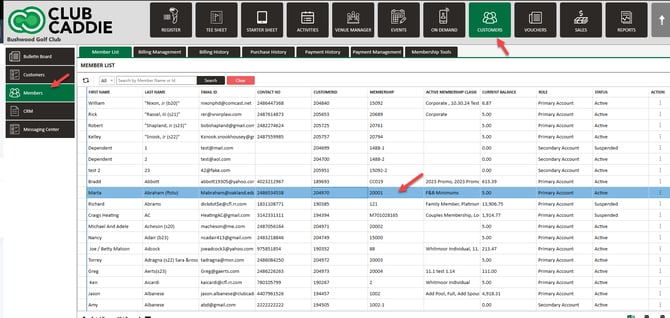
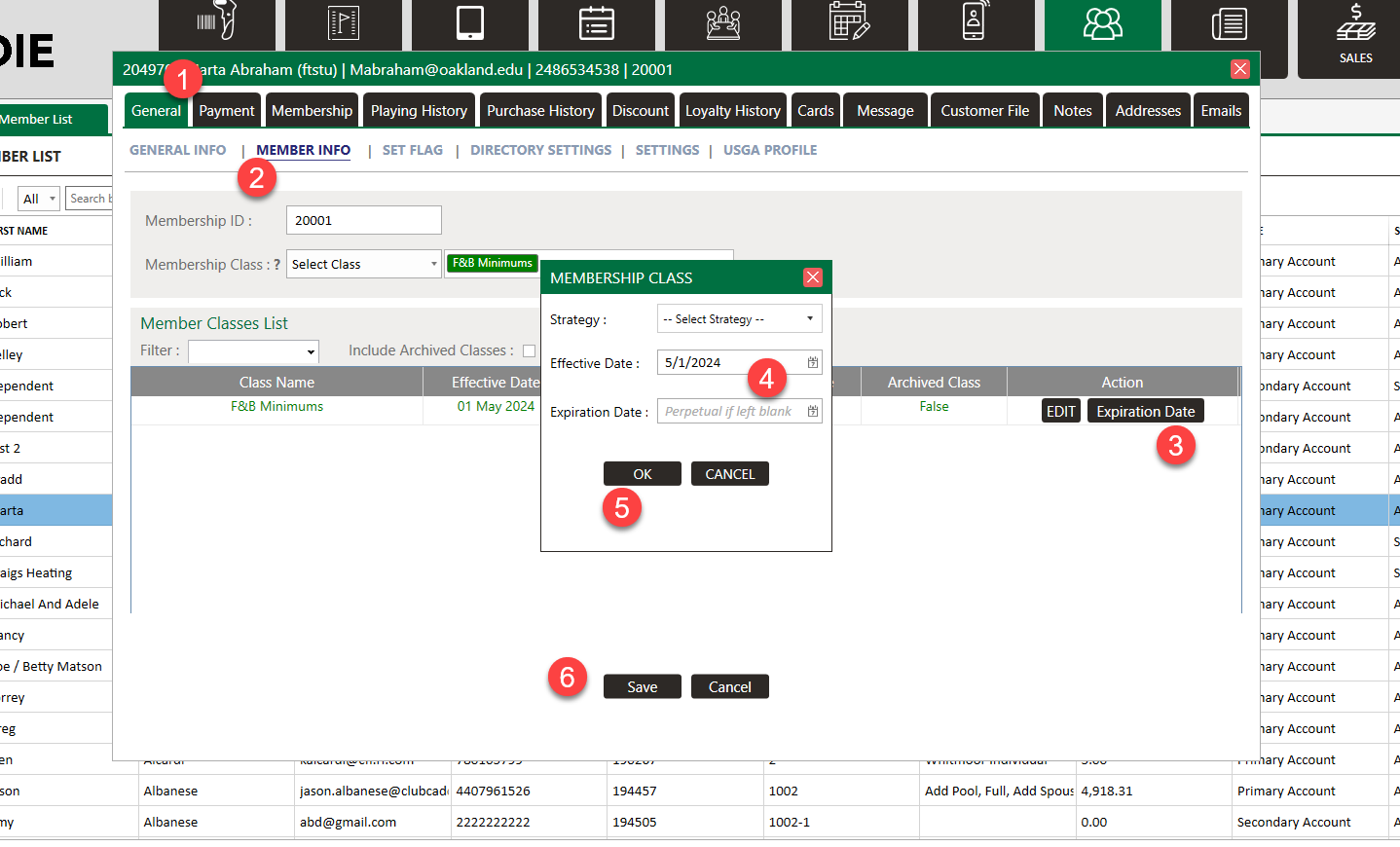
1.2 Under the General tab, click on Member Info. Under Action for the class you wish to expire, click on Expiration Date to generate a Membership Class pop-up. Set to today’s date or the desired end date. Click OK to confirm. The expired member class will now show in the Member Classes List section. Click on the Save button to save the changes for theguestr.
Step 2: Expire Minimum Spend Requirements.
2.1 If the membership has minimums associated with it, navigate to the Membership tab in the GUEST PROFILE window. Select the Minimum Spend Rule tab in the sub-menu, and verify if there are any active minimums. The most recent cycle will show a No under the Isclosed column if the minimums are still active.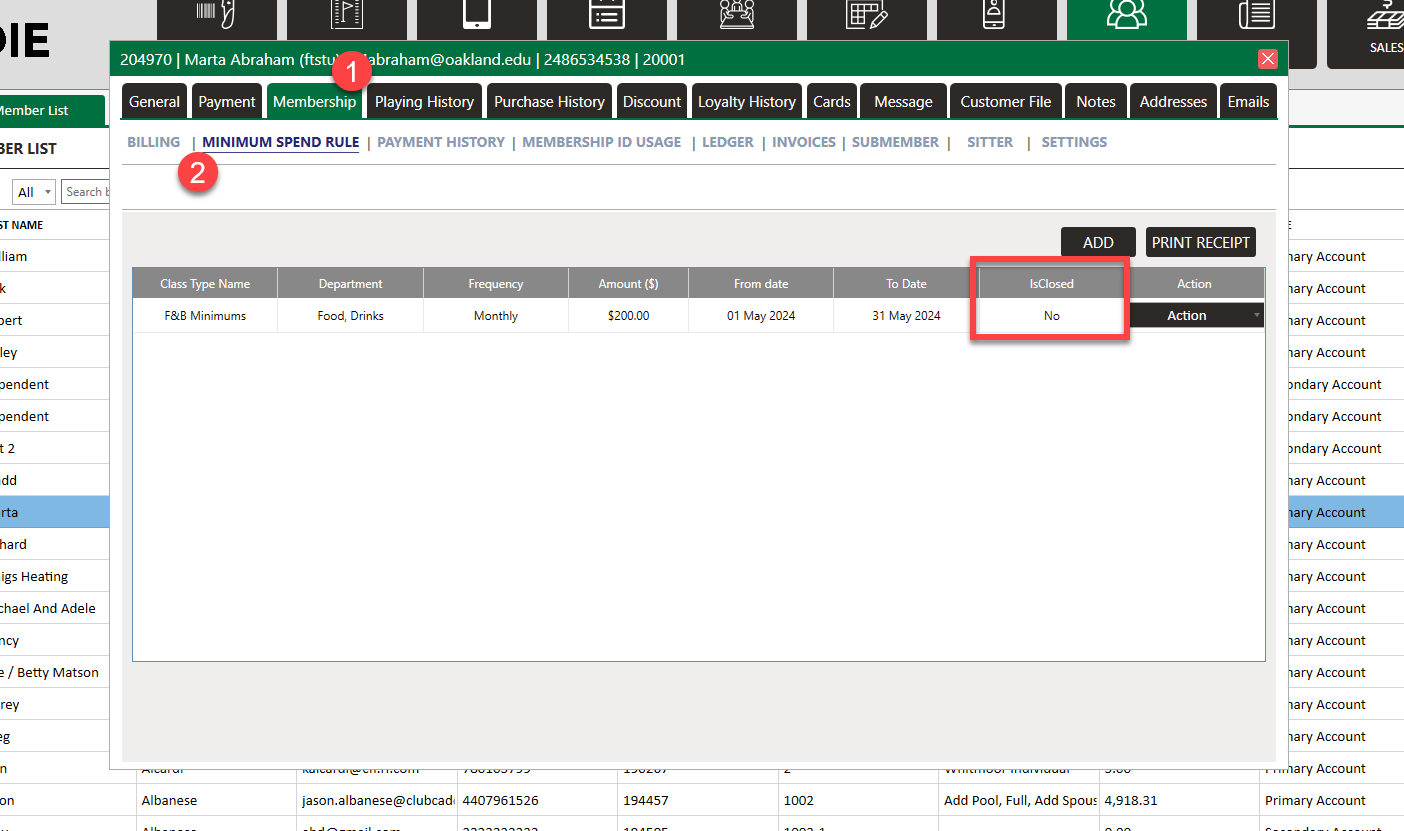
2.2 To expire the minimums, click on the Edit button under the Action panel. Modify the End Date to today’s date or when the cycle should have ended. Click Save.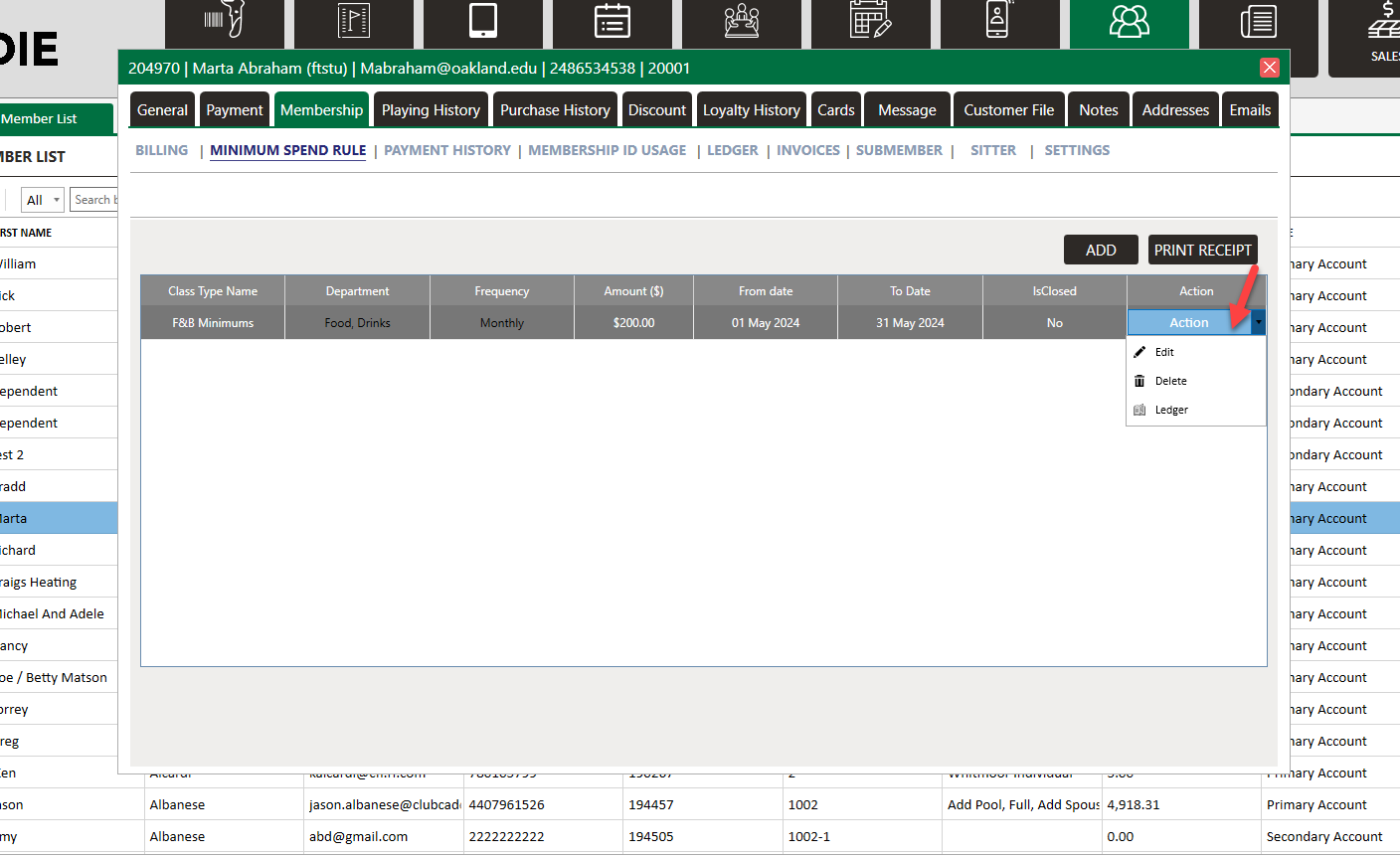
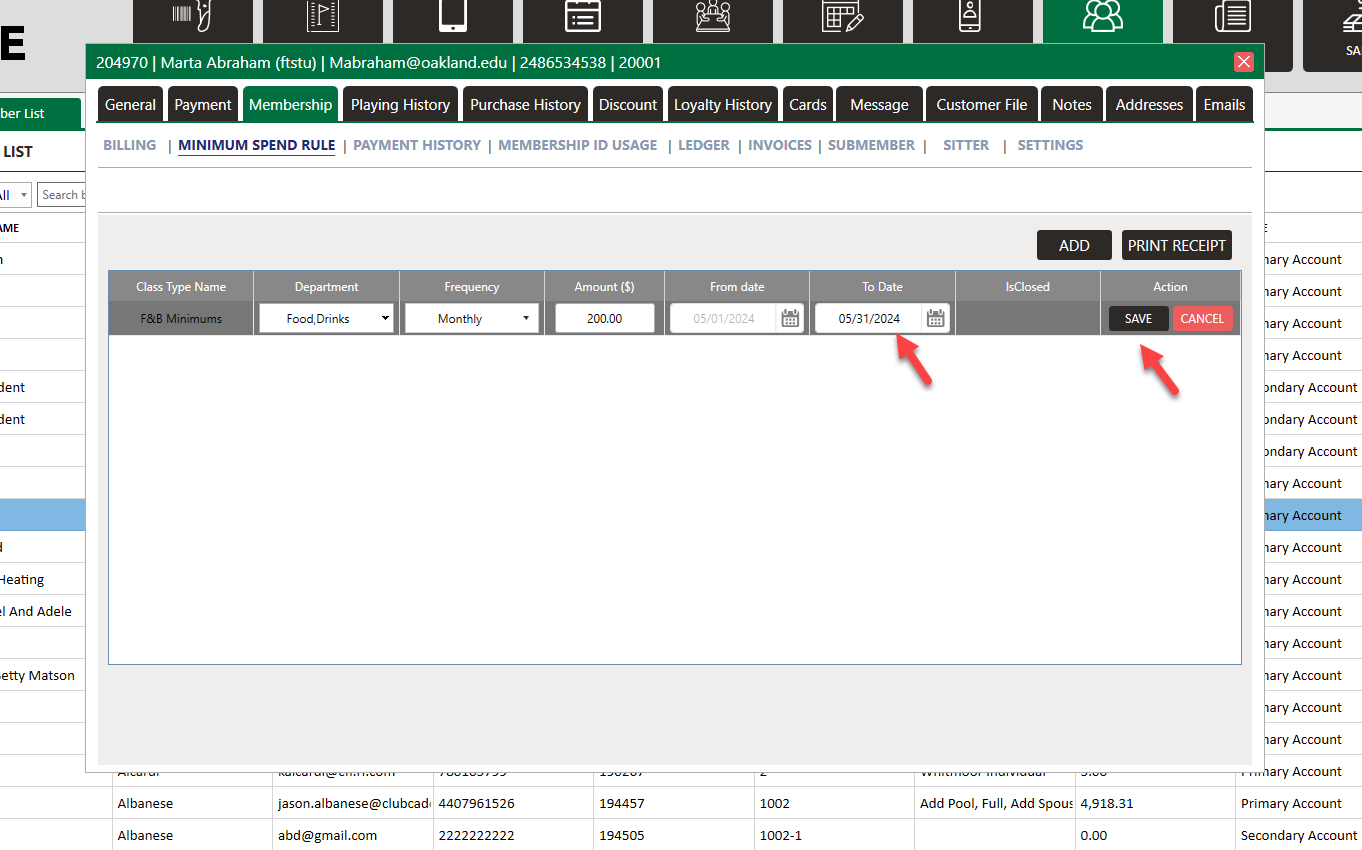
Once both the membership class and the minimum spend requirements have expired, the minimums will no longer repeat going forward.
Step 3: Remove Charging Privileges.
3.1 On the members profile, Select the Membership tab, and then click on Settings in the sub-menu. Locate the Has Charge Account option and disable it (unchecked) to remove the member’s ability to charge amounts to their account.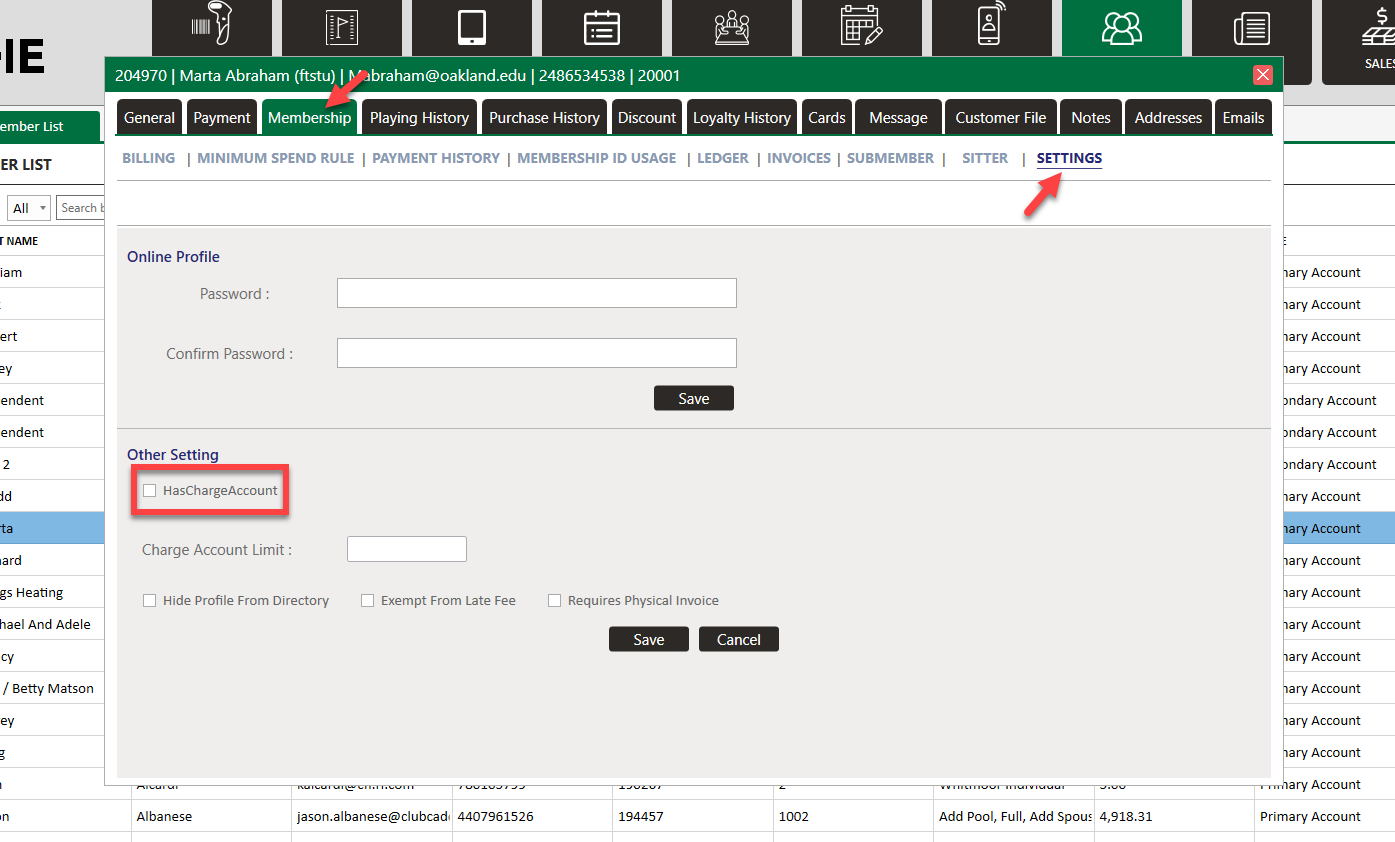
3.2 Click Save at the bottom of the screen to save these changes.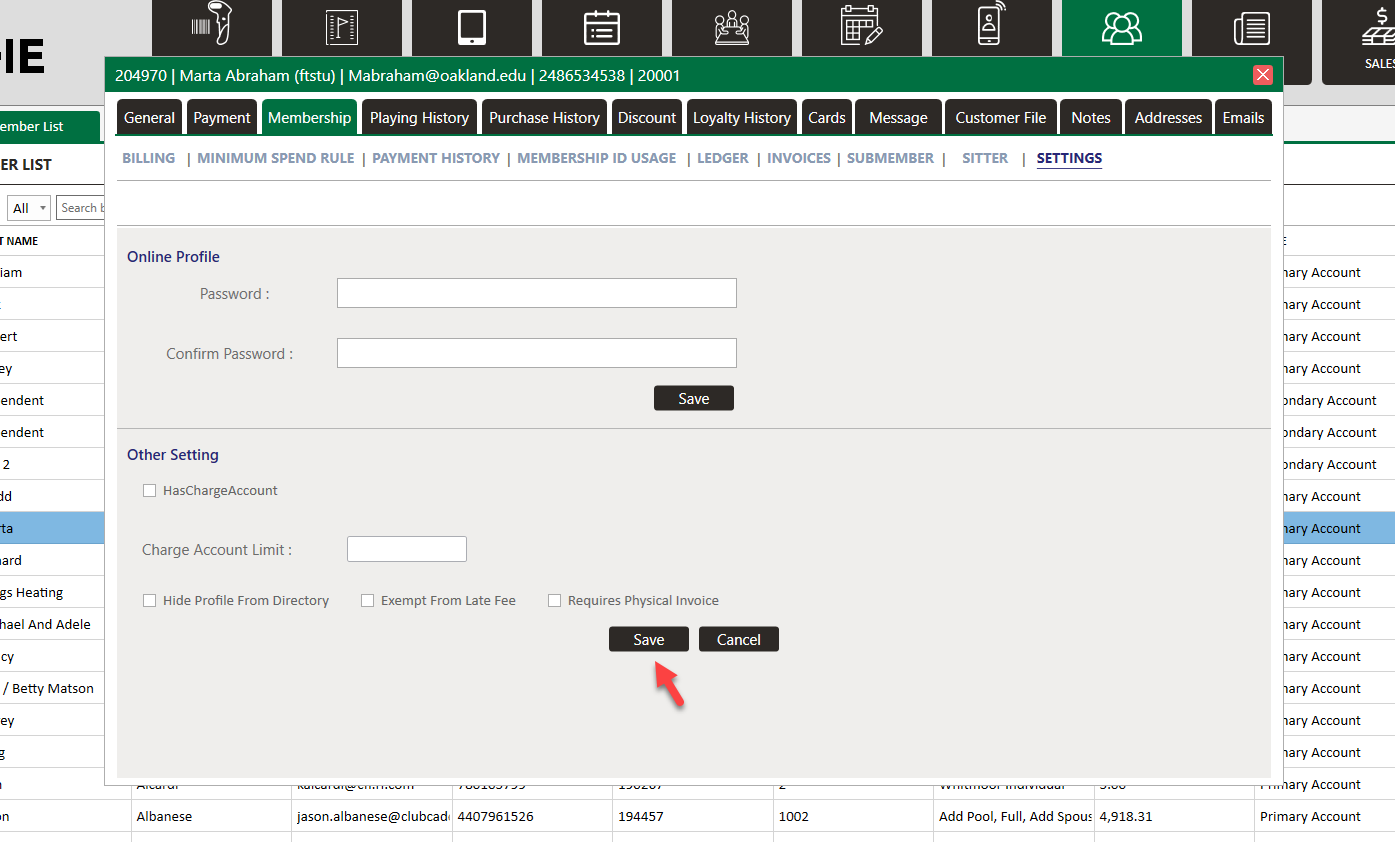
Completing these steps will successfully end a membership by expiring the membership class, expiring any minimums, and removing charging privileges.
Related Articles
Accepting Membership Payments
Article Contents: This article contains step-by-step instructions on how to accept member payments. Step-By-Step: Step 1: Select the POS module from the module navigation menu. Click on the "TOOLS" tab located within the POS module, and then click on ...Membership Class Changes
This article gives step-by step instructions for transitioning golf club memberships from yearly to monthly billing cycles, or vice versa. Step-By-Step: Step 1: Determine the expiration of the current membership class. Following guidelines contained ...Membership and Billing Setup
Article Contents: This article provides a step-by-step guide to setting up and managing memberships in Jonas Synergy. It covers creating guests, signing up members, configuring membership classes, billing and payment settings, generating invoices, ...Membership Portal Builder
Article Contents: This article gives an overview of the Membership Portal Builder. Step-By-Step: The membership portal is a website that allows you to create and manage club members who can access exclusive content, resources, and services. A ...Membership Payment through Saved Card
Article Contents:- This portion summarizes how to Add New Card to make payment through Membership Portal. Step-By-Step: Step 1: Click on the "Gear Wheel" icon from the right top corner of the window. Select "I-Frames" from the left row of the window. ...