Membership and Billing Setup
It covers creating guests, signing up members, configuring membership classes, billing and payment settings, generating invoices, viewing member ledgers, and running membership reports.
1.1 Click the Guest Module1.2 Select Guests from the lefthand menu1.3 Click Add Guest1.4 Enter First Name, Last Name, Email, Mobile (required fields), and any other information available.
Step 2: Signup Member
3.1 Create a custom member ID or let Jonas Synergy create one by default.3.2 Then, from the list of dropdowns, select the member class or classes to associate to this account.
When setting up these classes, you'll need to specify an 'Effective Date,' which is usually the current date. However, you can set this to a future date, but the guest will NOT have charging privileges until that future date.
The "Pay by Charge Account" setting automatically bills members the full fees for a class on their next invoice.
This setting is recommended to simplify billing. Disable it only if prorating fees for mid-cycle joins.
To prorate:
- Disable "Pay by Charge Account"
- Make ledger adjustments to charge partial fees
Enabling "Pay by Charge Account" bills full class fees automatically. Disable it and adjust the ledger to prorate fees for mid-cycle joins.
Step 5: Billed Till Date
Classes set without expiration dates will auto-renew each billing cycle. The 'Bill Till Date' setting controls whether they are charged at the end or beginning of the cycle.
Membership Settings Defined:
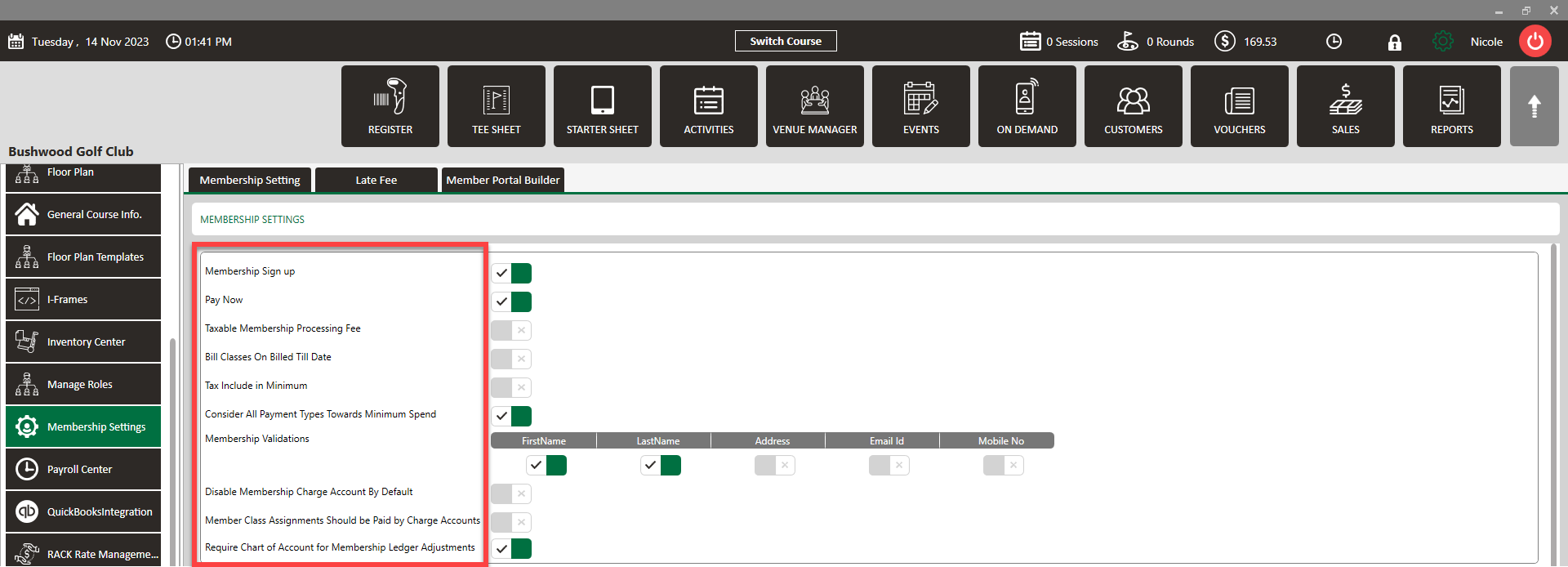
- Membership Settings: Toggle allowance of signups on/off.
- Taxable Membership Processing Fee: Any member class that has a processing fee tied to it can be taxed by selecting this setting on.
- Bill Classes on Bill Till Date: The bill till date above normally posts to an account a day after the date, unless this setting is on then it will post that day.
- Tax Included on Minimum: Minimum spend rules can be taxed with this setting on.
- Consider all Payment Types Towards Minimum Spend: You can use all payment types towards your minimum spend rules. Some courses only allow cash, some members charge accounts.
- Member Validations: What is required from the member to sign up as a member? First name, last name, email, phone, address.
- Disable Membership Charge Account by Default: This disables ALL members from having a charge account. Meaning everything is paid for on the spot.
- Require COA for membership ledger adjustments: Chart of accounts are required to make ledger adjustments, this is to track adjustments made in the general ledger report and QuickBooks.
Billing Settings Defined
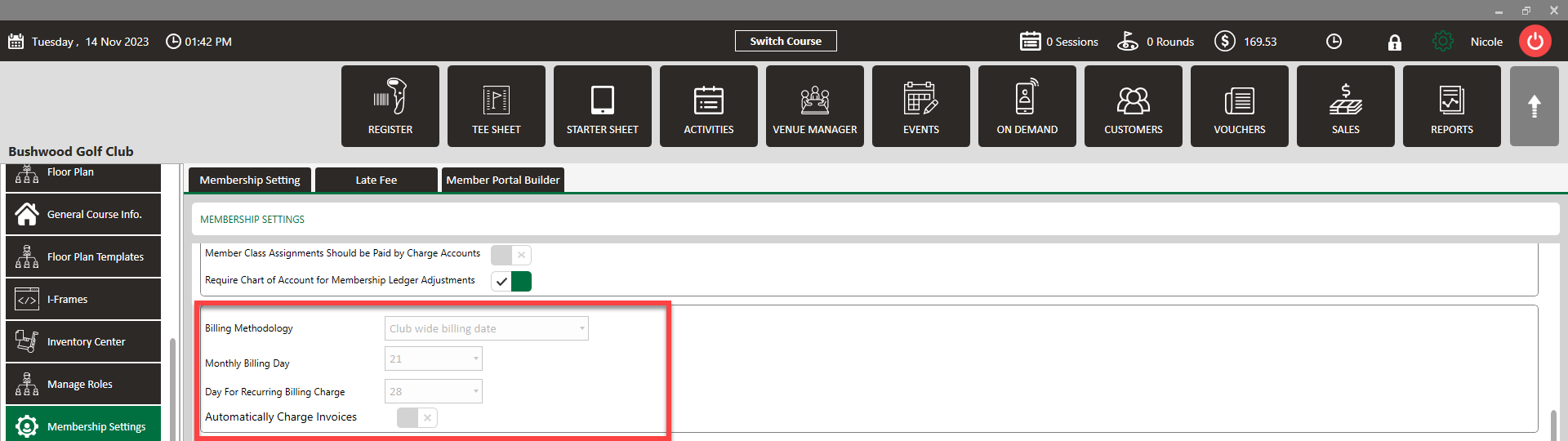
- Billing Methodology: Jonas Synergy has two types of methods. First is the club wide billing date, which means all members are billed/charged the same day’s for their monthly memberships, charge accounts, golf etc… The individual billing means manually setting these based on signup dates and when members need to be billed.
- Monthly Billing Day: This is the day invoices are generated for past months bills. If that day is the 21st of November then it covers October 21st - November 20th. Invoices will be sent to members if the setting for auto email invoices is turned on.
- Day for recurring billing charge: This is the day that members cards are charged. If there is a card on file there will be a direct charge for that balance of their invoice. If there is no card on file, it will sit on their account as a balance.
Invoice Due After Days:
The Invoice Due After Days setting controls how many days after an invoice is created/posted the invoice Due Date will be set. Enter the number of days (e.g., 30) and save to automatically apply that due date window to newly generated invoices.
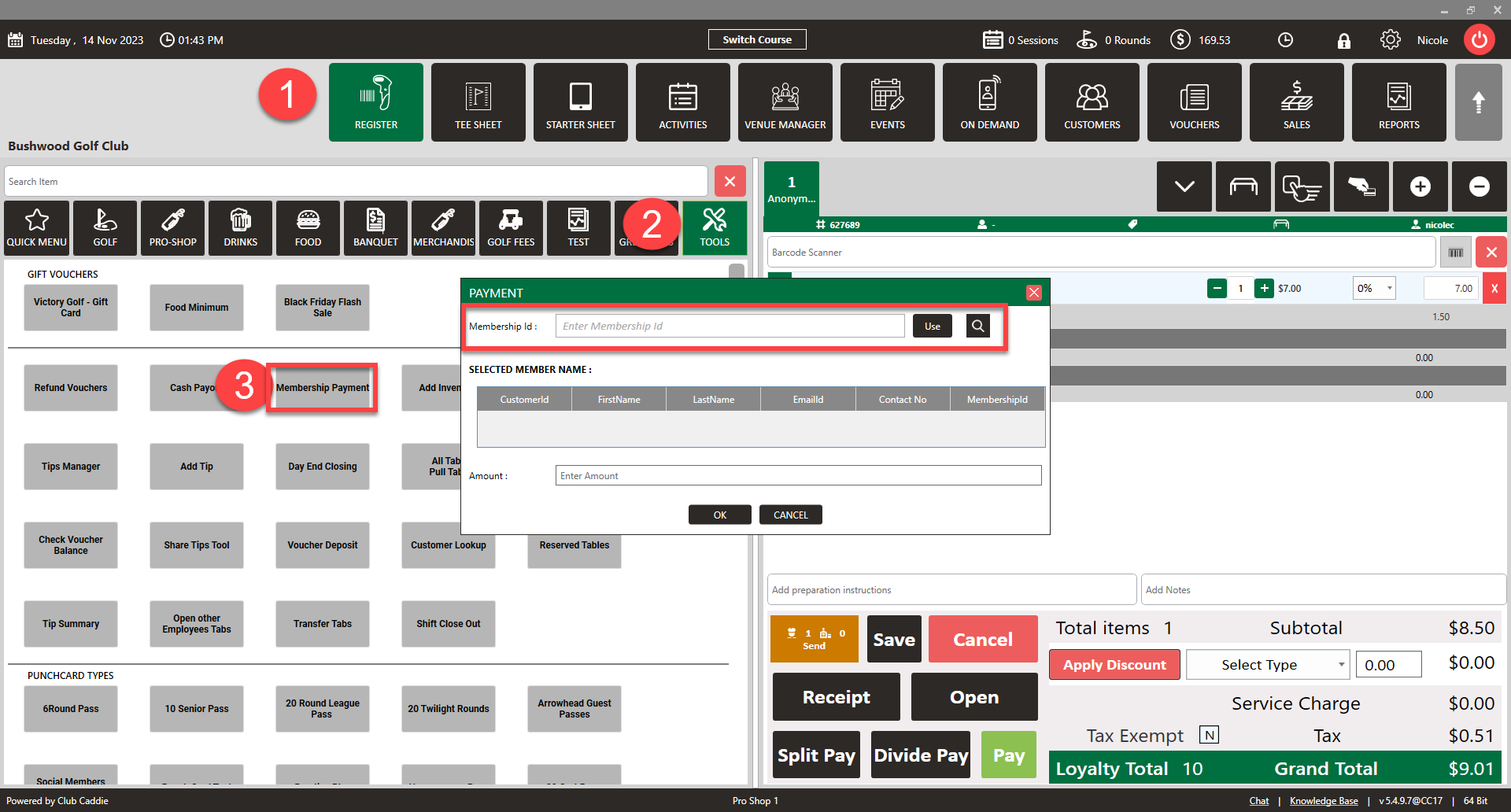
Manual Member Payment
- To make a manual payment please go to point of sale → Tools → Membership Payment. Select the member, enter the amount, and finalize the payment.
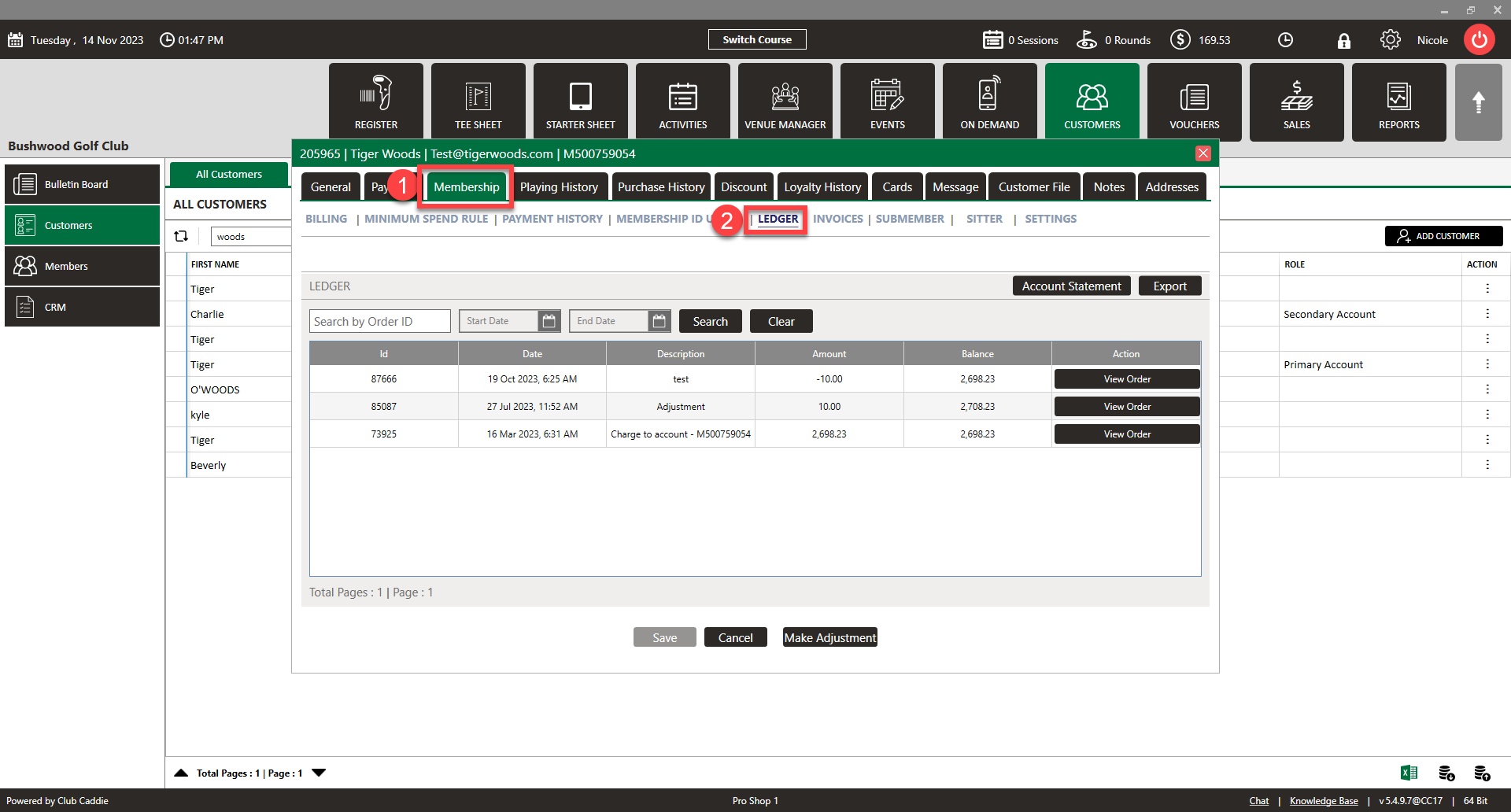
Member Ledger & Invoices
- Ledger: To view a members ledger please go to the members account → click membership → then click ledger.
Invoices: To view and export a members previous invoice please go to the members account → click membership → click invoices.
Member Reports Explained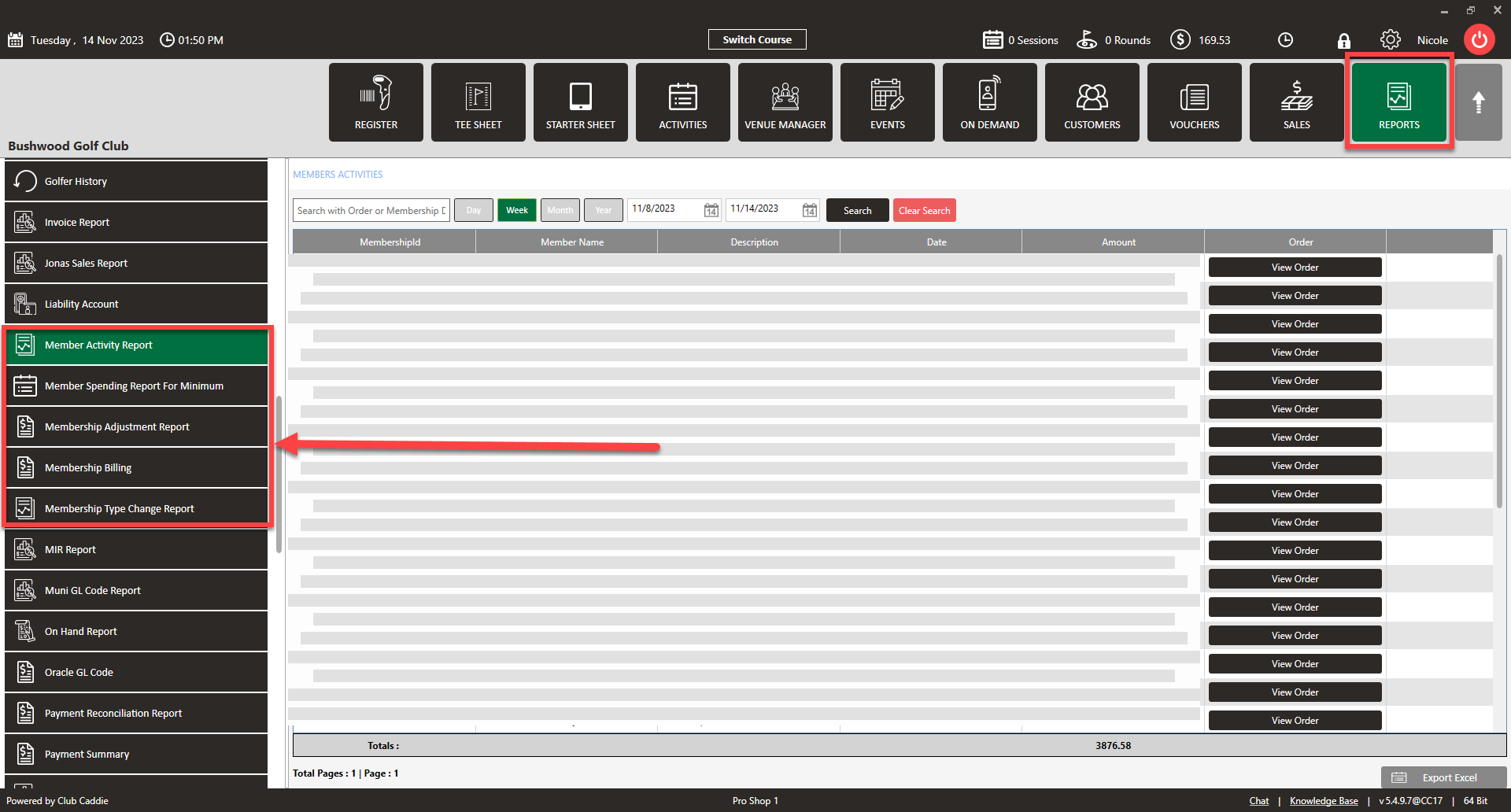
- Member Activity Report: This report shows every member's account changes. Payments, voids, account charges, bills etc.
- Member Spending Report For Minimum: This report shows each member's name, ID, minimum amounts and what they have remaining to spend prior to the end of the month.
- Member Adjustment Report: This report is for ledger adjustments made to members accounts to adjust balances.
- Membership Billing: This report shows classes, lifetime/current class counts and the next bill amounts for each class. Export the expanded view report to break it down by each class further.
- Membership Type Change Report: This report shows each member class add/change/removal. It shows the name of the member, what member class they have the action taken and when. It will also show if it is assigned or expired.
Related Articles
Membership Class Changes
This article gives step-by step instructions for transitioning golf club memberships from yearly to monthly billing cycles, or vice versa. Step-By-Step: Step 1: Determine the expiration of the current membership class. Following guidelines contained ...Membership Portal Builder
Article Contents: This article gives an overview of the Membership Portal Builder. Step-By-Step: The membership portal is a website that allows you to create and manage club members who can access exclusive content, resources, and services. A ...Notifying Members of the Membership Portal
We recommend sending members an email with step-by-step instructions to access your facility's membership portal. Depending on enabled features, members can view transactions, invoices, payments, as well as book tee times and activities. Step 1: ...Ending a Membership
This article provides step-by-step instructions on how to completely end a membership. This includes expiring membership classes, expiring minimums if applicable, and removing charging privileges. Step-By-Step: Step 1: Expire Membership Classes. 1.1 ...Accepting Membership Payments
Article Contents: This article contains step-by-step instructions on how to accept member payments. Step-By-Step: Step 1: Select the POS module from the module navigation menu. Click on the "TOOLS" tab located within the POS module, and then click on ...