How to Suspend & Restore a Member
Kindly note that suspending a member does NOT halt billing. To discontinue billing, an expiration date must be set on the Guest profile as the date when billing should stop. Instructions on setting an expiration date can be found at Member Management - Assign Member Classes
Step-By-Step:
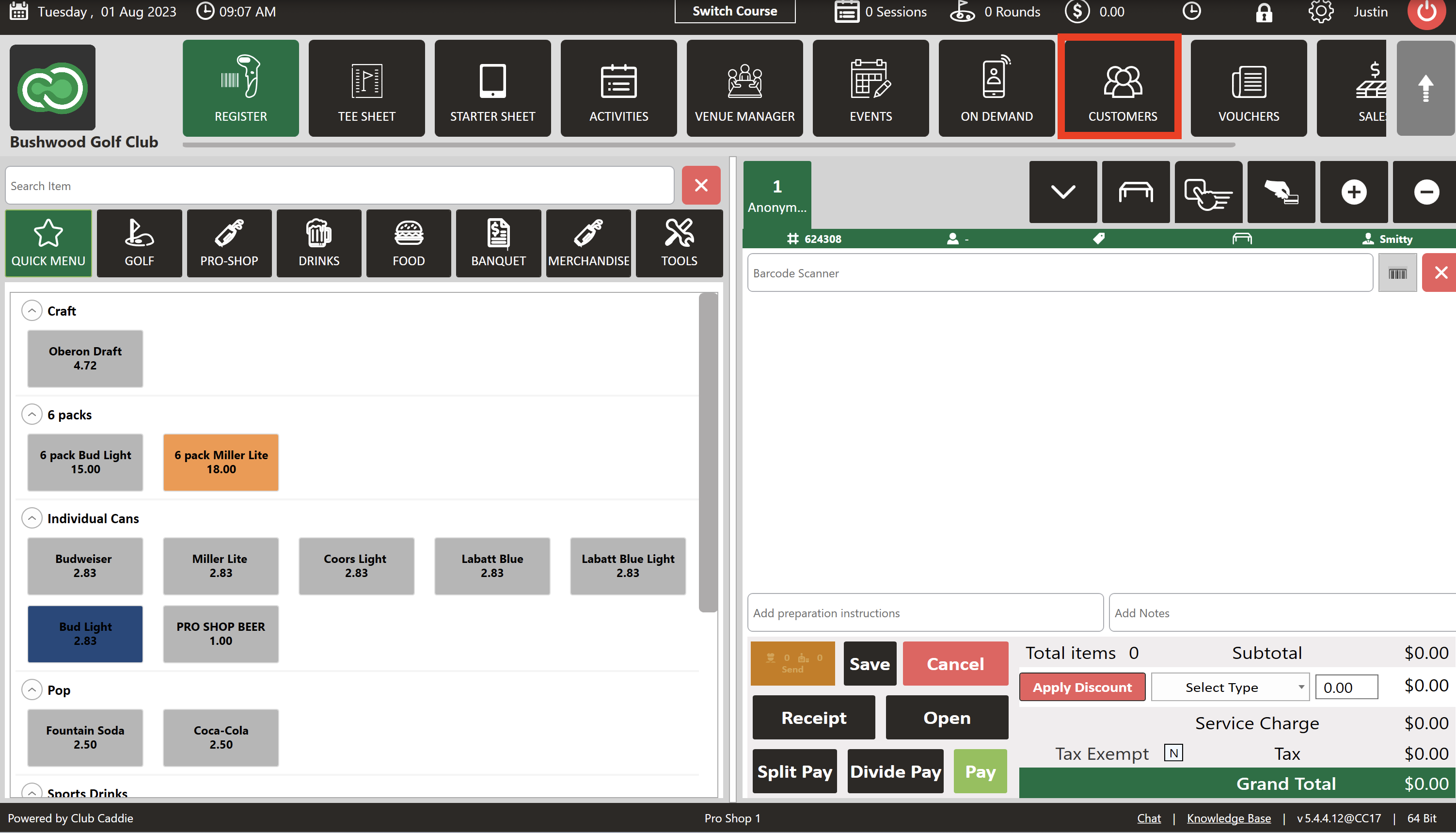
Step 1: Navigate to the Guests module, located in the top section of the software interface.
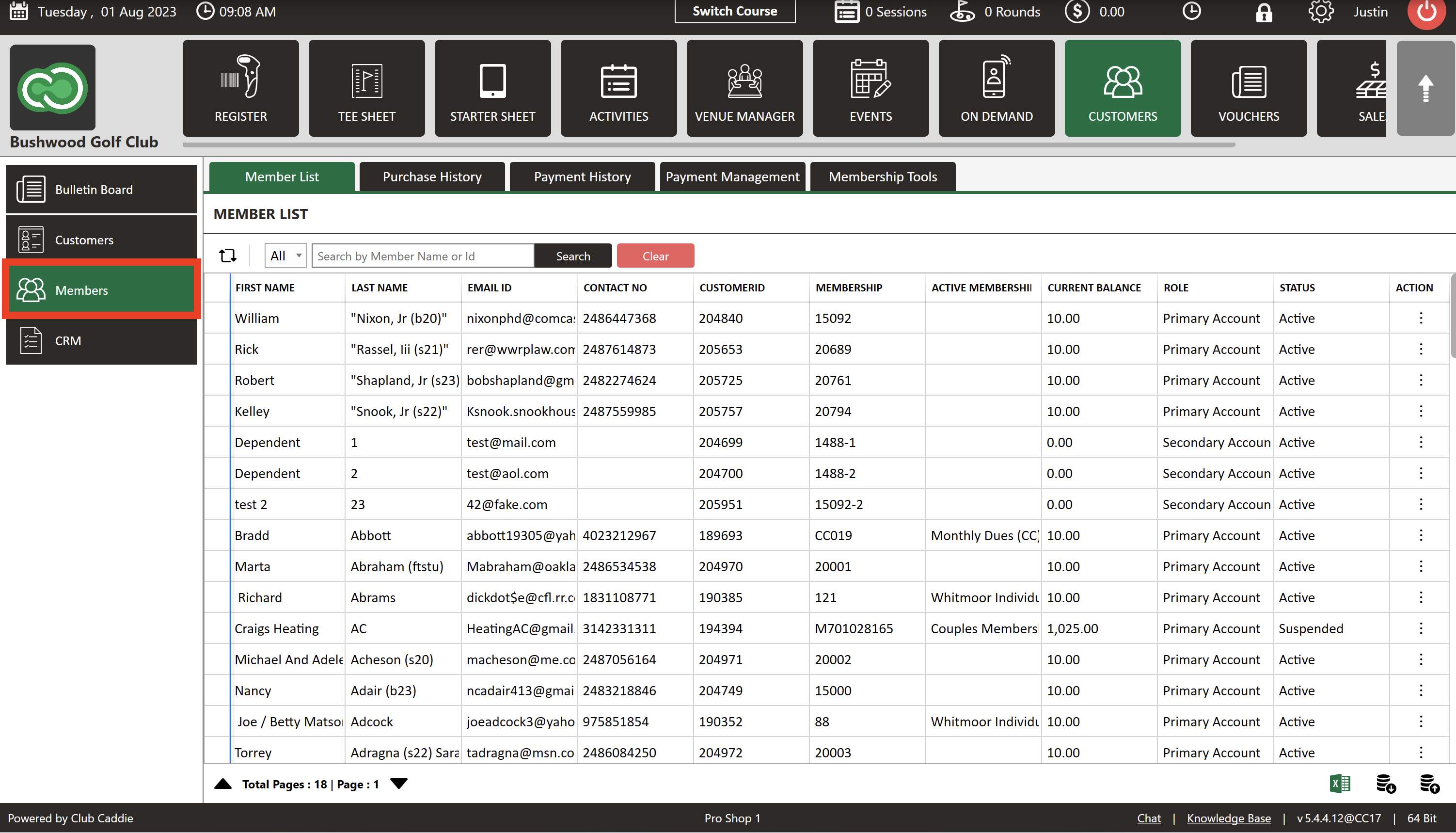
Step 2: From the left pane menu, select ' Members.'
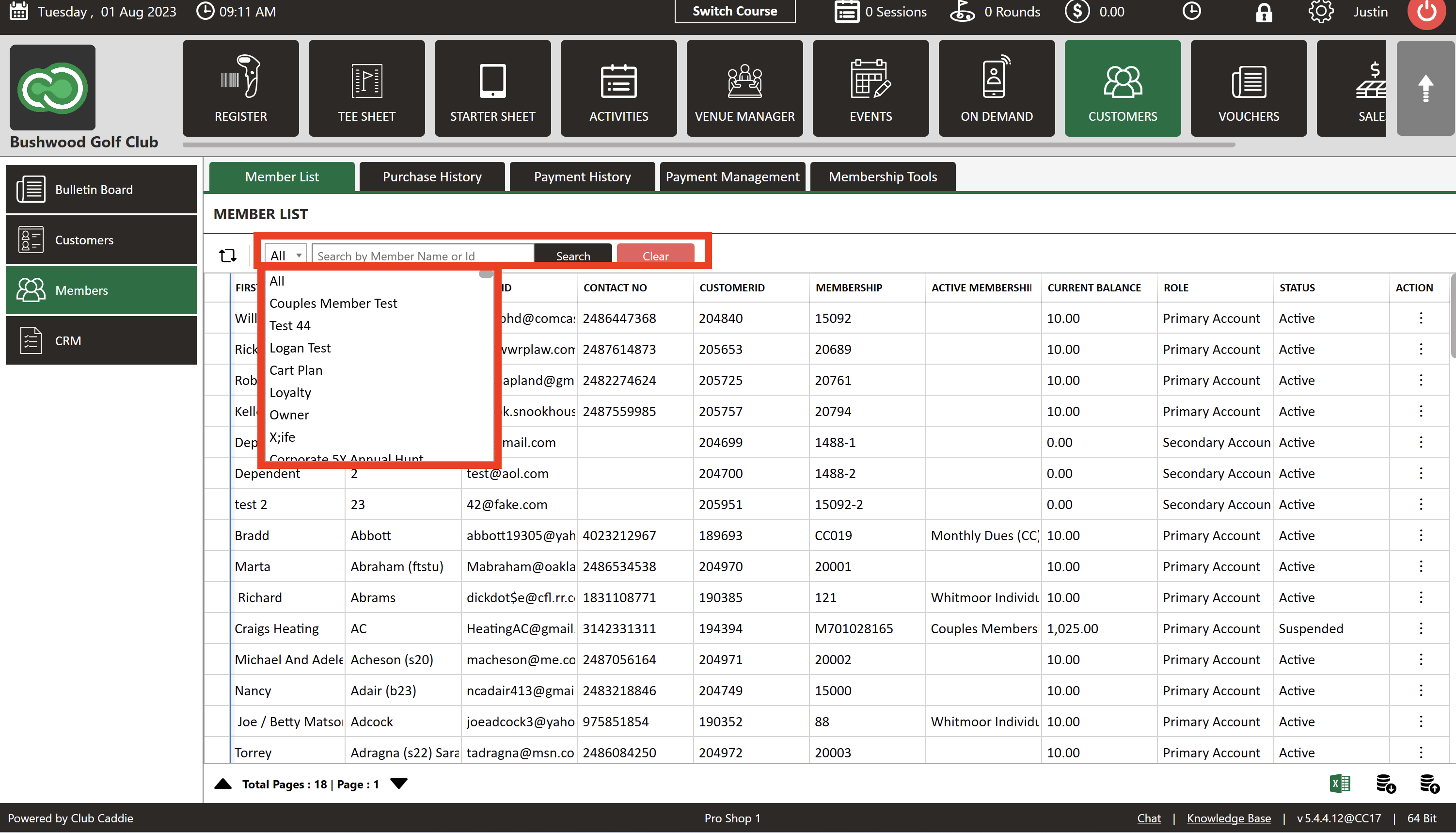
Step 3: Use the scroll feature to select the member in question or use the search bar to find them. The search bar accepts inputs of either Member Name or ID. A dropdown beside the search bar also allows you to filter the members by membership type.
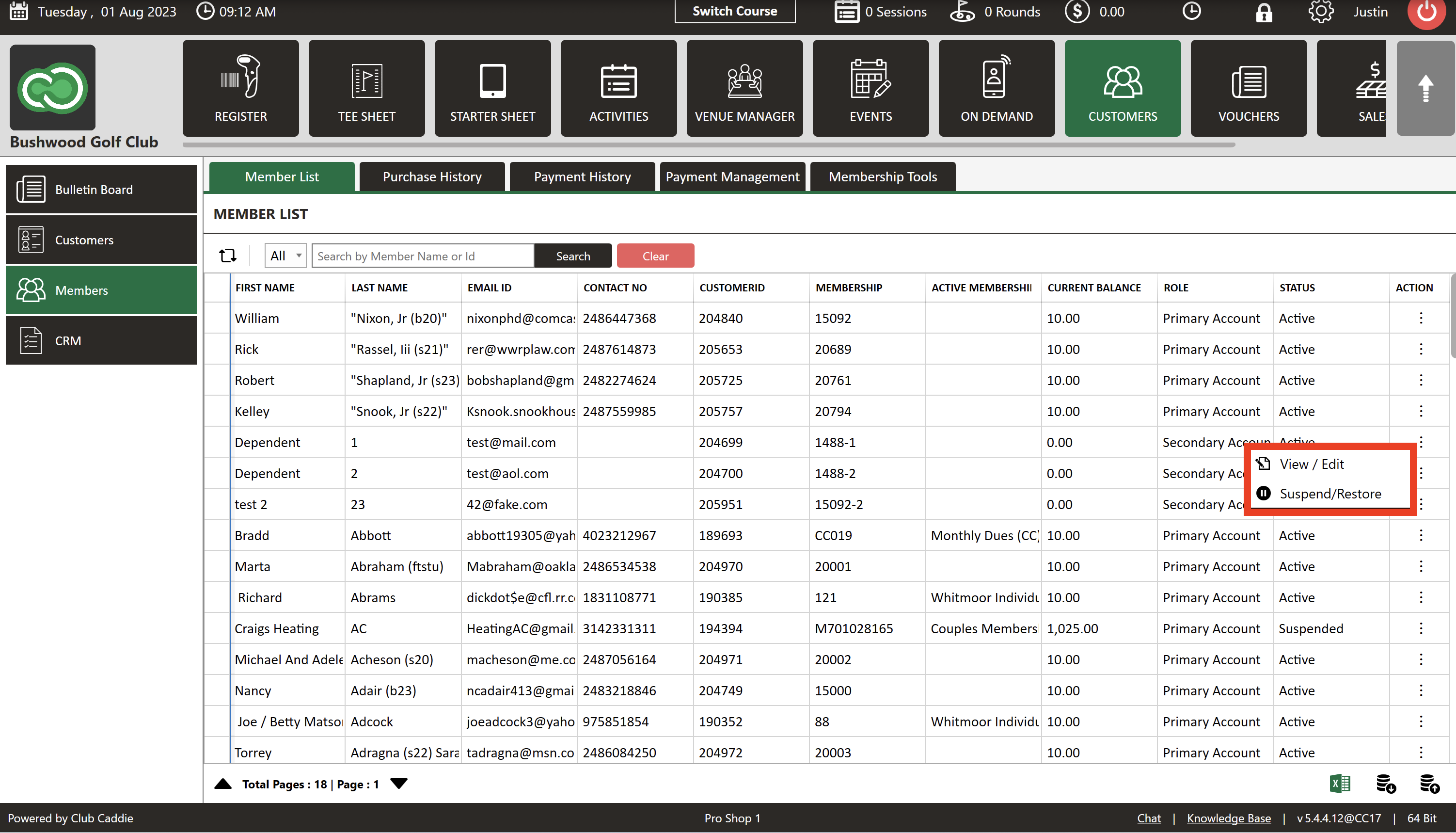
Step 4: Once you've located the member, click the three dots present in the ACTION menu. Select 'S uspend/Restore' from the drop-down options.
Step 5: A pop-up window will appear, asking ' Are you sure that you want to Suspend the Membership of [Member Name]?' Select ' OK' to confirm the suspension or ' Cancel' to abort. After confirming, a pop-up window will appear stating ' Membership Suspended Successfully.'
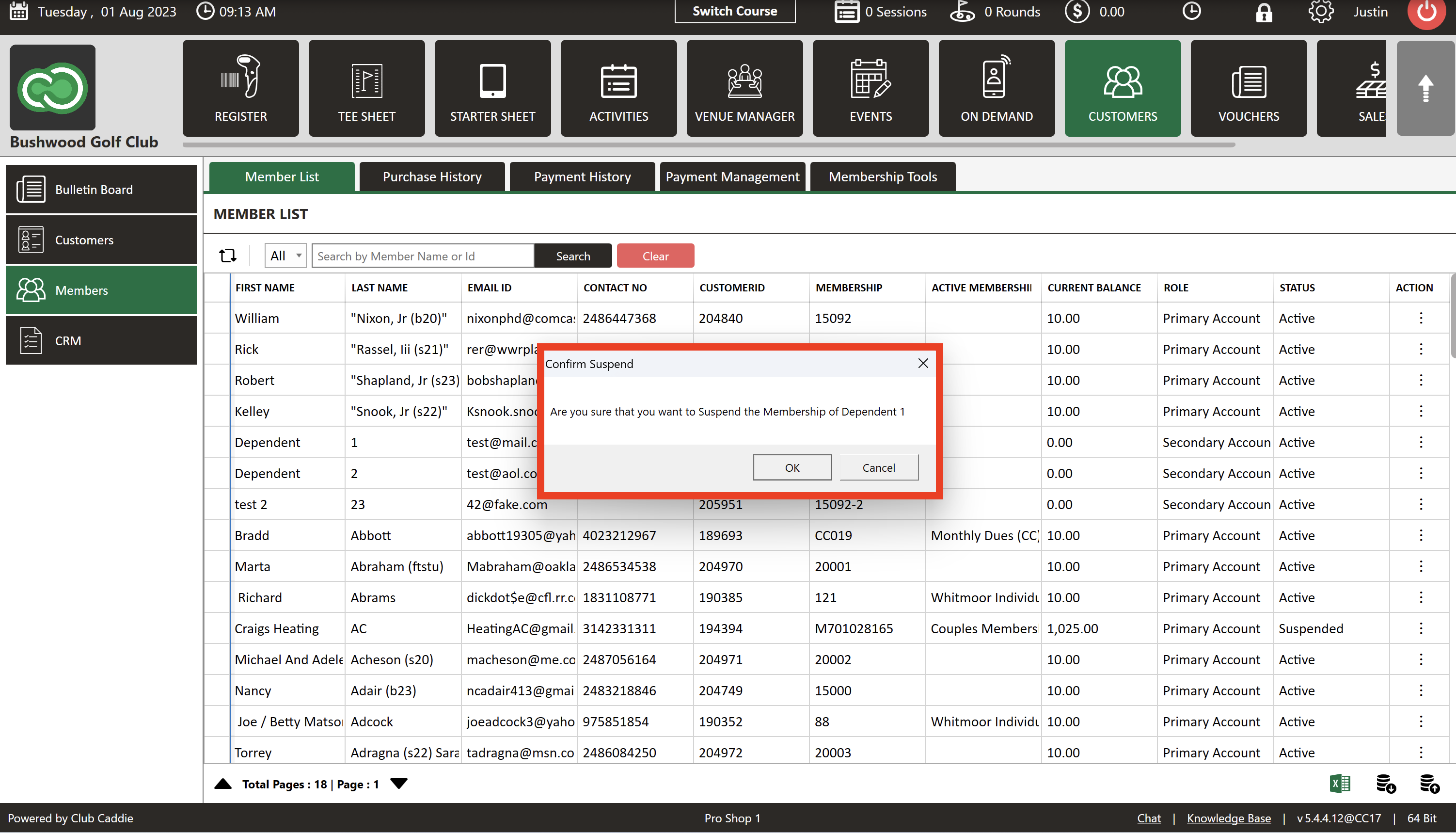
Step 6: In the ' Members' window, post-suspension, the status column for the respective member will now display a ' Suspended' status.
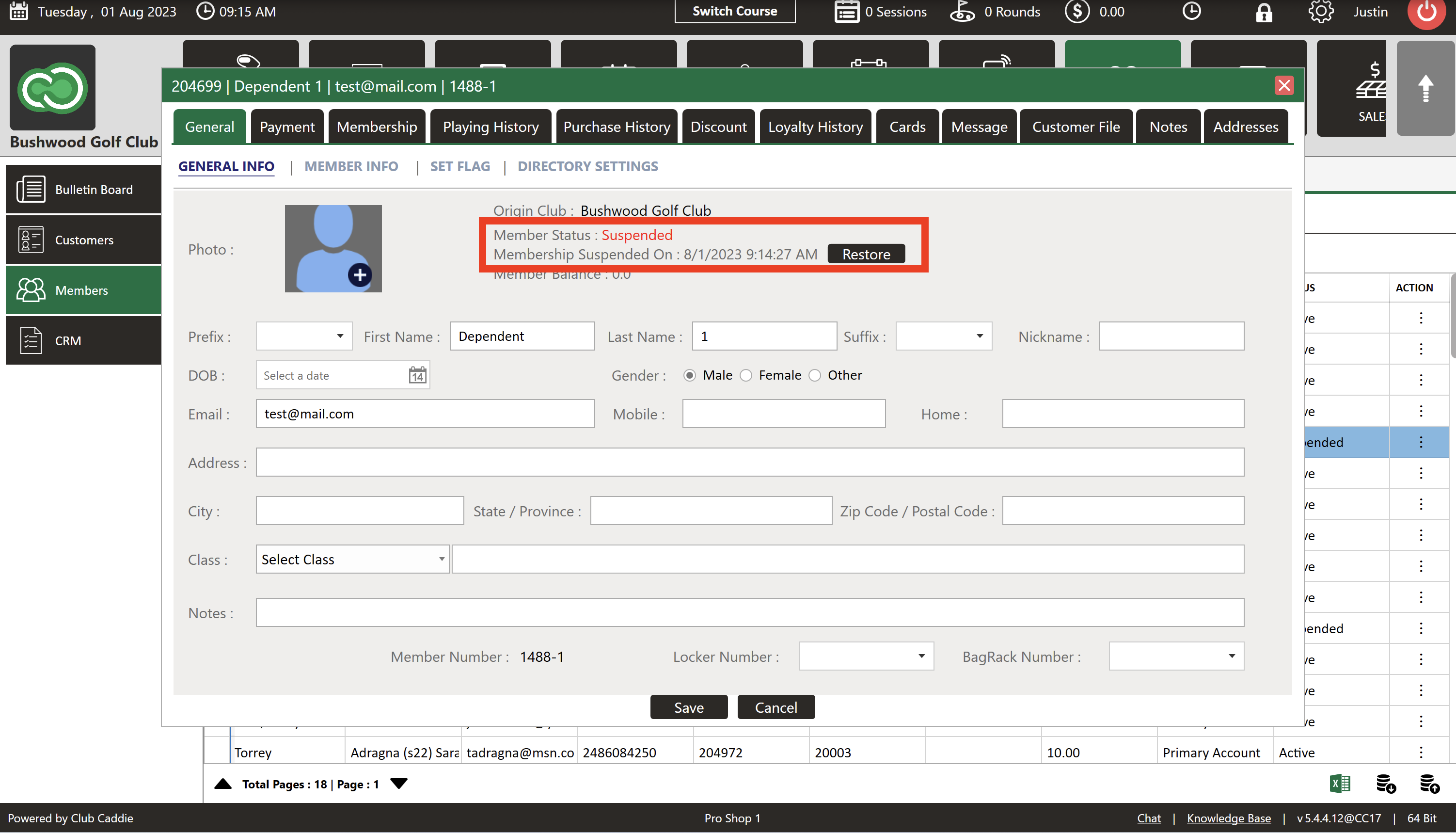
Step 7: Additionally, within the Guest's Profile, the Member Status will be marked 'Suspended' in red letters, highlighting the current status. Along with noting the date that the Membership was Suspended On. The Restore Button pictured above can be used to Restore the membership.
Step 8: To remove the suspension at a later date, click the restore button within the Guest's profile, or click the three dots in the ACTION menu and select ' Suspend/Restore' from the list of options.
Related Articles
Member List
Article Contents: This article contains a step-by-step guide on how to view your member list. Step-By-Step: Step 1: Click on the Members Tab on the left pane. Step 2: Click on the Members button on the left side of the window to go to the member ...Member Ledger
This article summarizes Member Management-Member Ledger Step-By-Step: Step 1: Click on the "Customers" tab located at the top navigation bar. Step 2: Select the "Members" tab from the left-hand navigation menu, you will find the “Members List” in the ...Add a Sub-Member
Article Contents: This article explains how to add sub-member to the primary members. Step-By-Step: Step 1: Click on the "Guests" then click on "Members". Step 2: Select Particular member that you want to add sub-member and click on Action -> ...Assign Member Classes
Article Contents: This article gives step-by-step instructions on how to assign a member class to a member. Step-By-Step: Step 1: Select the members module from the module navigation menu. Here you will see a list of all the members. Step 2: Click on ...Downloading Member Invoice
This article gives step-by-step instructions on how to download member invoices. Step-By-Step: Step 1: Select the CUSTOMERS module from the module navigation menu. The system will show a list of all the customers within the CUSTOMER LIST. Step 2: ...