Register - Adding/Removing Items from Quick Menu

Register : Adding or Removing Items from Quick Menu

Article Contents: This article contains information about how to Add/Remove items from the QUICK MENU.

Step-By-Step: 

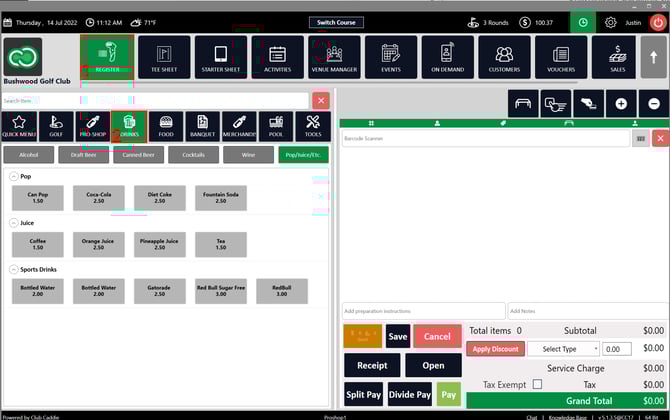
Step 1:  Click on the  REGISTER (1) module and select a department to modify from the left pane (Ex.  FOOD,  DRINKS,  BANQUET) (2). 
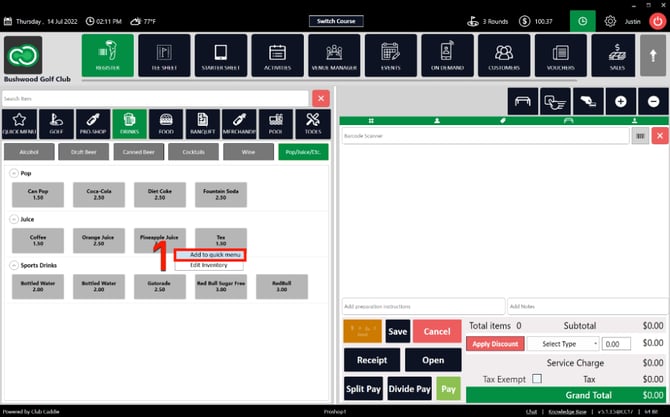
Step 2:  To add the most frequently used items for easy access to the  QUICK MENU, (for example  Tea from the   DRINKS  department), right-click on an item and click  Add to quick menu (1) from the drop-down. Once the system has included the item in the  QUICK MENU, the user will receive a confirmation notification. The user can now access the added item directly from the  QUICK MENU.


Step 3:  To remove an item from the  QUICK MENU for any reason, go to the  QUICK MENU tab, right-click on the item to be removed, and click on "Delete from Quick Menu". Once the system has removed the item from the  QUICK MENU, it will send a confirmation notification.


When you delete an item from the Quick Menu, this will not delete the item from it's original department.


Was this article helpful?
YesNo
    • Related Articles

    • Register : Adding Preparation Notes Per Item

      Article Contents: This article gives instructions on how to add preparation instructions to an item in the register module. Step-By-Step: Step 1: To add preparation instructions to an item, select the item on the registration tab, and click on the ...
    • Register : Merging Tabs

      Article Contents: This article gives step-by-step instructions on how to merge two tab's items into one tab in the register. Step-By-Step: Step 1: Select the REGISTER module from the module navigation menu. Step 2: Add items in the tab. Step 3: Add ...
    • Register : Scanning a Barcode

      Article Contents: This article contains step-by-step instructions on how to scan an items barcode directly from the register using a compatible barcode scanner. Step by Step Step 1: Select the REGISTER icon (1) from the top navigation bar and then ...
    • Register - Edit Inventory

      Article Contents: This article gives step-by-step instructions on how to edit inventory. Step-By-Step: Step 1: Select the REGISTER module from the module navigation menu. Step 2: Right-click on the item in the register that is to be edited and click ...
    • Register : Sending Orders to the Kitchen or Bar

      Article Contents This article contains step-by-step instructions on how to send an order to a Kitchen/Bar. Step-by-Step: Step 1: Navigate to the register and add items for the order. After adding all the items to the order, click Send. Step 2: A ...