Register : Sending Orders to the Kitchen or Bar
Step-by-Step:
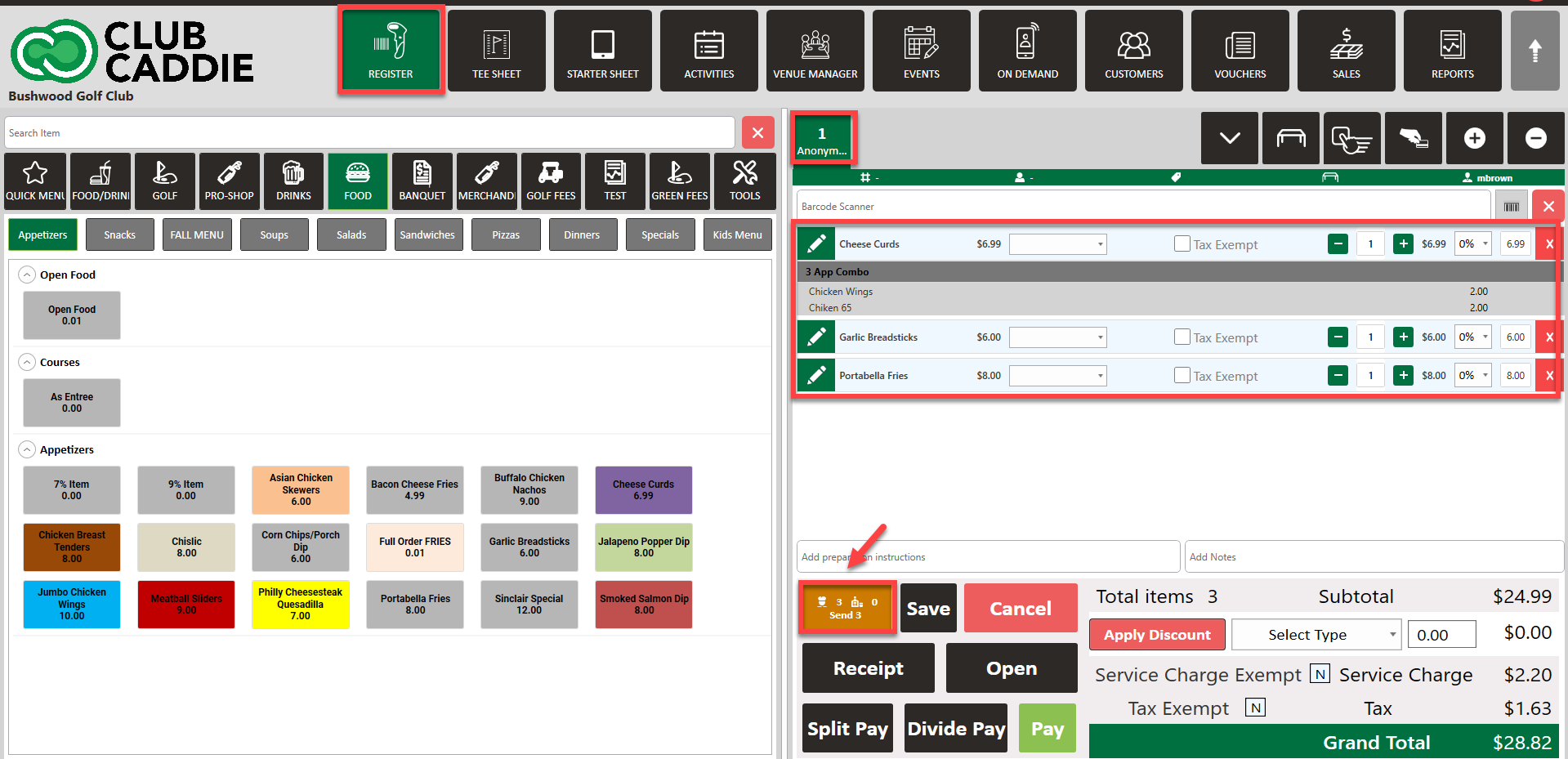
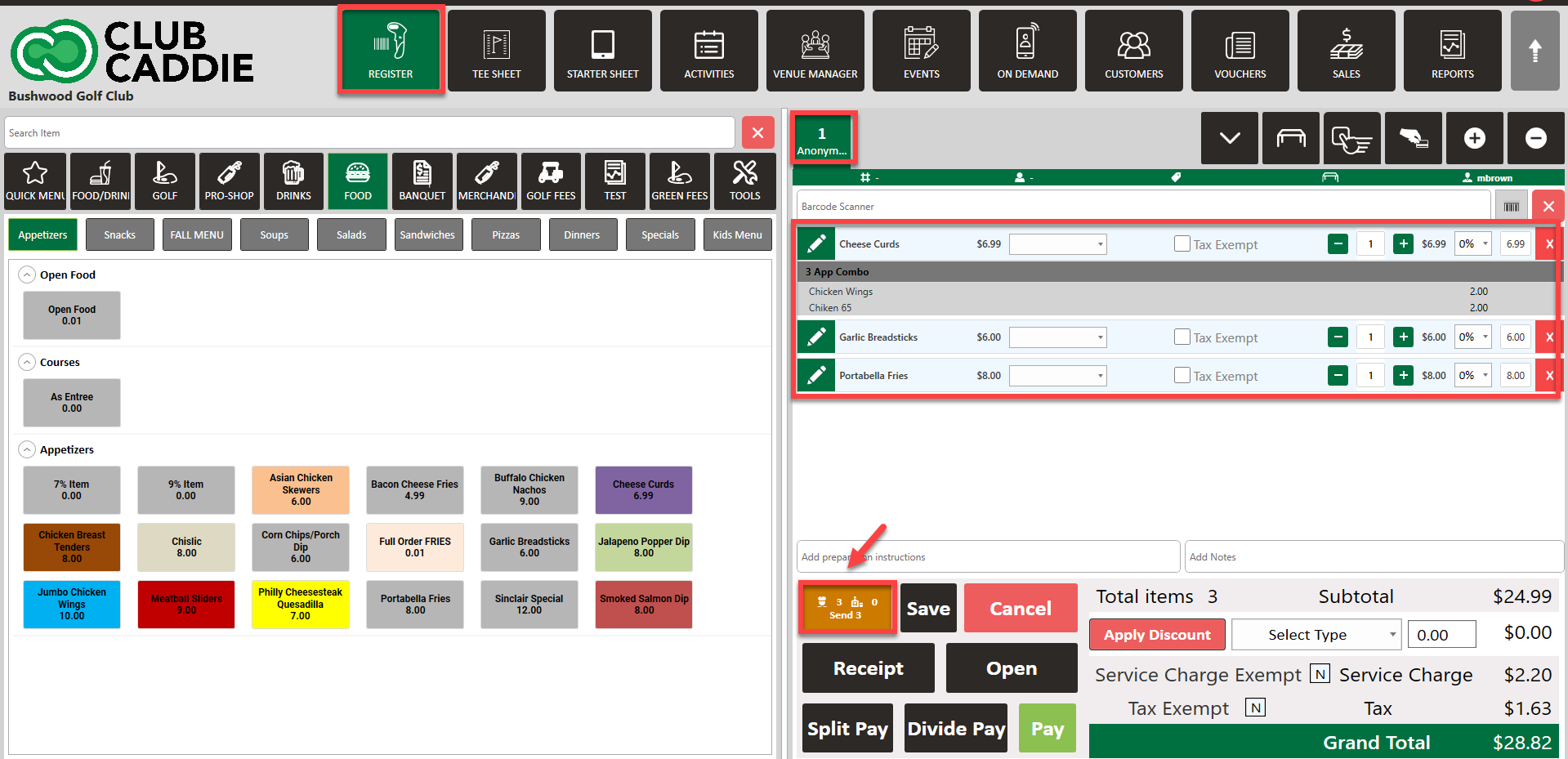
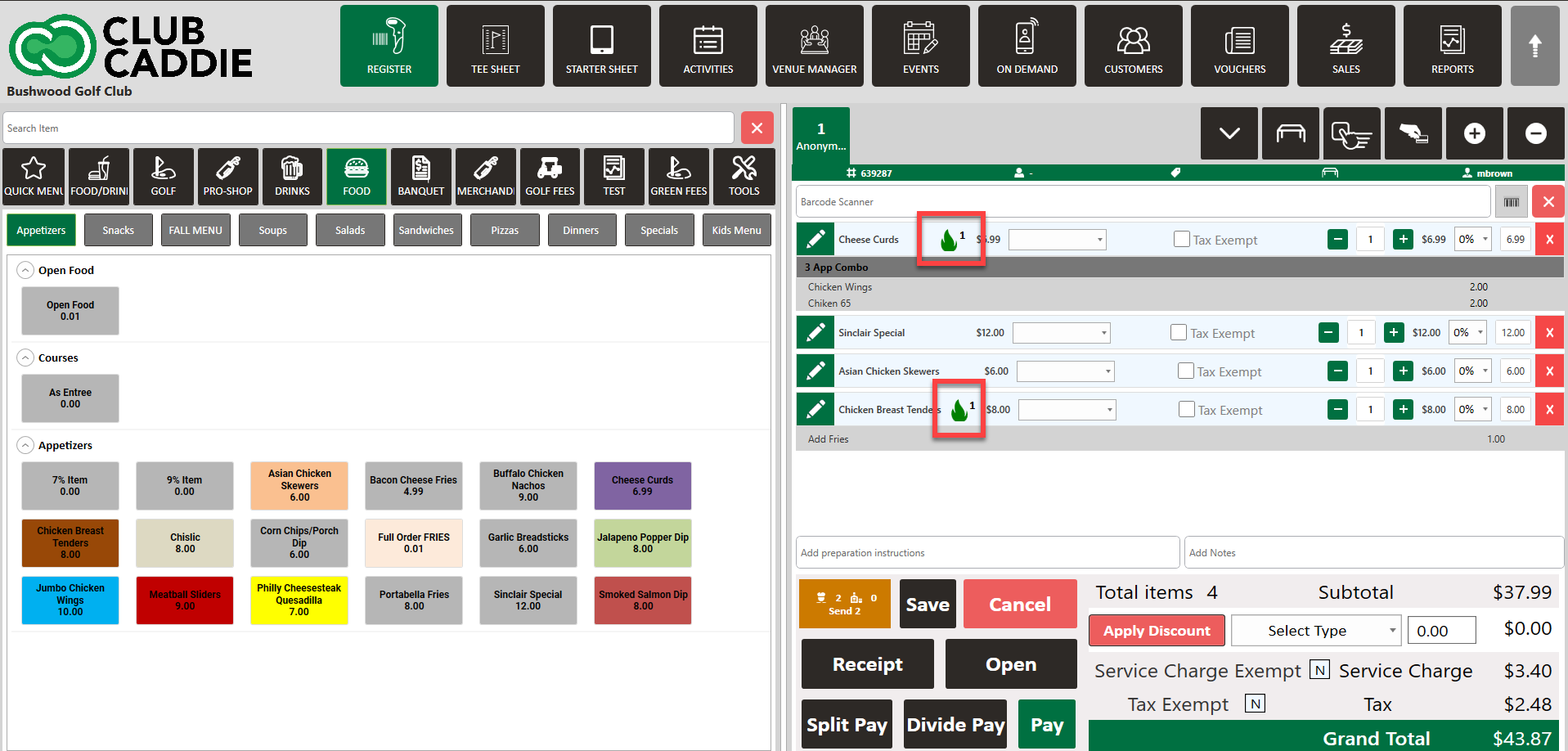
Step 1: Navigate to the register and add items for the order. After adding all the items to the order, click Send.
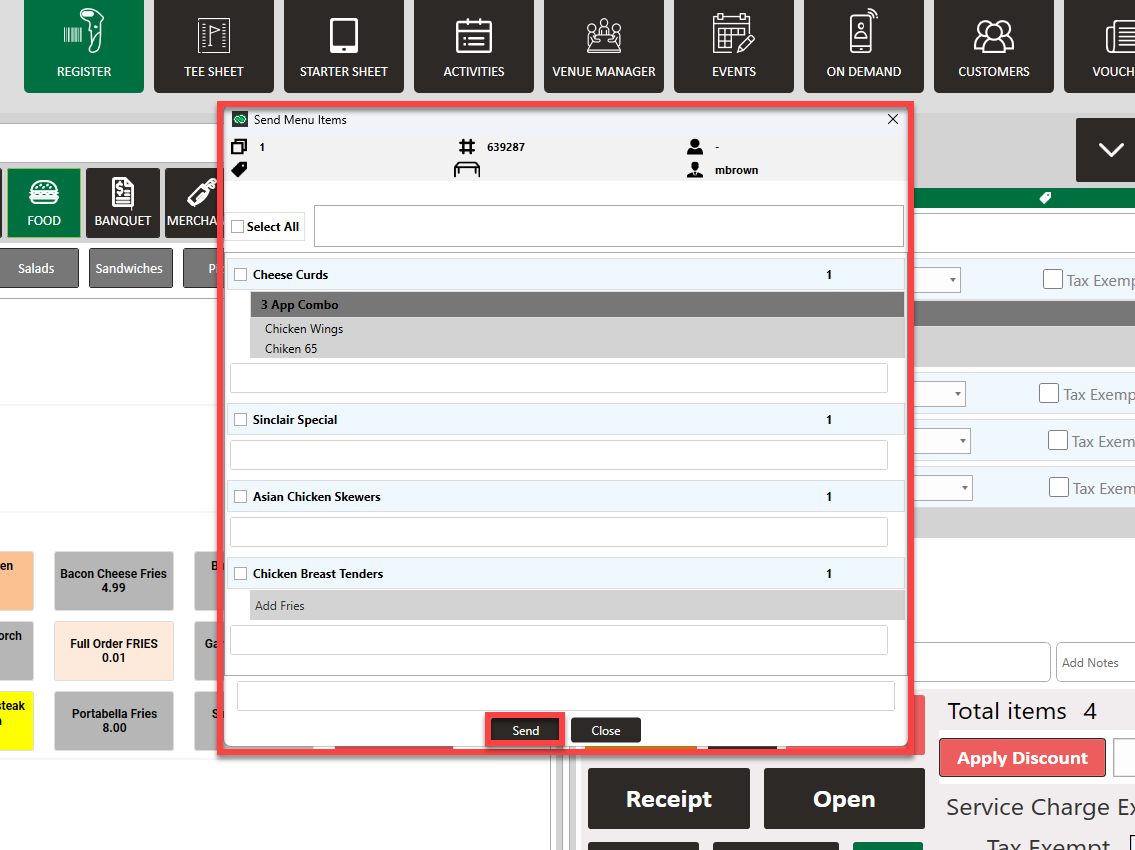
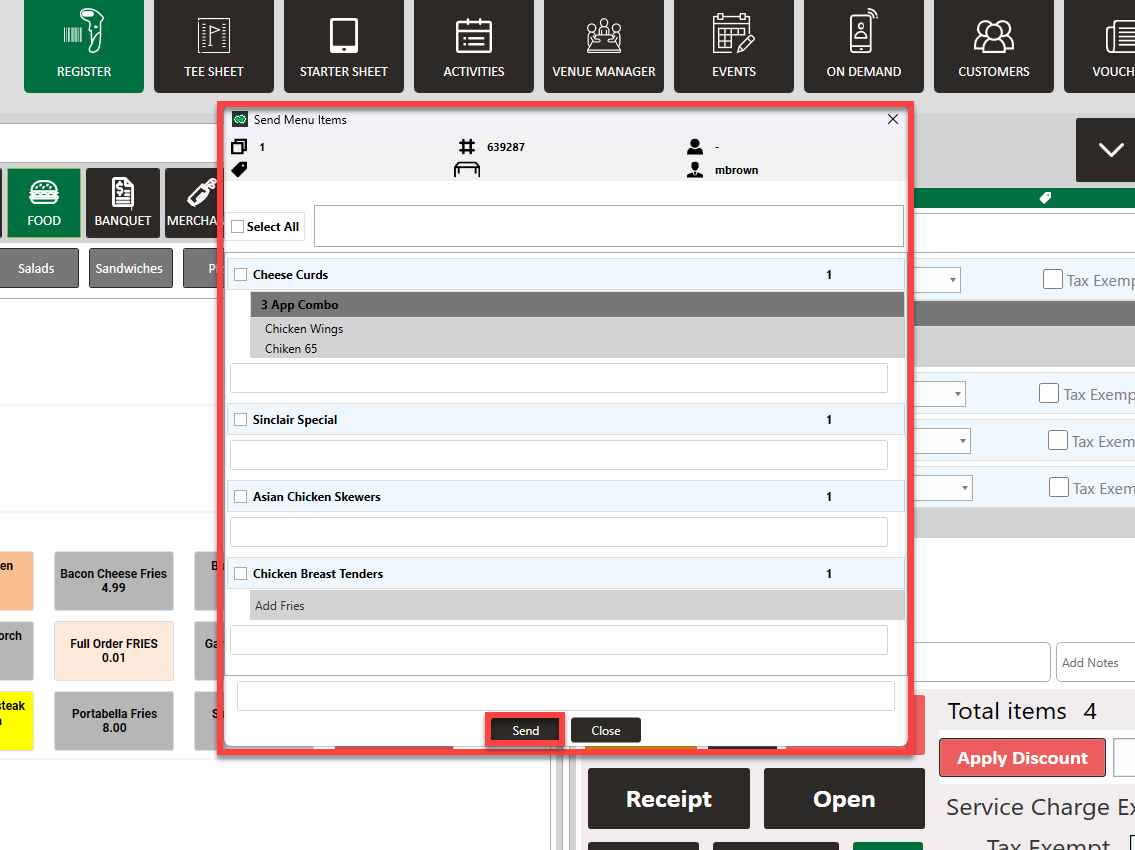
Step 2: A pop-up will display where you will select what items that you want to send. Either Select All, or check what items you want to send. Then click Send.
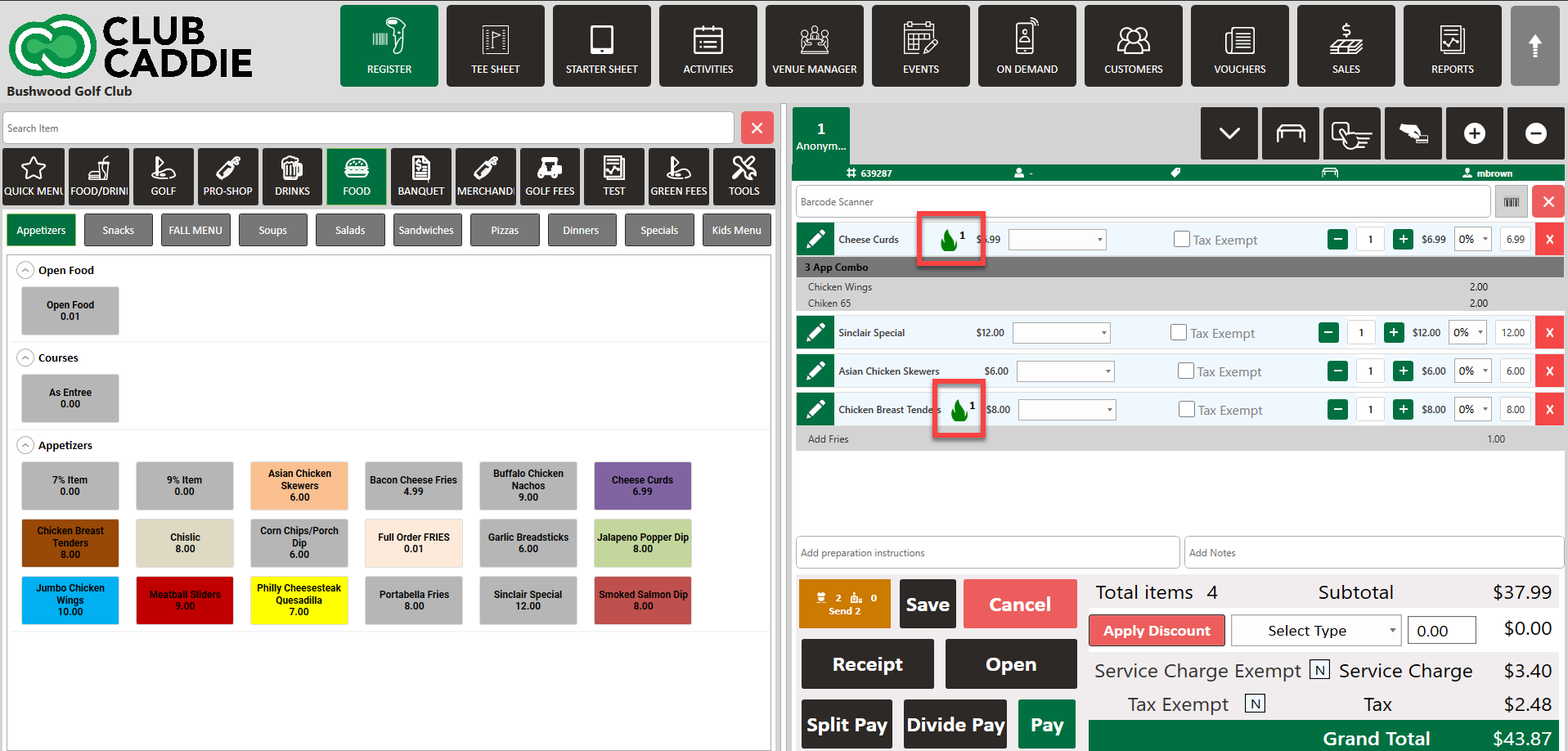
Step 3: When looking back at the register, a fire icon will appear on the items being sent.
Related Articles
Register : Opening Cash Drawer
Article Contents This article contains a step by step guide on how to open a cash drawer Step By Step Step 1: Navigate to the REGISTER module from the top navigation bar Step 2: To open the cash drawer, click the OPEN button NOTE: The cash drawer ...Register : Search an Item
Article Contents This article contains a step by step guide on how to search for an item. Step-By-Step: Step 1: Navigate to the REGISTER module from the top navigation bar Step 2: Type in the item that you are trying to search for in the search field ...Register : Scanning a Barcode
Article Contents: This article contains step-by-step instructions on how to scan an items barcode directly from the register using a compatible barcode scanner. Step by Step Step 1: Select the REGISTER icon (1) from the top navigation bar and then ...Register - Edit Inventory
Article Contents: This article gives step-by-step instructions on how to edit inventory. Step-By-Step: Step 1: Select the REGISTER module from the module navigation menu. Step 2: Right-click on the item in the register that is to be edited and click ...Register : Credit Book Deposit & Distribution
This article provides users with a step by step guide on depositing and distributing credit to credit book accounts from the register module. Step-by-Step: Step 1: On the Register screen, click on the "Tools" tab. Step 2: Scroll down then you can see ...