Register : Open Button Functionality
If the Open Key Does Not Exist On Register
Step 1: Open Jonas Synergy. Make sure you're logged in with your username and password.
Step 2: Click on the 'Settings' option to open the settings menu. Within the settings menu, find and click on the 'Manage Roles' option. This option allows you to edit and manage user roles and permissions within the software.
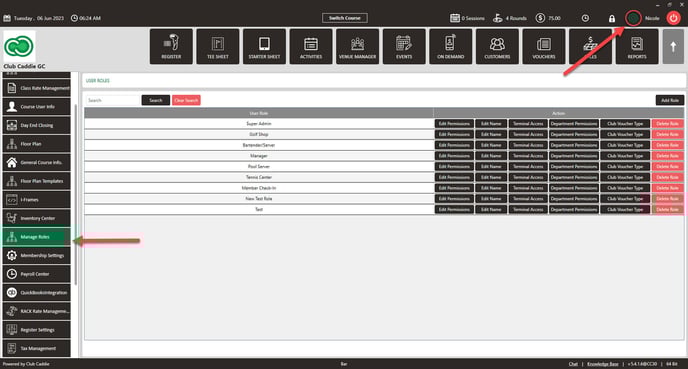
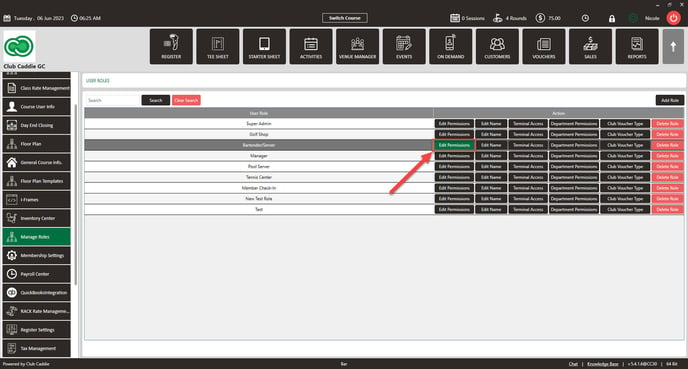
Step 3: Once you are in the 'Manage Roles' menu, look for the 'Edit Permissions' option.
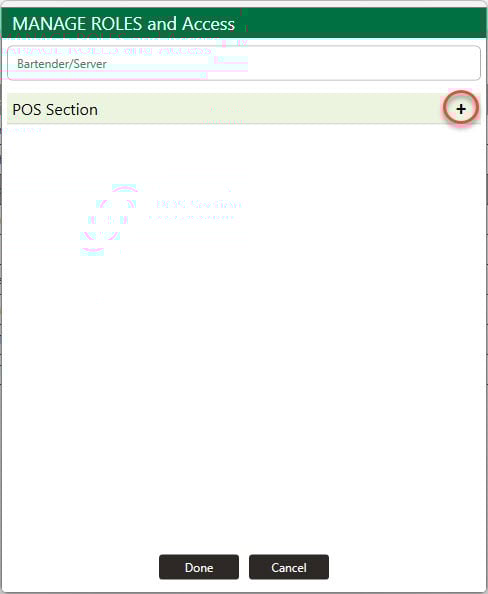
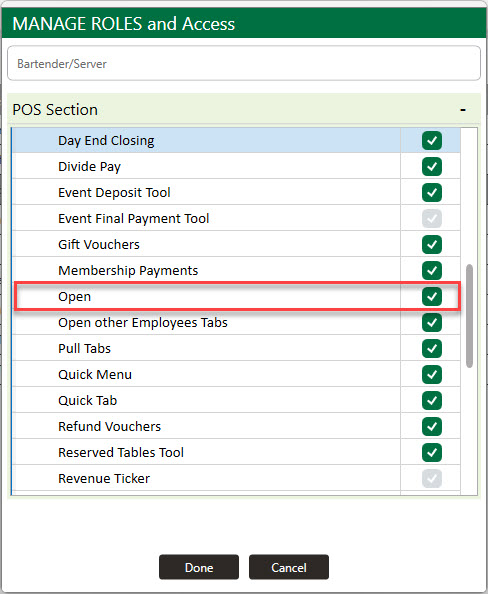
Step 4: In the permissions menu, find and click the “+” button or icon. This button allows you to add or enable additional permissions.
Step 5: Click on the 'Register' option. A new set of permissions related to registration should appear.
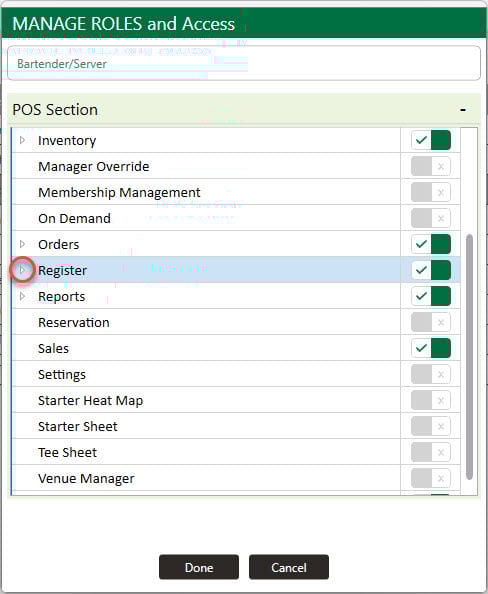
Step 6: Click on the 'Open' option to enable it. If it is a check box, you will know it is enabled when there is a checkmark in the box.
Troubleshoot
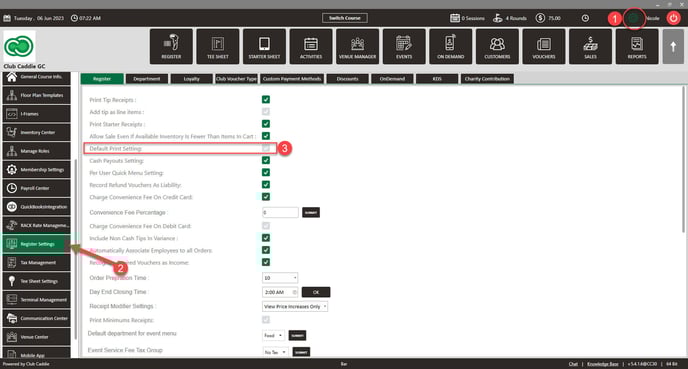
How to troubleshoot the issue of the cash drawer not opening automatically when a cash sale is tendered in Jonas Synergy. We'll guide you through various steps to diagnose and potentially resolve this issue.
Troubleshoot 1:
Troubleshoot 2:
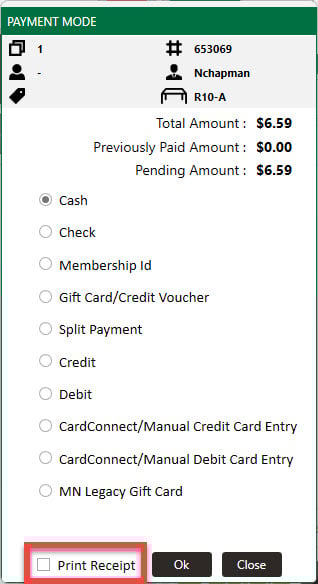
Troubleshoot 3:
Related Articles
Register : Opening Cash Drawer
Article Contents This article contains a step by step guide on how to open a cash drawer Step By Step Step 1: Navigate to the REGISTER module from the top navigation bar Step 2: To open the cash drawer, click the OPEN button NOTE: The cash drawer ...Register : Day End Closing
Article Contents: This article contains steps to effectively fill in all of the mentioned information to complete a Day End Closing. Step by Step Step 1: Click on the Register button on the header tab. On the Register screen, click on TOOLS tab. Step ...Register : Editing Item Quantity
Article Contents: This article gives step-by-step instructions on how to edit item quantities in the register. Step-By-Step: Step 1: After selecting the REGISTER module, click on an item to add it to the register tab. Step 2: Item quantities can be ...Register : Edit Rate Type
Article Contents: This article contains step-by-step instructions on how to change the rack rate from the REGISTER for a given tee time. Step-By-Step: Step 1: Select the TEE SHEET module from the module navigation menu. Reserve a tee time. Step 2: ...Register : Credit Book Distribution
Article Contents This article provides users with a step by step guide on Register - Credit Book Distribution. from the register module. Article Contents Step-by-Step: Step 1: On the Register screen, click on the "Tools" tab. Step 2: Click on the ...