Relocating Guest email from archived to a new profile
Step-By-Step:
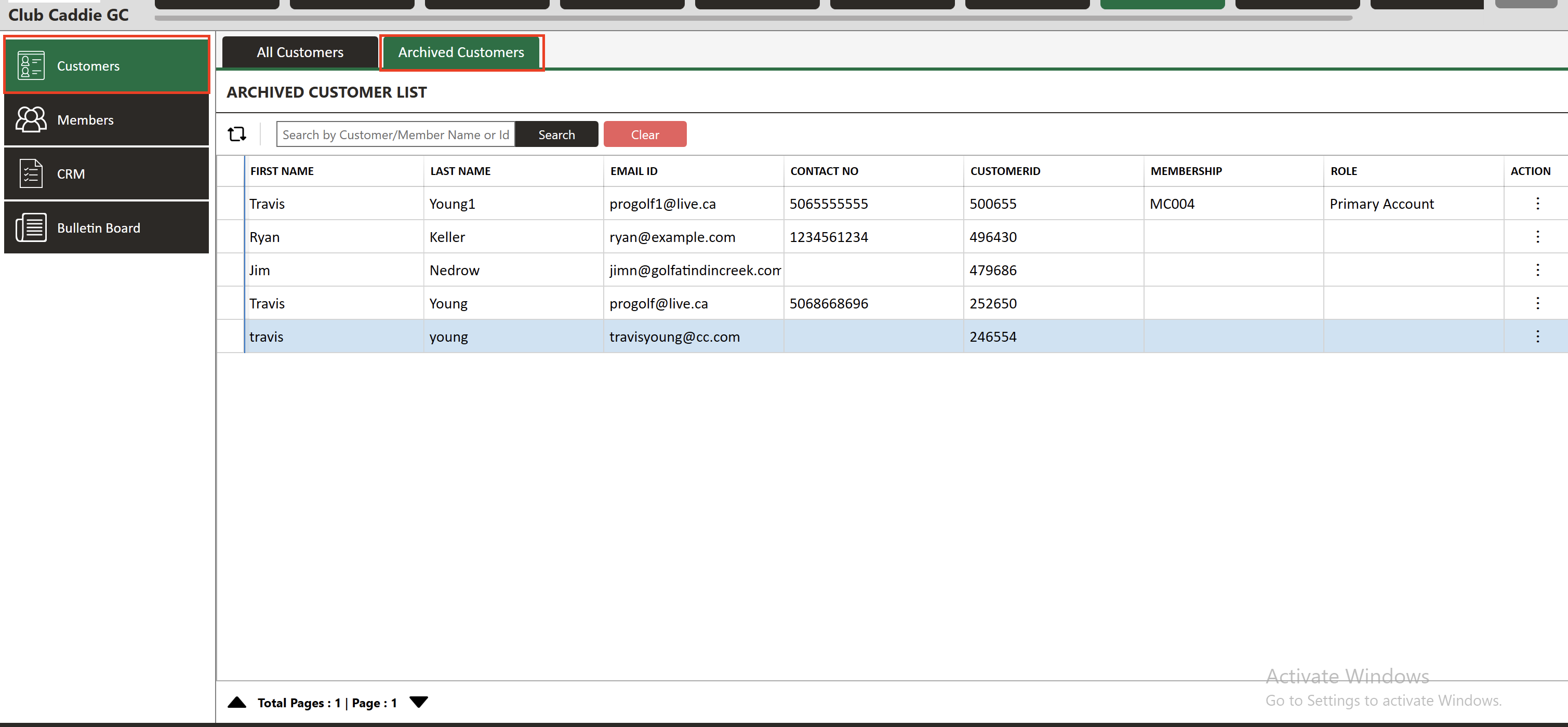
Step 1: Begin by navigating to the archived Guest profile. This can be done by accessing the 'Guests' module in your system and selecting the specific archived Guest from the Archived Guests tab.
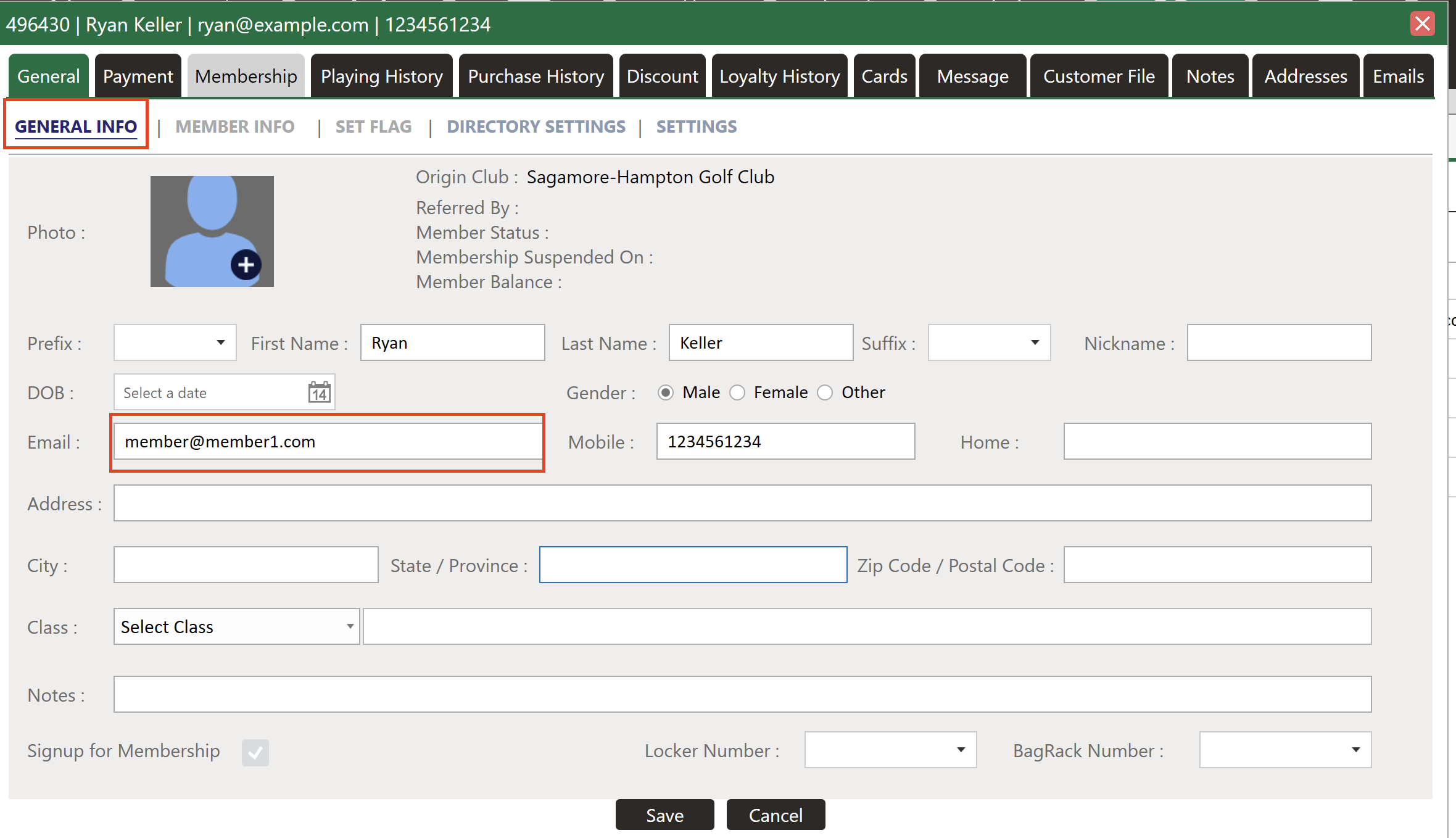
Step 2: Once in the archived Guest's profile, proceed to the ' General Info' tab. Here, change the email address that needs to be moved to a dummy placeholder email, such as [email protected]. This step is essential to free up the original email address for use in another profile.
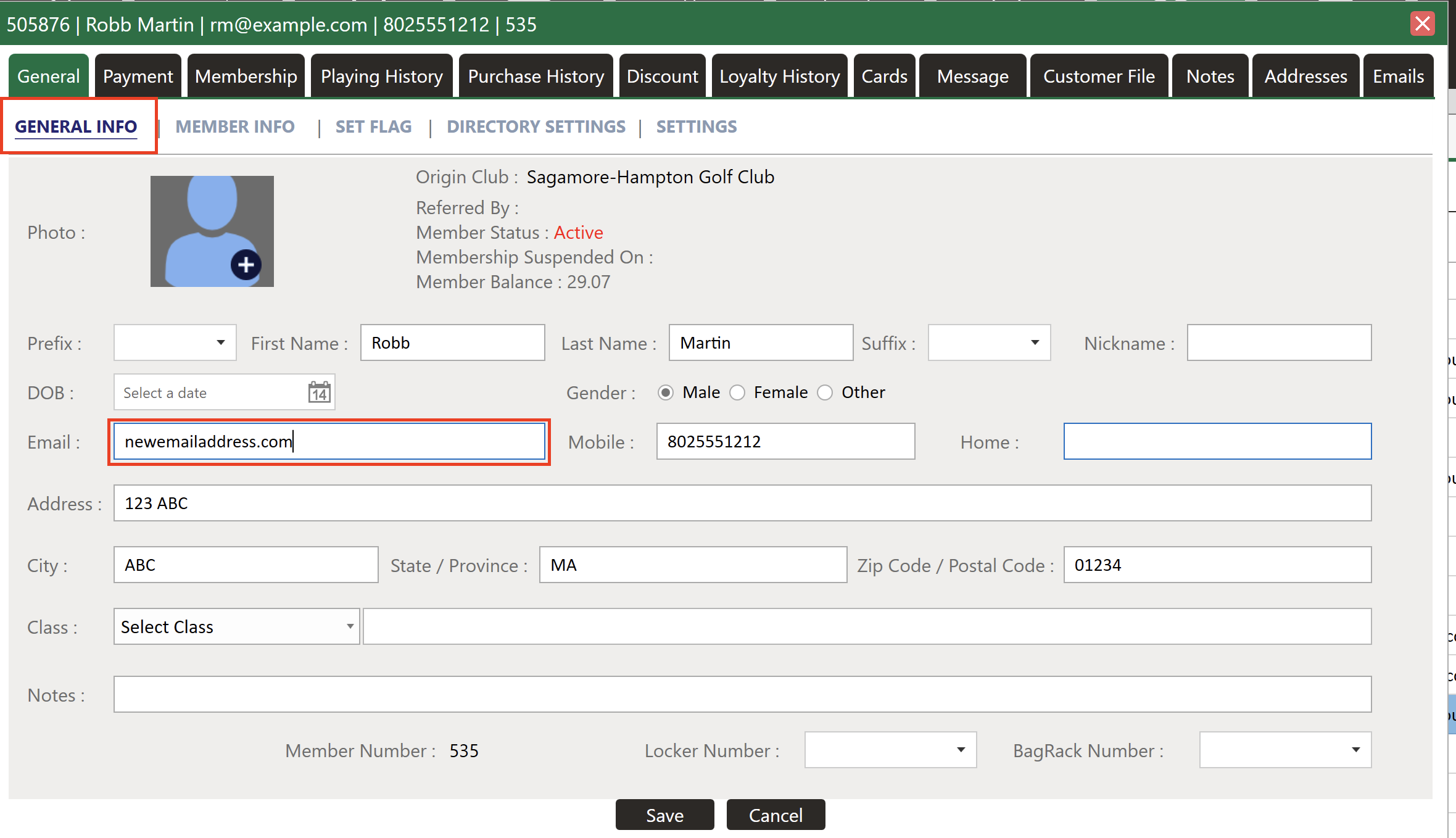
Step 3: Now, navigate to the Guest account where the email address should be transferred. This could involve either creating a new profile for a Guest or accessing an existing one.
Step 4: In the new or existing Guest profile, go to the ' General Info' tab, similar to the process in the archived profile. Here, add the original email address that was previously replaced with the dummy email.
This guide ensures a smooth transition of email addresses between Guest profiles while maintaining the integrity of the account data. For any additional information or clarification, please contact the support team.
Related Articles
Adding a New Guest
This article summarizes how to add a new Guest from Tee Sheet, POS, and Guest Tab. Step-By-Step: A. Adding a new Guest through Tee-Sheet. Step 1: Click on the "Tee Sheet' Tab from the header of the window. Step 2: On Tee Sheet, there are time slots ...Create a New Email Campaign (MailChimp)
This article summarizes how to create a new Email Campaign. Step-By-Step: Step 1: Click on the Guest tab (1) from the header of the window. Select CRM (2) from the left row of the window, then select Create Email Campaign tab (3). Step 2: The system ...Archiving a Guest
This is a step-by-step guide on how to delete (archive) a member from your Guest list. Please keep in mind that this will move the Guest to your Archived list. Step-By-Step: Step 1: Navigate to the Guests module along the top of the POS, then click ...Adding a card to guest profile
Article Contents: The video tutorial demonstrates how to manage member payments using the "Payment" tab in the Jonas Synergy software. Step-By-Step: Step 1: The "Payment" tab allows you to store a credit card or an ACH account on file for a member or ...Assign Guest Class
Article Contents: This article contains step-by-step instructions on how to link a Guest class to a Guest Step-By-Step: Step 1: Select the Guest module from the module navigation menu, then click on Guests in the left-hand menu. Step 2: Click on the ...