Report Columns
Article Content: This Is A Step By Step Guide On How To create, edit, and manage column definitions used in financial statements.
Step-By-Step
Step-By-Step
Step 1: Navigate to System Setup → Report Setup → Report Columns.
This screen displays a list of all existing column definitions that can be used across various financial reports. Each column defines how data will appear in the financial statements.
Step 2: Click on the New button and from there you can edit or add
- Period type (Current, Prior, YTD, etc.)
- Calculation settings
- Display format options
After configuring the column, select Save & Close.
Step 3: To edit an existing column definition, choose the column from the list.
You may
- Update calculation rules
- Modify display formatting
- Adjust reporting periods
- Change any other settings as needed
Once the updates are complete, click Save & Close.
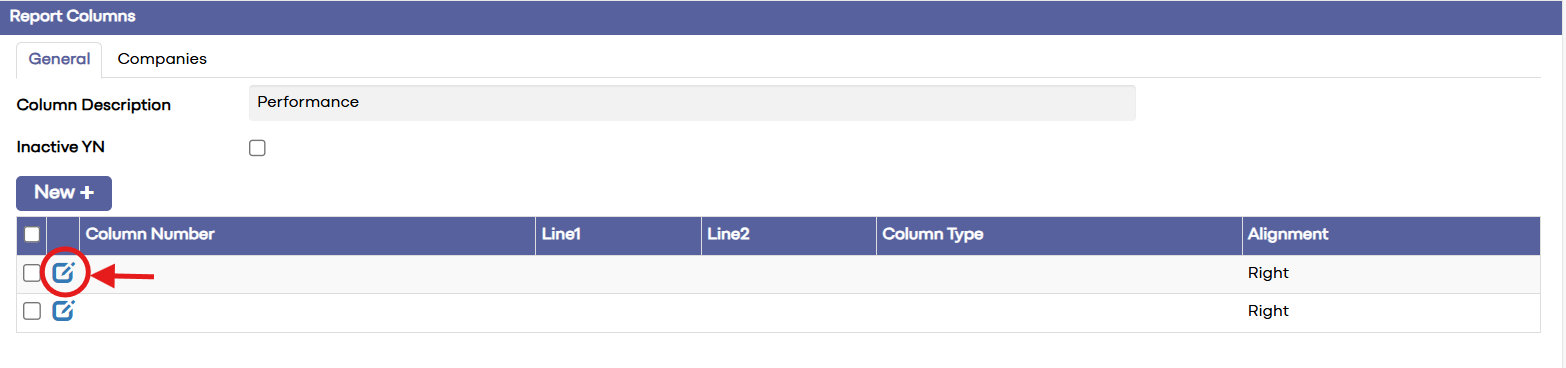
Step 4: Use the General and Companies tabs to manage column access:
General Tab: Contains the main configuration of the report column (name, period type, formatting, calculations).
Companies Tab: Allows you to control access to the column per company.
This tab includes:
- Company
- Has Access Y/N (checkbox to enable or disable access)
Step 5: These Report Column definitions can be applied when designing or running Financial Statements, ensuring consistent formatting and presentation across all financial reports.
Related Articles
Scheduled Report Templates
Article Contents: This article contains information about creating templates for scheduled reports. Scheduled Report Templates allow you to define the structure and settings of reports that will be used when scheduling reports. Scheduled Report ...Financial Reports
Article Content: This article provides an overview of the financial reports section found under system setup Step-By-Step Step 1: Go to System Setup → Report Setup → Financial Reports. This screen displays a list of all financial reports available in ...Report Rows
Article Content: This Is A Step By Step Guide On How To create, edit, and manage Report Rows that define account structure, calculations, and layout for financial statements. Report Rows define the structure, layout, and account logic used in ...Trend Reports
Article Contents: This article explains how the Trend Report helps users track the trend of a selected report. It covers choosing reports, setting the direction for 12 months forward or backward, and running a Daily Trend Report. By Period: To ...Number Formats
Article Content: This Is A Step By Step Guide On How To create and manage number formats for consistent display of numeric values in financial reports Number Formats allow you to define how numeric values are displayed in financial reports. This ...