SETTINGS: CLOUD PRINTING RECEIPTS
Step-by-Step:
Step 1: Navigate to Settings, then select Register Settings from the left-hand-side menu.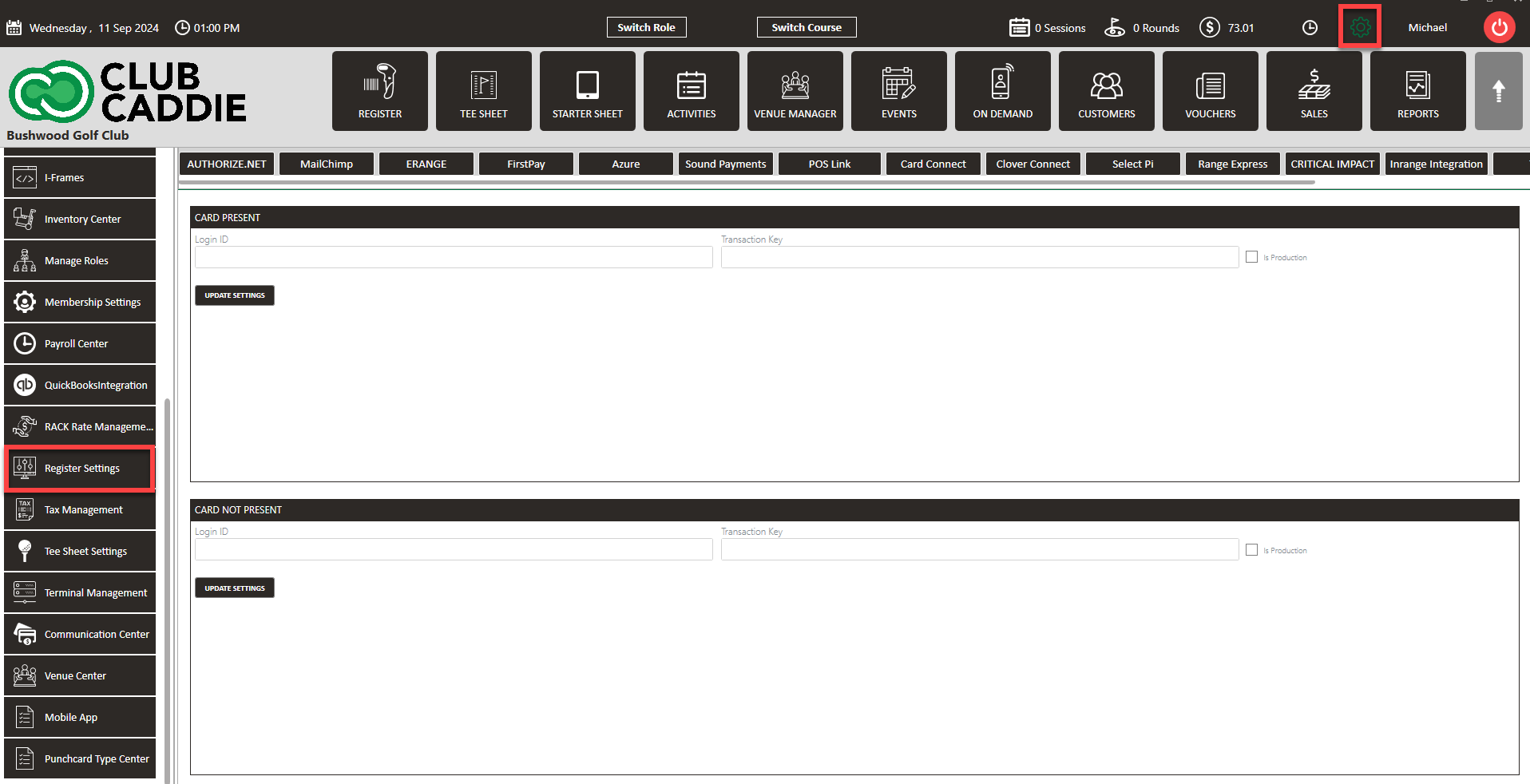
Step 2: Click on the Printer tab, where you’ll find options to configure cloud printers specifically.
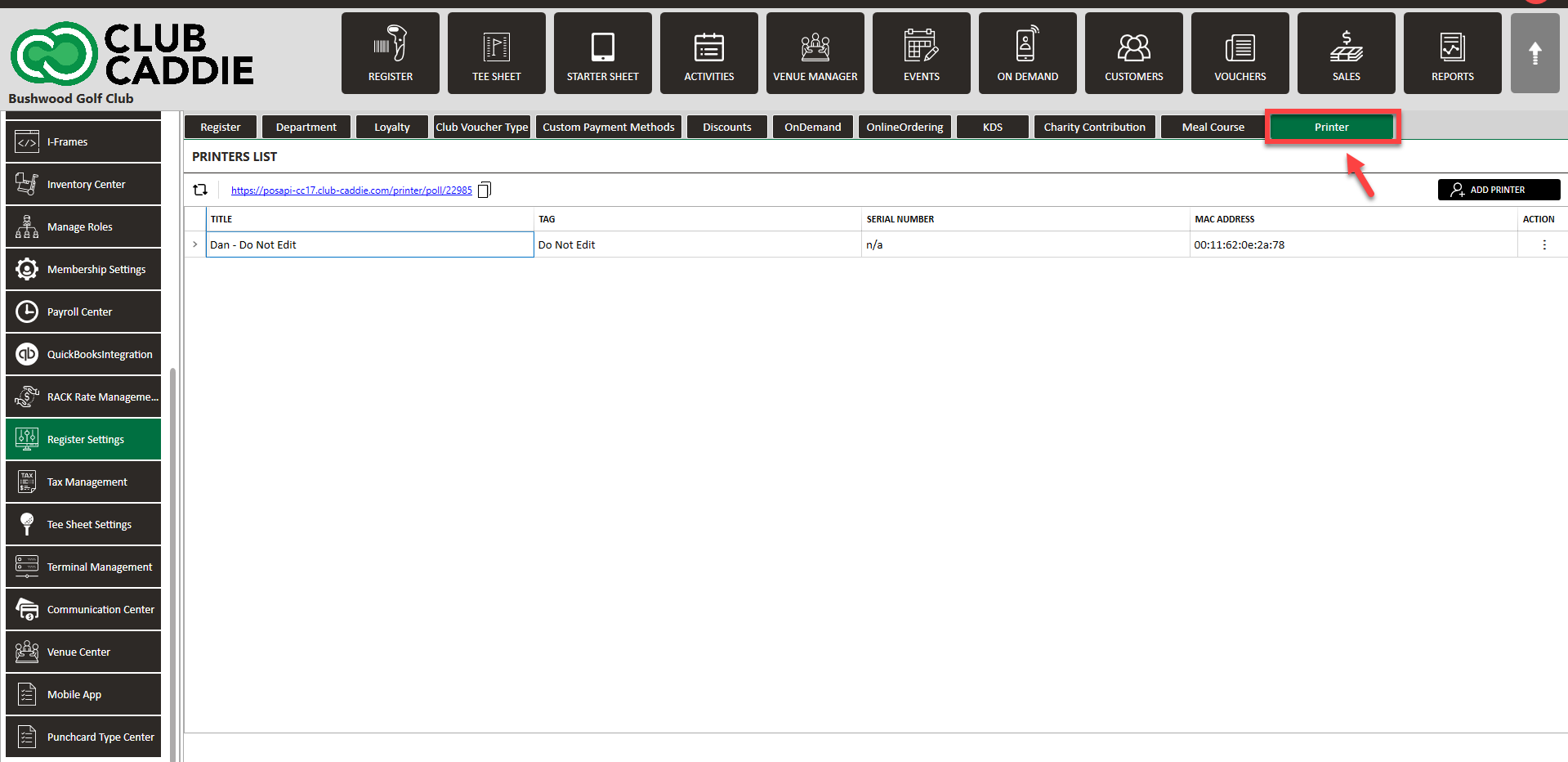
For more information on how to set-up your cloud printer, Click Here.
By following these steps, you can set up and use cloud printing to streamline order management across your golf course, regardless of network limitations
Example Scenario: Imagine you run a golf course with a halfway house far from the clubhouse. Before cloud printing, it was impossible to send food orders from the halfway house to the kitchen because they weren’t on the same network. Now, with cloud printing, you can send an order from anywhere on the course directly to the kitchen, even from a beverage cart or poolside.
Related Articles
SETTINGS: PRINT TIP RECEIPTS
Article Contents: This guide shows how to toggle on tip receipts in your register. Step-By-Step: Step 1: Click on the "Settings" gear wheel icon on the top-right corner of the screen. Then click on "Register Settings" from the left-hand menu. Click ...SETTINGS: REGISTER SETTINGS
Article Contents: This will show you how to navigate through your register settings, as well as providing a brief description on what each setting can do for you club. Video: The video covers essential features such as printing tip receipts, adding ...Printing Labels
This article summarizes how to print labels for products in the inventory center. Step-By-Step: Step 1: Click on the "Gear Wheel" icon from the right top corner of the window. Select the "Inventory Center" from the left-hand navigation menu. Step 2: ...SETTINGS: PRINT STARTER RECEIPT
Article Contents: This article contains step by step instructions on how to print starter receipts Step by Step Step 1: Click on the "Settings" (Gear Wheel) icon in the upper right corner of the software. Step 2: Select "Register Settings" from the ...Terminal Receipt Settings
New settings have been added in Terminal Management to allow more control over printing guest and merchant receipt copies separately. This can help save on paper and printing costs. Step-By-Step: Step 1: Navigate to Settings, then click on Terminal ...