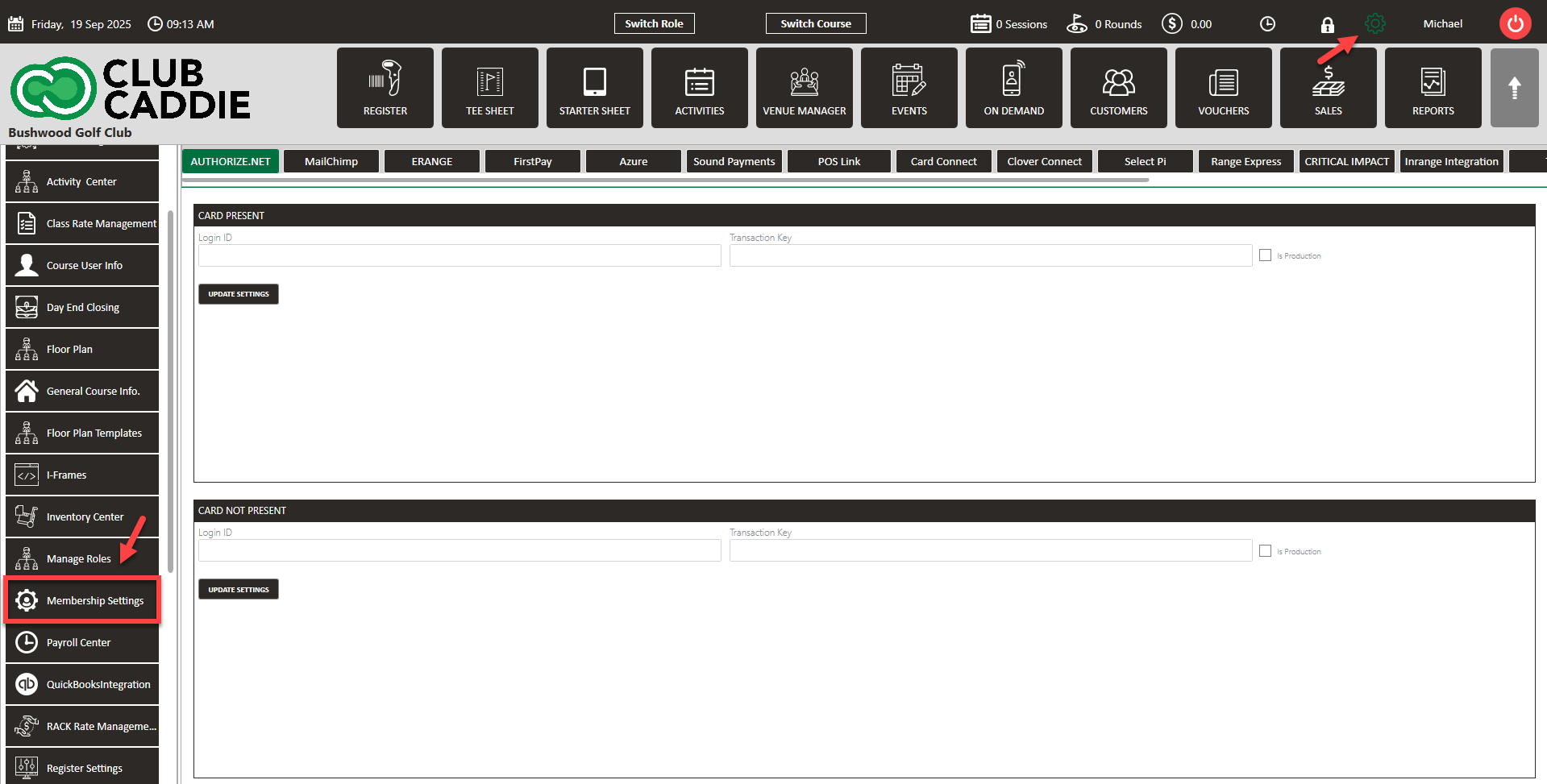
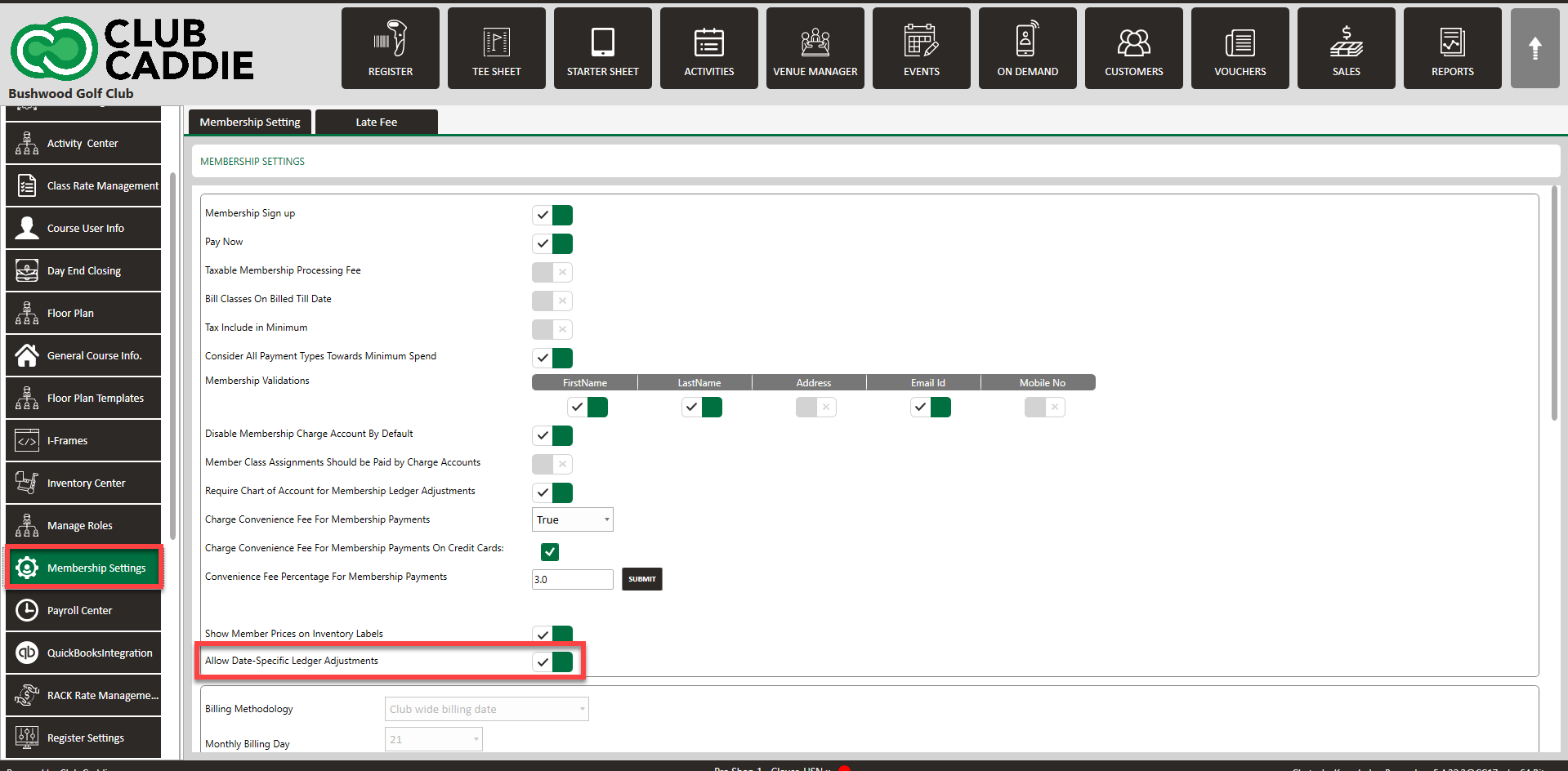
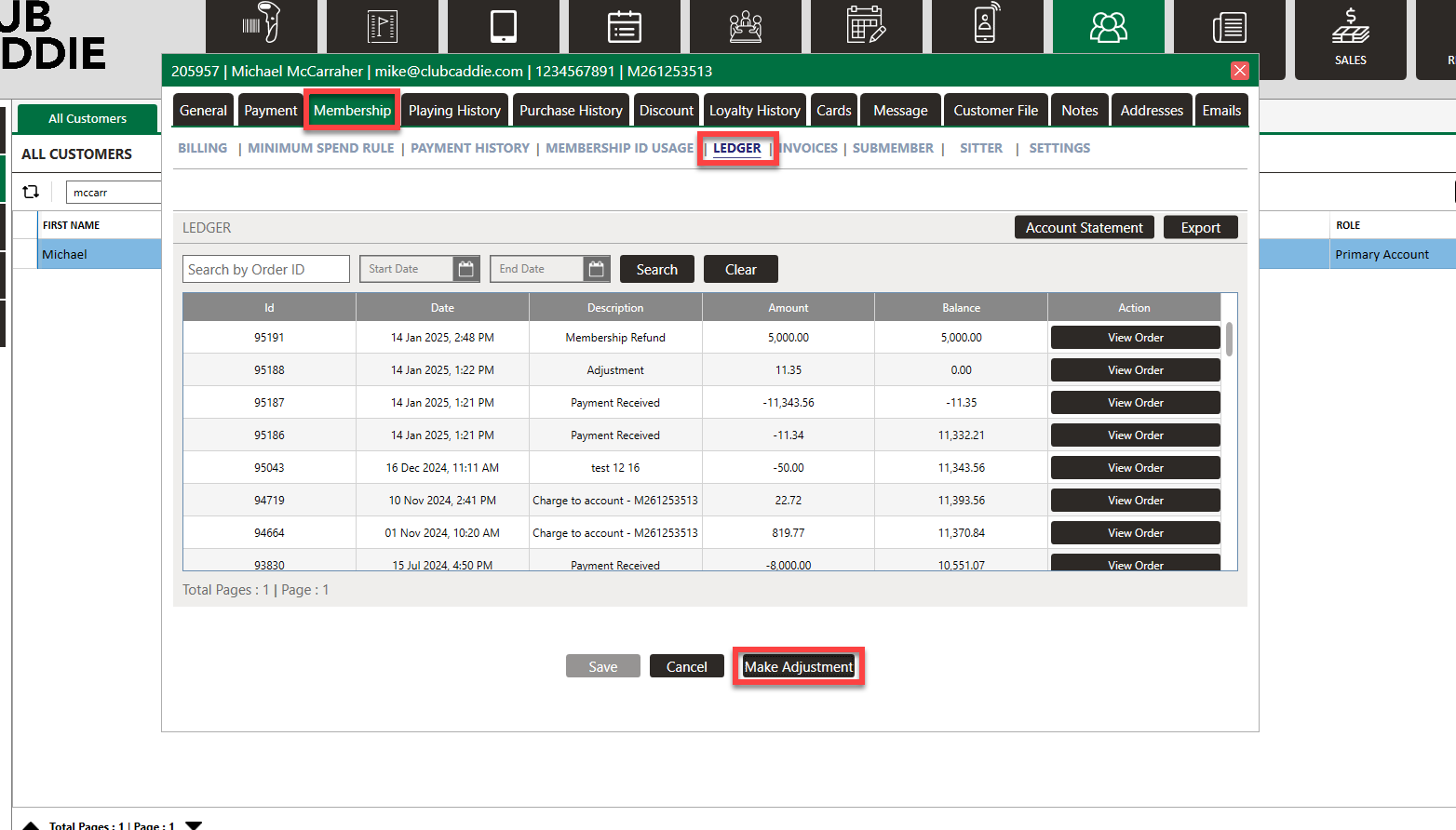
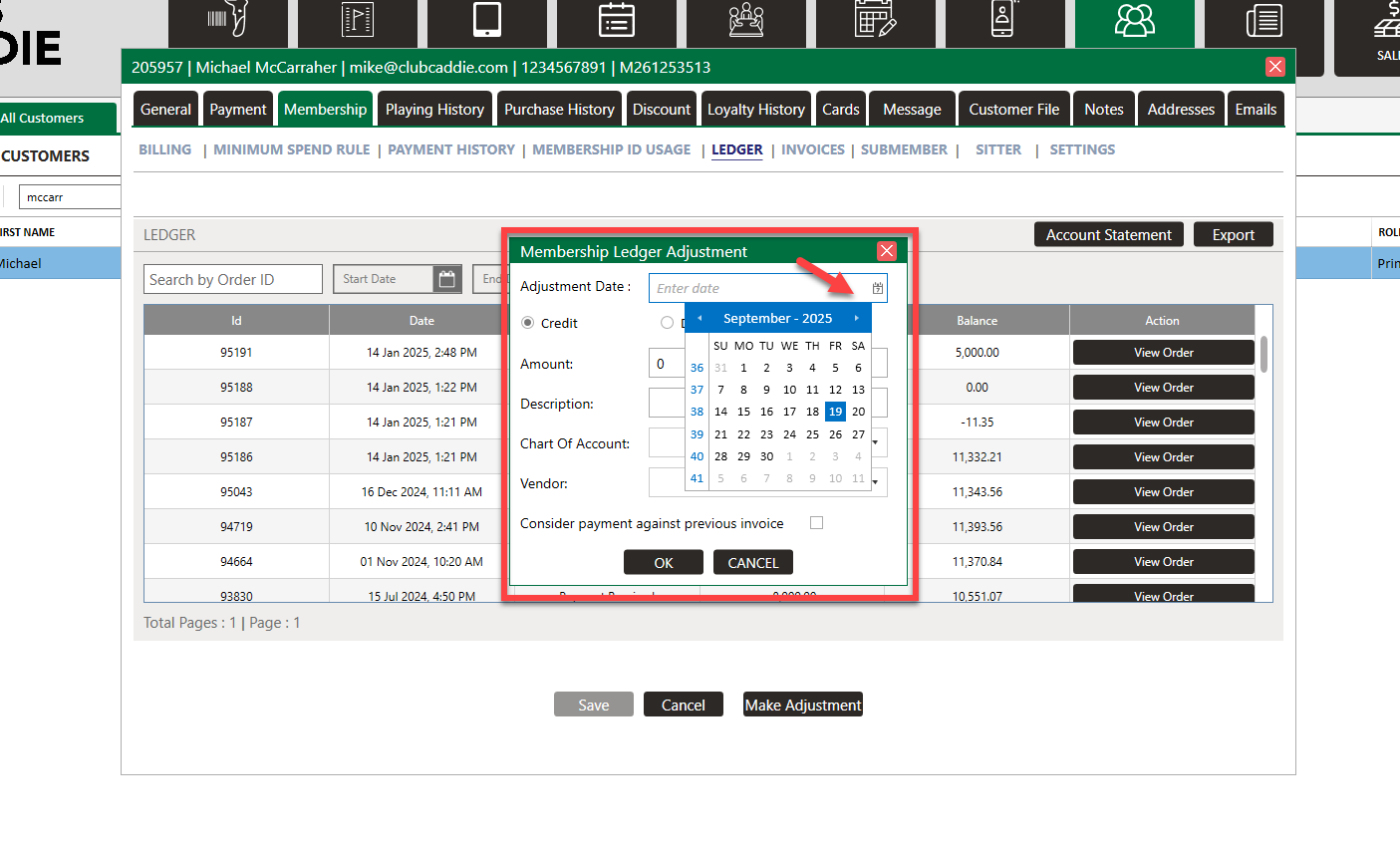
Backdate Ledger Adjustments
Related Articles
User Role Permissions
Article Contents: This article contains information on User Role permissions. Settings > Manage Roles > Action > Edit Permissions Step 1: Click on the Gear Wheel icon on the top right corner of the screen. Then, click on the Manage Roles button from ...
Membership Settings (Video)
In Jonas Synergy, the membership settings are crucial to managing your club operations effectively. This knowledge-based article will guide you through the membership settings, offering a detailed understanding of each option, ensuring you make the ...
SETTINGS: CLOVER - ASK FOR TIP BEFORE PAYMENT
Article Contents: How to enter the tip before the credit card is inserted into the Clover device. The Clover gateway has modified the credit/debit transaction processing workflow. With this update, the Clover hardware prompts for the tip amount ...
SETTINGS: TIME CARD ADJUSTMENT
Article Contents: This article contains step-by-step instructions on how to adjust an employee’s timecard. Step-By-Step: Step 1: Click the Settings (gear icon) located in the top right-hand corner of your screen. Then, use the left-hand navigation ...
SETTINGS: TAX MANAGEMENT OVERVIEW
Article Contents: This article contains information on the tax management settings. Step by Step Step 1: Click on the Gear Wheel icon on the top right corner of the screen. Then click on the Tax Management button from the left menu. Step 2: Adding ...