Step-by-step:
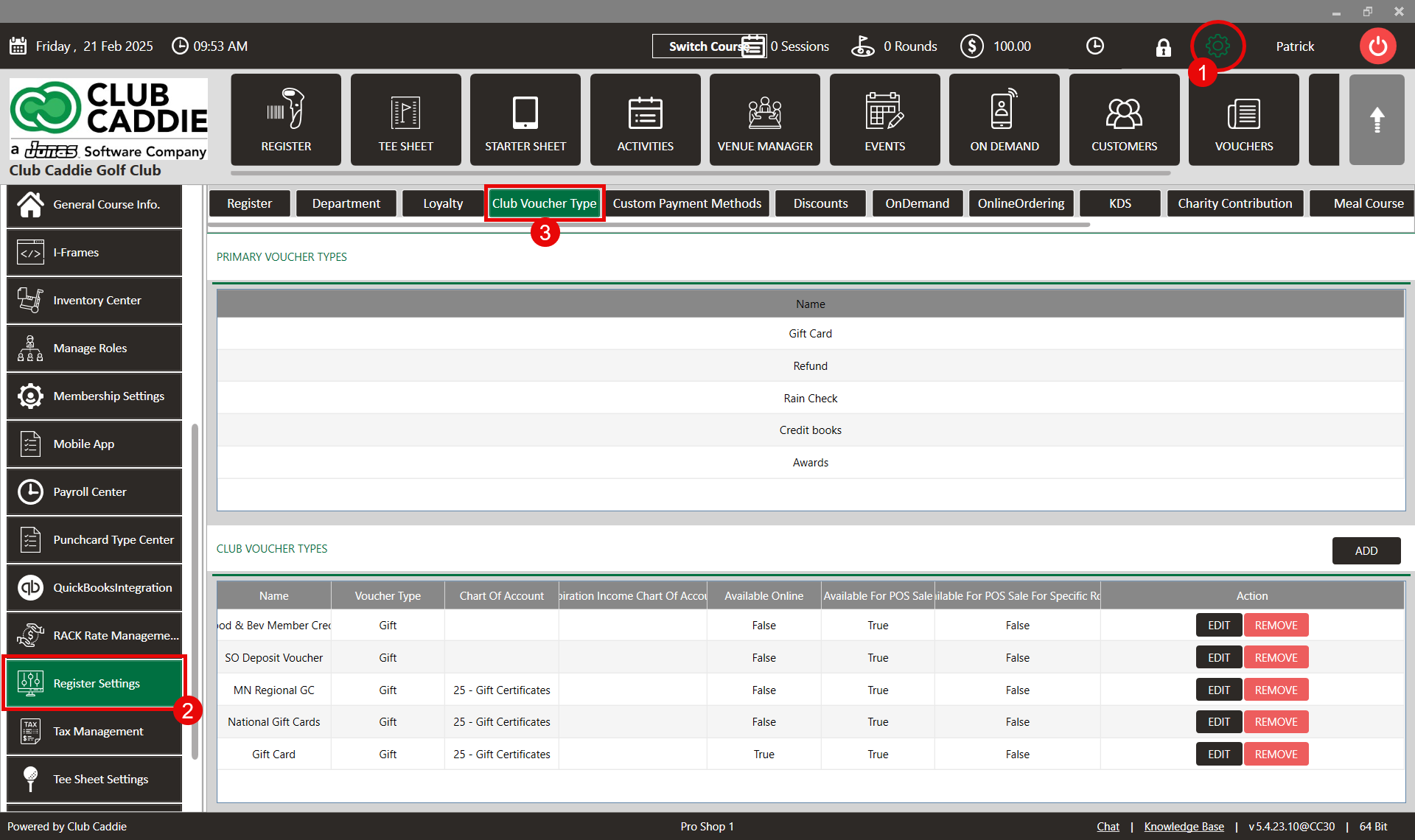
Step 1: Click on the Gear Wheel icon in the top-right corner of the screen to access the settings.
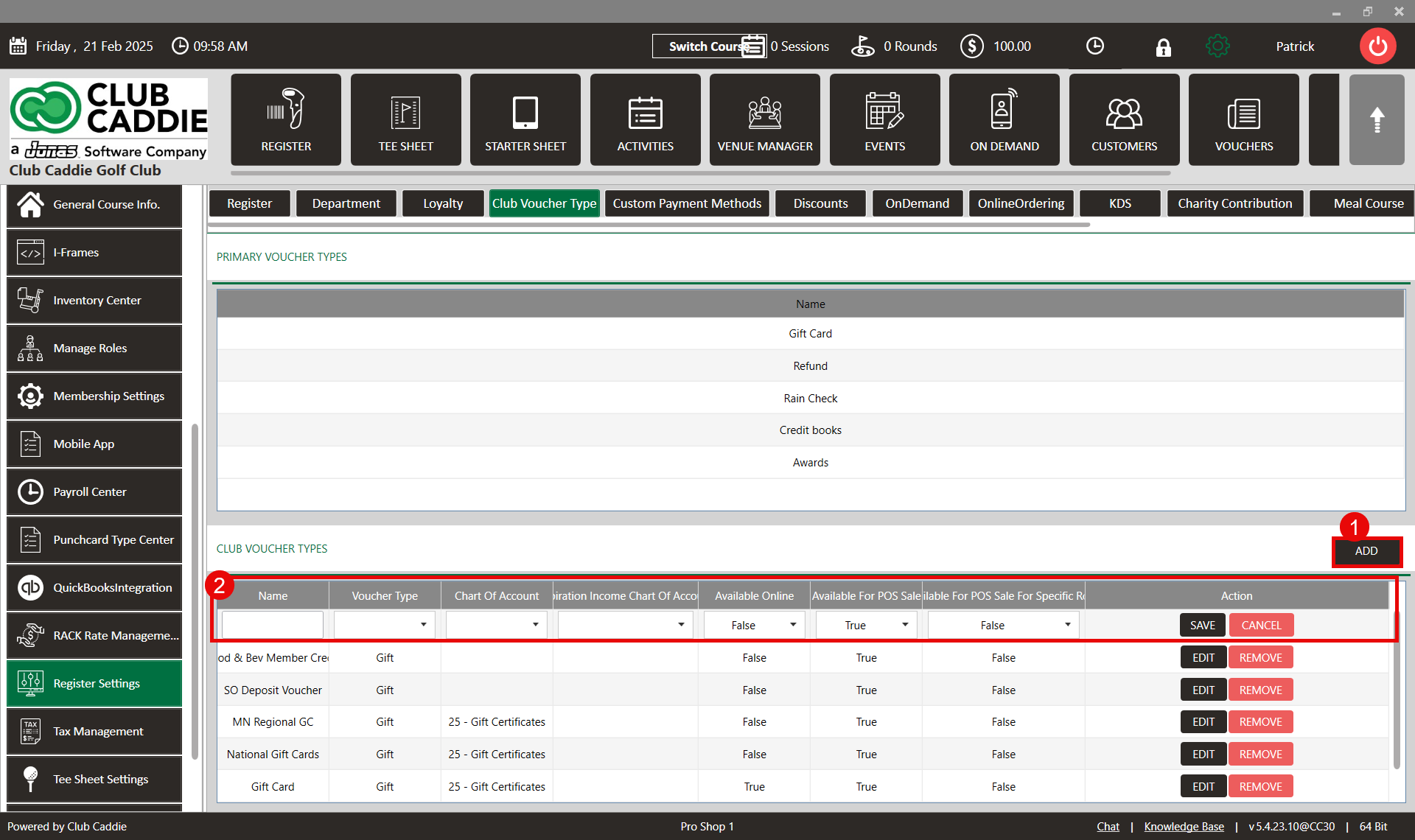
Step 2: Select ' point of sale Settings' from the left-hand menu, then click on the ' Club Voucher Type' tab across the top navigation bar.
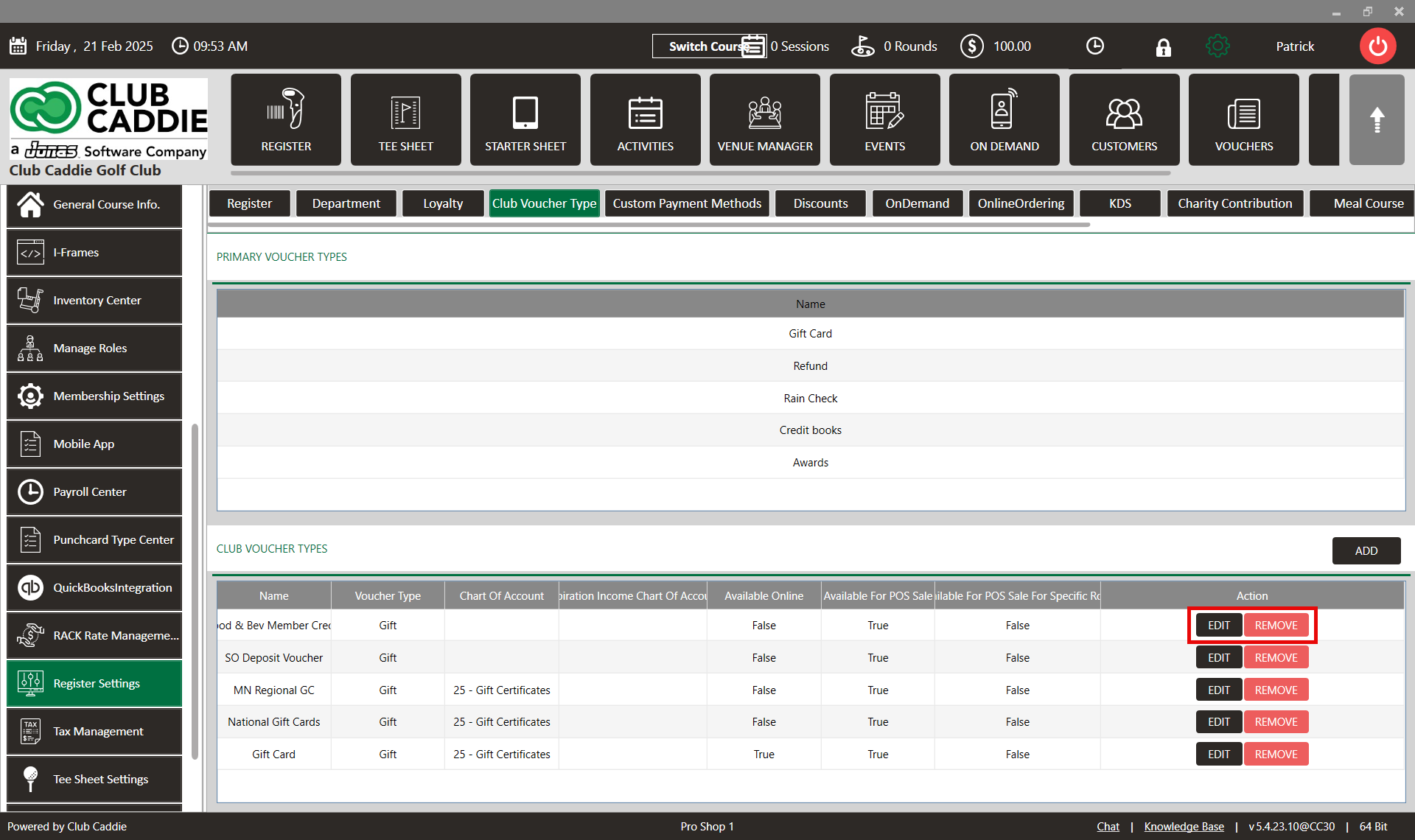
Step 3: In the ' Club Voucher Type' tab, find the list of existing voucher types. To make changes to one of them, click the ' Edit' button, make the desired modifications, then click ' Save.'
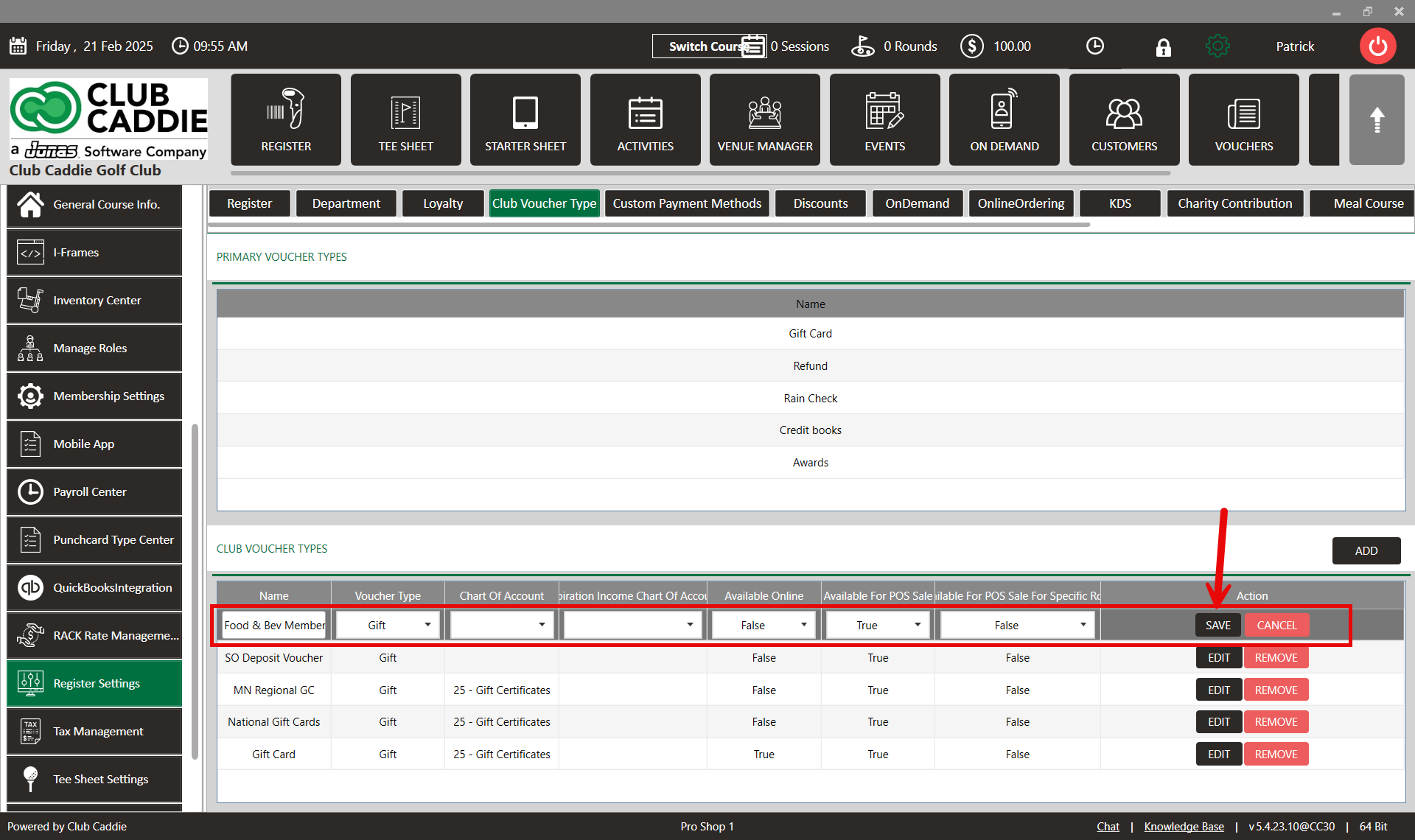
Step 4: To create a new voucher type, click the ' Add' button. Then, enter the necessary information such as the ' Voucher Name', ' Voucher Type', the Chart of Accounts code for the income, and the expiration of funds. Finally, click " Save" to create the new voucher type.
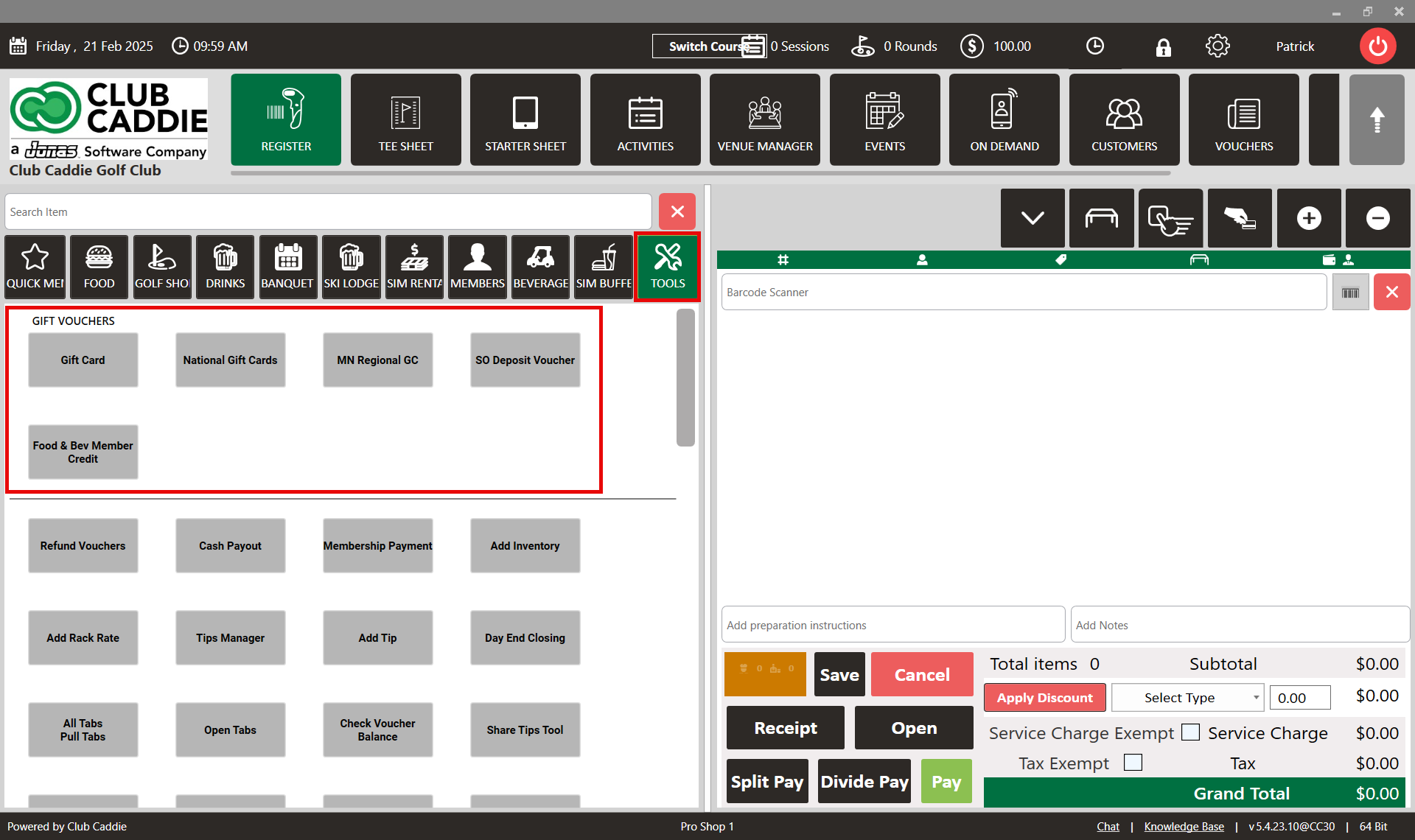
Step 5: To view existing and newly created vouchers, navigate to the ' Tools' section of the point of sale and look for the ' Gift Vouchers' section.