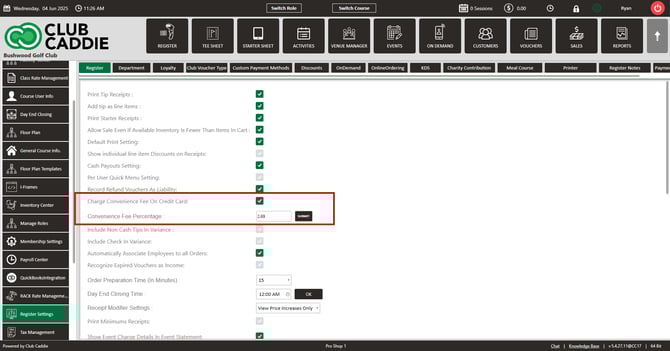
SETTINGS: CONVENIENCE FEE ON CREDIT CARDS
Related Articles
Convenience Fees for Recurring Membership Payments
Article Contents: This article outlines how to set up and apply convenience fees for membership payments made via credit or debit card. It also clarifies that ACH payments are exempt from these fees. Step-By-Step: Step 1: Navigate to Settings, then ...
SETTINGS: REGISTER SETTINGS
Article Contents: This will show you how to navigate through your register settings, as well as providing a brief description on what each setting can do for you club. Video: The video covers essential features such as printing tip receipts, adding ...
Membership Settings
In Jonas Synergy, the membership settings are crucial to managing your club operations effectively. This knowledge-based article will guide you through the membership settings, offering a detailed understanding of each option, ensuring you make the ...
SETTINGS: SELLING GIFT CARDS ONLINE
Article Contents: This article contains step-by-step instructions on how to create custom voucher types and map the vouchers to your chart of accounts. Step-by-step: Step 1: Click on Settings (gear wheel icon) in the top-right corner of the screen. ...
Tee Sheet Settings Overview
This article summarizes Tee Sheet Settings. The topics include Sales Tax, Prepaid Percentage, Max Golfers Per Slot For Online Sale, Select Holes, Tee Time Squeeze, Maximum Golfers, and Interval Settings Step-By-Step: Step 1: Click on the Gear icon in ...