On Demand Availability

SETTINGS: ON DEMAND AVAILABILITY

Article Contents: This article shows you how to set a schedule for On Demand availability for delivery and pickup.

Step by Step

Step 1: Click on  Settings,  then select  Register Settings  from the left-hand-side menu. Then, click on the  On Demand  tab along the top.
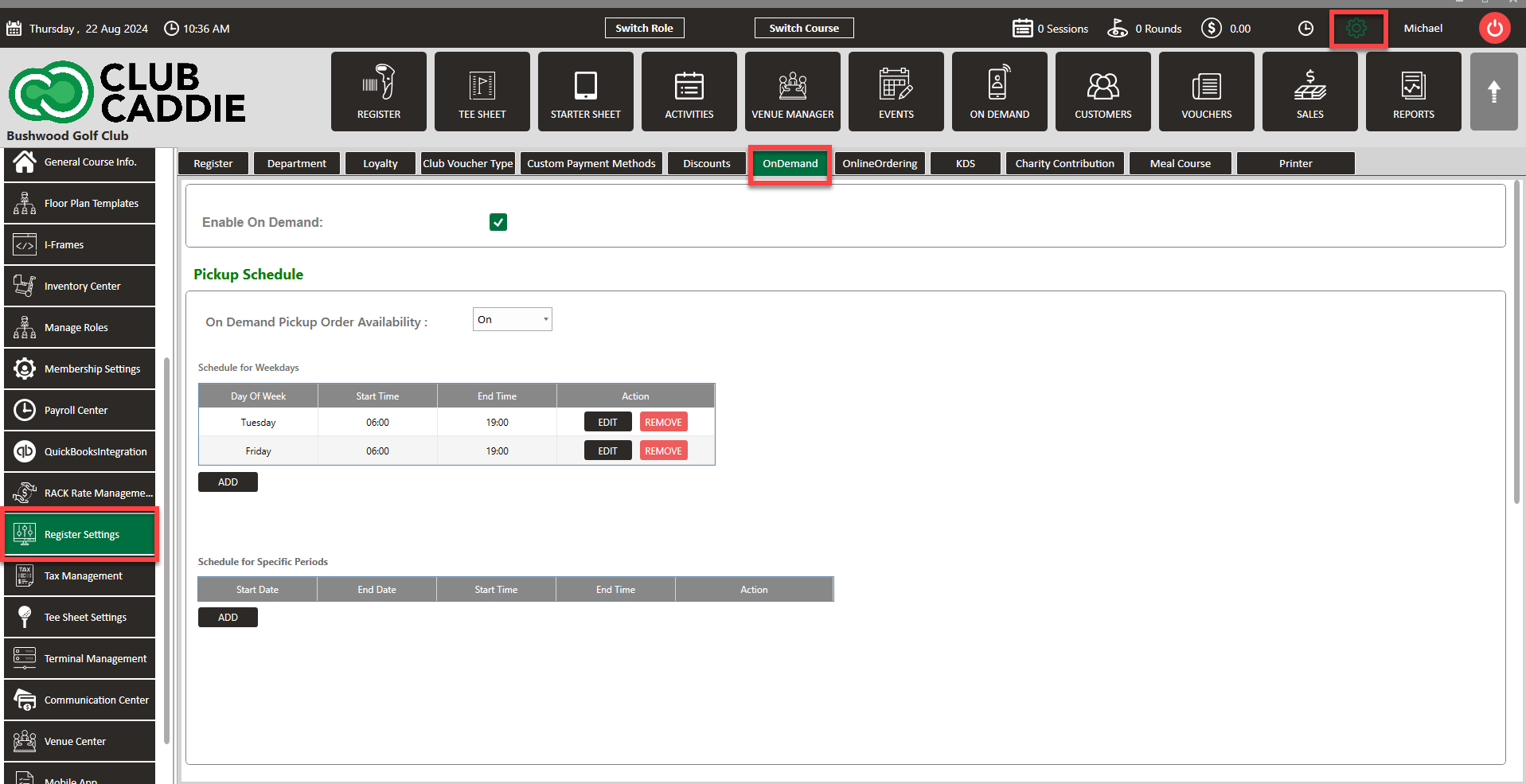
 
 
Step 2: Here you will be able to toggle On Demand on/off, schedule for certain days and times of the week, and schedule for a specific period of time.
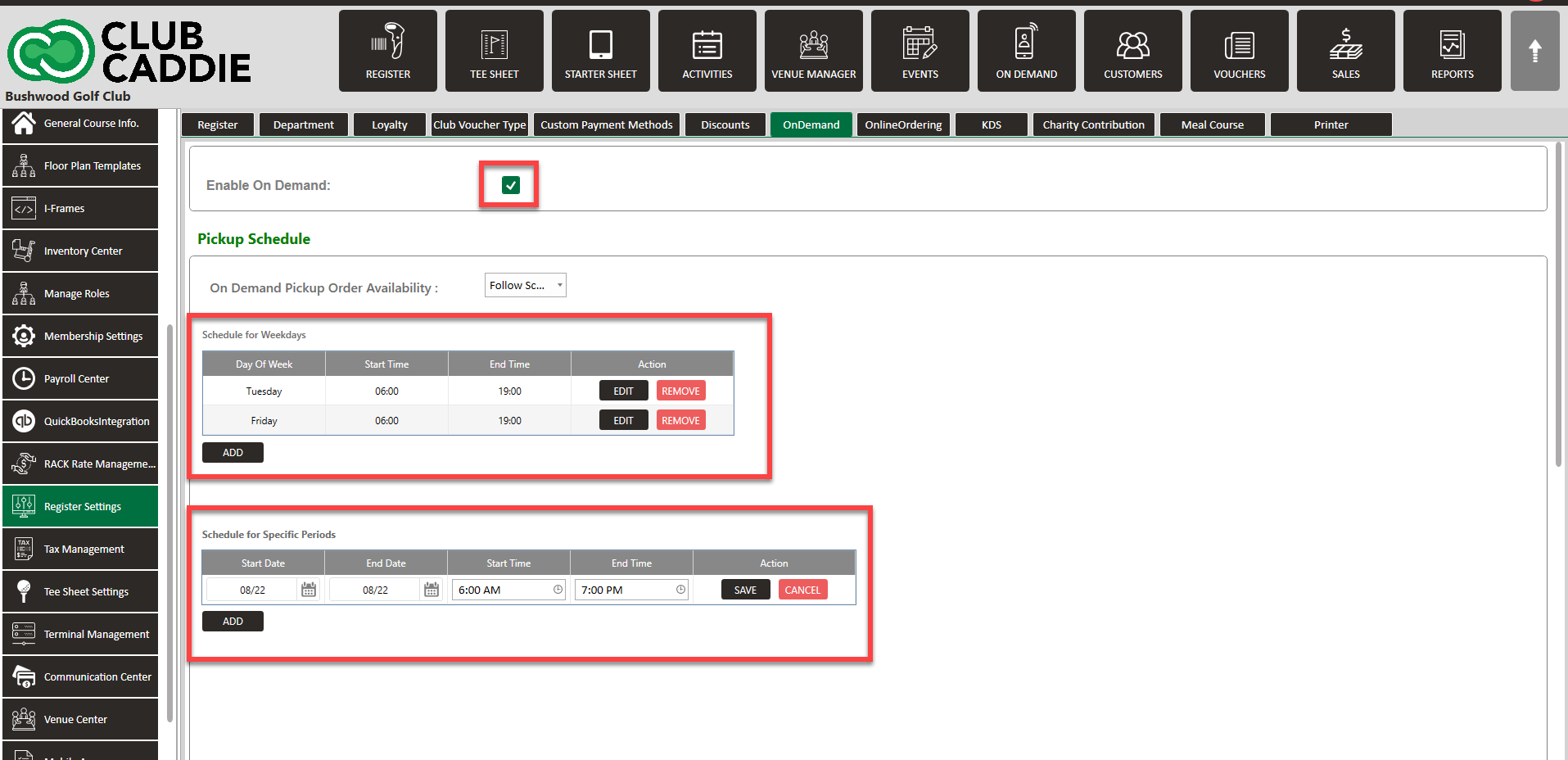


Step 3: If you would like your On Demand to follow your set schedule, you will need to select  Follow Schedule from the drop-down  On Demand Pickup Order Availability.
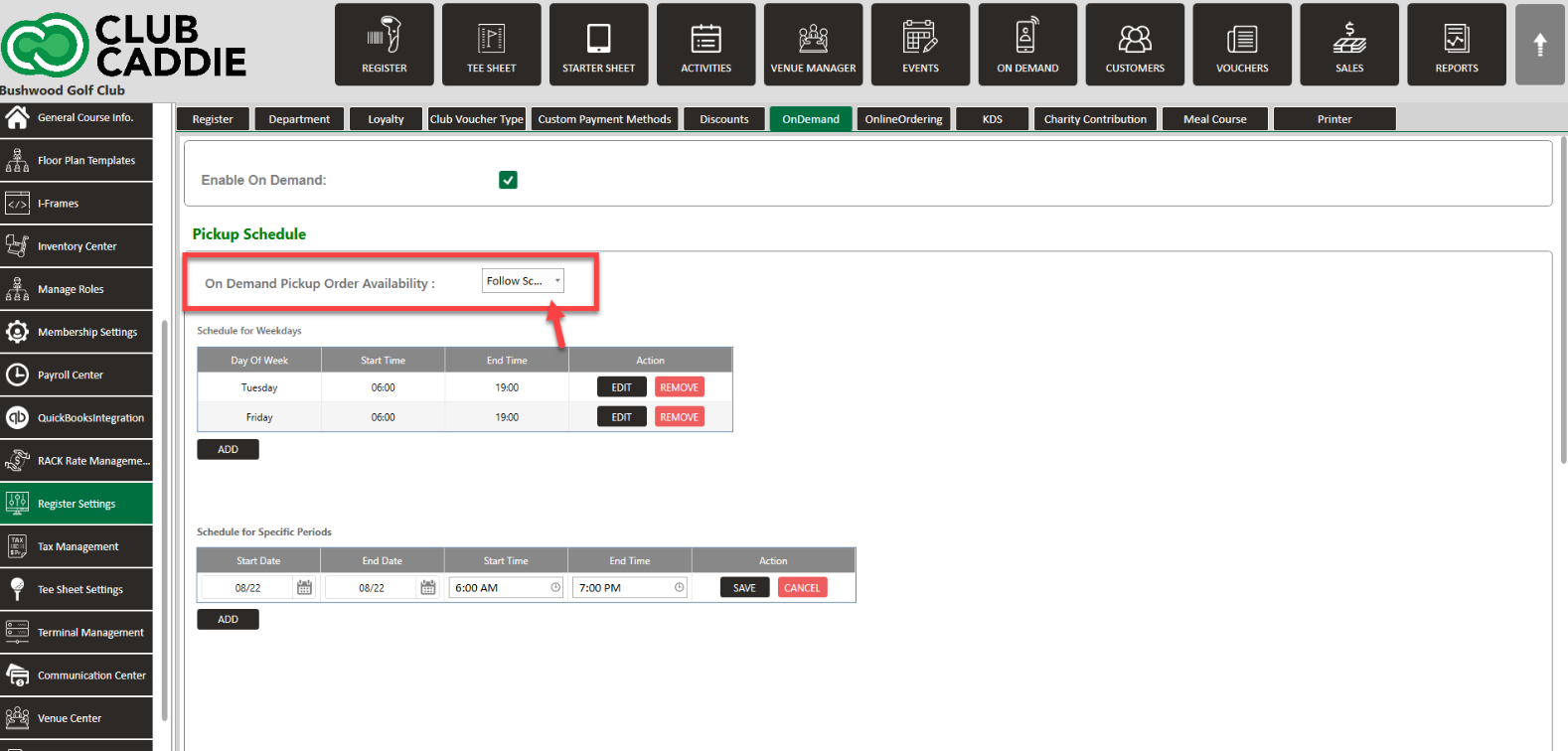


Examples: This scheduling feature gives you greater control over when customers can place On Demand orders. You can now set specific days and times when your service is available, creating a custom availability calendar. This means customers will only be able to order during your designated hours, preventing orders from coming in when you're closed, too busy, or otherwise unavailable. The key benefit is that you no longer need to constantly monitor On Demand orders or manually toggle the service on and off. Instead, the system automatically manages order availability based on your preset schedule.

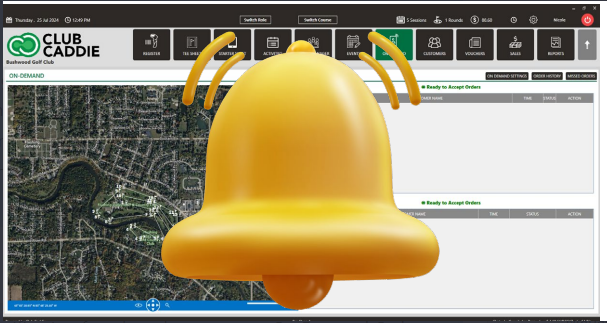
Note: Sound notification for when there are new On Demand Orders to enhance awareness.

    • Related Articles

    • SETTINGS: MOBILE APP BUILDER

      After the initial set-up of your Custom Mobile App, in Jonas Synergy you’re now able to make adjustments to the modules that appear in your App, curating the desired experience that you want your players to have. Step-By-Step: To manage the modules ...
    • SETTINGS: TERMINAL MANAGEMENT

      This video offers a walk-through on adding additional terminals. With clear, step-by-step instructions, this tutorial simplifies the process of terminal creation, highlighting key features and providing practical examples. Learn how to personalize ...
    • SETTINGS: DEFAULT PRINT SETTINGS

      Article Contents: This article gives step-by-step instructions on how to adjust the default print settings. Step-by-Step: Step 1: Click on the Gear Wheel icon on the top right corner of the screen. Step 2: Click on Register Settings from the ...
    • SETTINGS: REGISTER SETTINGS

      Article Contents: This will show you how to navigate through your register settings, as well as providing a brief description on what each setting can do for you club. Video: The video covers essential features such as printing tip receipts, adding ...
    • SETTINGS: HOW DO I CREATE A NEW TERMINAL

      In this article, we will walk through adding additional terminals to locations that you have set up. Step-By-Step: Step 1: Start by navigating to terminal management found within the settings module by clicking the gear icon (1) in the top right-hand ...