Below are the fields that must be filled correctly. All values should match between your Google Business Profile and the information within General Course Info in Jonas Synergy.
Step 1: Click on Settings, and then General Course Info from the left-hand-side menu. The information here needs to match what's in Google.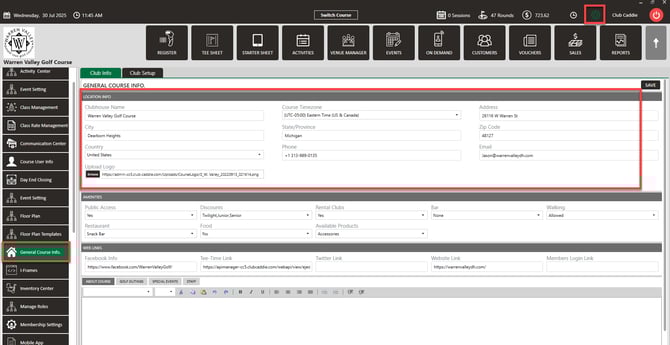
- Phone Number doesn't have to match - Jonas Synergy has +1 in the Phone field and Google does not
- State - Google Publishes abbreviated State, such as MI and Jonas Synergy has the full name - Michigan.
Step 2: Navigate to your Google Business Profile. Then, check to make sure that all information is entered correctly and matches what's in Jonas Synergy.
Clubhouse Name
- Must match exactly with the club name on Google.
Example: Warren Valley Golf Course
Step 3: Telephone Number (with country code)
- Must match the number on your website and Google listing.
Example: +1 313-989-0135 (USA)
Step 4: Website Link
- Must be the official website of the club.
Example: https://warrenvalleydh.com/
Step 5: Location Details (must match Google Maps)
|
Field |
Example Value |
|
Address |
26140 W Warren St |
|
City (Locality) |
Dearborn Heights |
|
State/Province |
Michigan |
|
Country |
United States |
|
Zip Code |
48127 |
|
Latitude |
42.341443 |
|
Longitude |
-83.296697 |
Latitude and longitude must be added or verified from the Jonas Synergy Admin Portal under the Dashboard -> Manage Club House -> Add/Update Club House section.
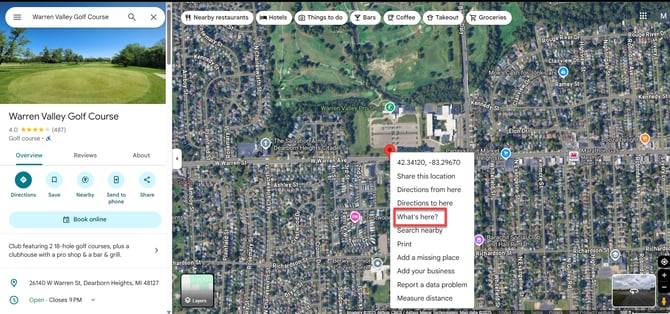
You can get accurate coordinates using Google Maps.
In Google Maps - Right-click on your location > Click “What's here?” > Copy latitude, longitude.
Step 6: Tee Time Link
- This is required for activating booking on Reserve with Google.
- Should point to the club’s live tee time booking URL.
- To copy your tee time link, navigate to Settings in Jonas Synergy. Then select Iframes.
Example:
https://apimanager-js.jonassynergy.com/…
Settings > I-Frames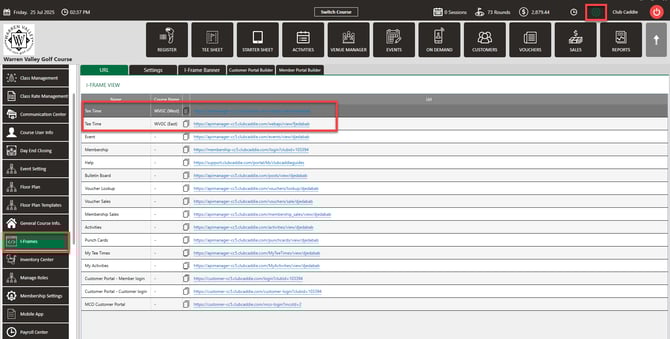
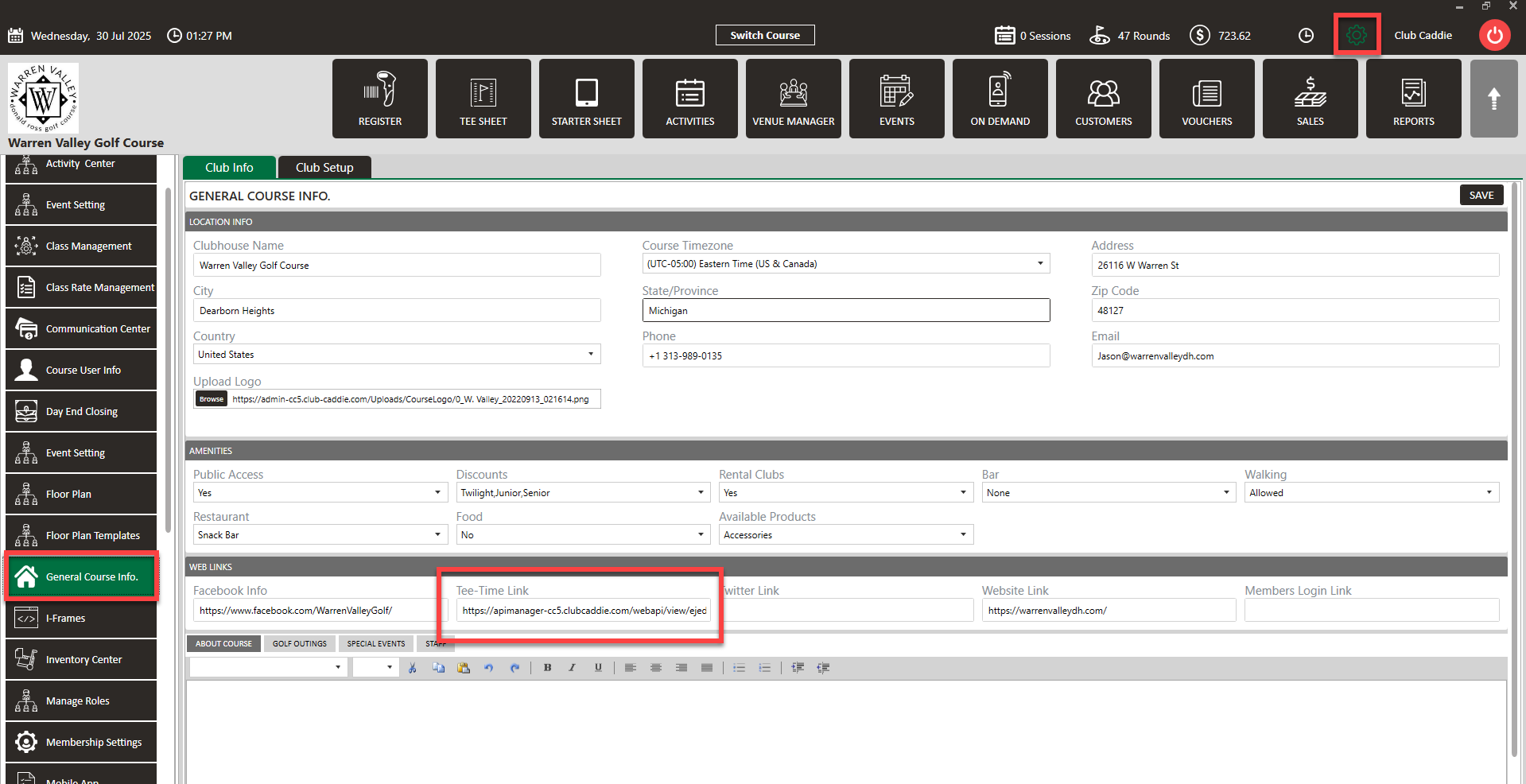
- You will also need to paste the link in General Course Info in Jonas Synergy Settings.
Step 7: “Book Online” Button Activation (Enable in POS)
To activate the “Book Online” button on your Google Business Profile via Reserve with Google, follow these steps:
- Complete and verify all required club information in the pos/admin portal:
- Club name, address, phone (with country code)
- Website and tee time link
- Latitude and longitude from Jonas Synergy Admin Portal or Google Maps
- Club name, address, phone (with country code)
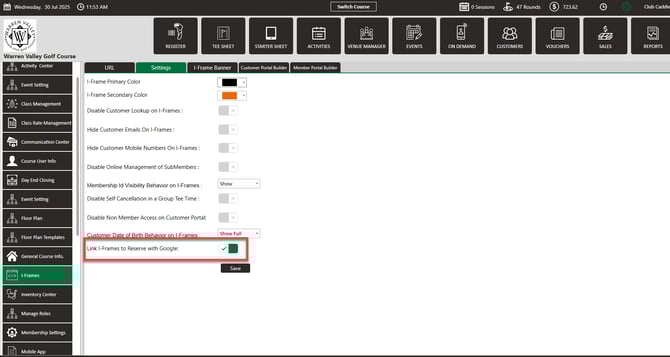
- Only after verifying all information is correct, go to the POS and enable the Reserve with Google setting (see screenshot below) - Step 8.
Step 8: Once enabled, the Book Online button typically appears on Google Search and Maps within 24 hours.
Make sure your setup details are complete and accurate before enabling the setting in POS.
For assistance in creating a Google Business Account, please click HERE.