Step-By-Step:
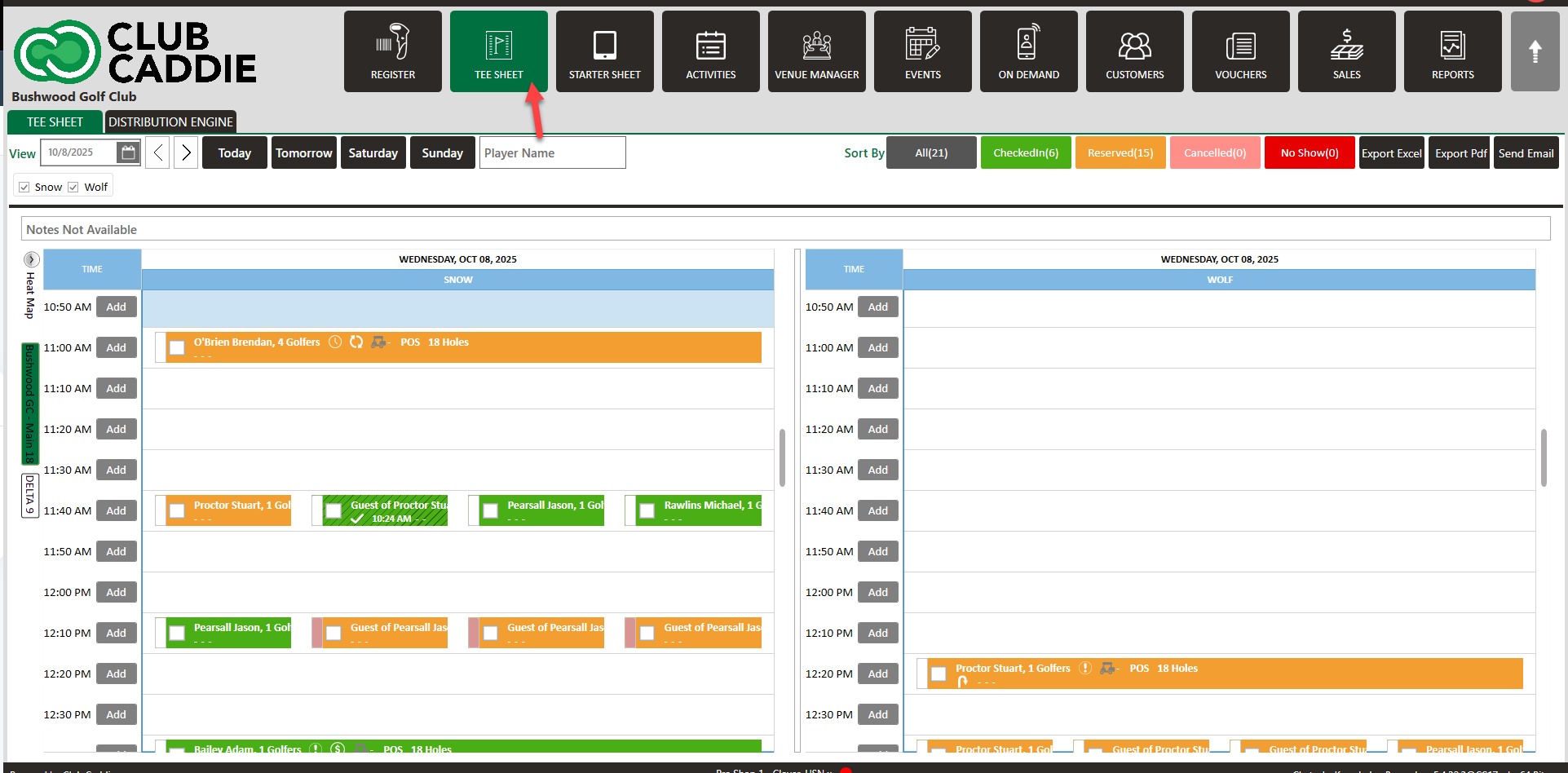
Step 1: Navigate to the TEE SHEET module using the top navigation menu.
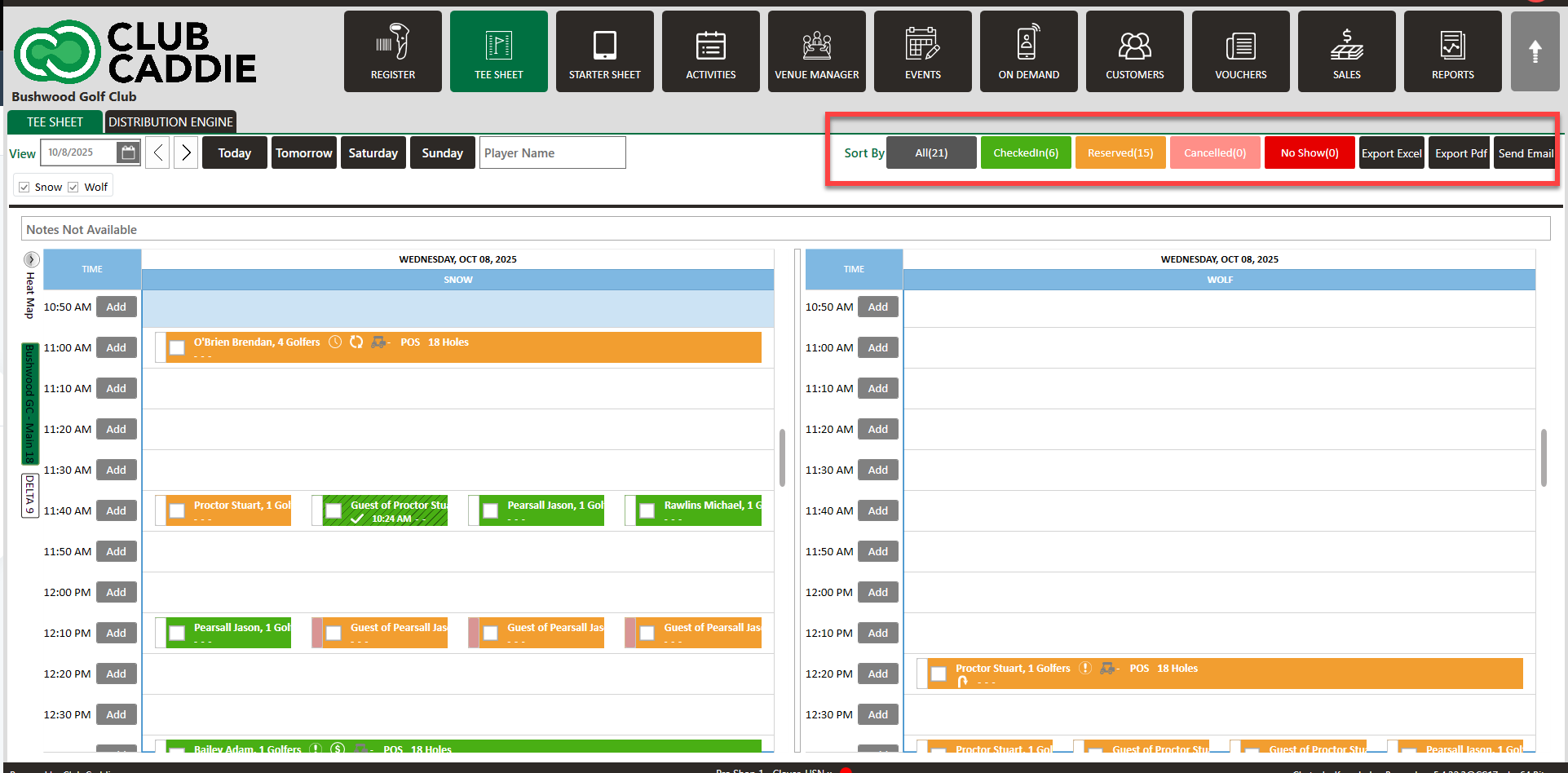
Step 2: In the top right-hand portion of the TEE SHEET module you have a number of colored options that when clicked will filter your day's Tee-Sheet to the desired status.
Step 1: Navigate to the TEE SHEET module using the top navigation menu.
Step 2: In the top right-hand portion of the TEE SHEET module you have a number of colored options that when clicked will filter your day's Tee-Sheet to the desired status.
- All: This is the default selection and will show you the total number of bookings for the day (1).
- Checked In: Displays all of the tee-time bookings that have been moved to the checked-in status (2).
- Reserved: Displays all of the tee-time bookings that have been reserved for the remainder of the day (3).
- Cancelled: Displays all of the tee-time bookings that have currently been canceled for the day (4).
- No Show: Displays all of the tee-time bookings that have so far been marked as having golfers absent (5).