Creating A New Tee-Time Block

Creating a Block

Article Contents: This article contains step-by-step instructions on blocking tee times for all online channels and informing employees of the booking restrictions.

Step-By-Step

Step 1: Click on the ' TEE SHEET ' module from the navigation menu.
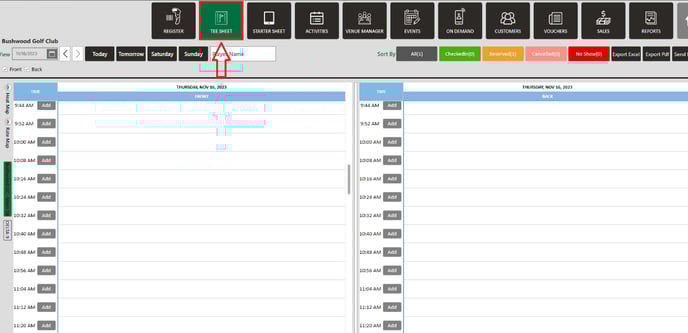
Step 2:
  There are two ways to block a group of tee times:

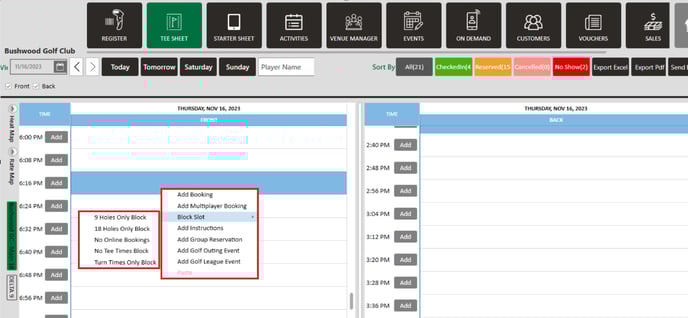
Method 1: Right-click on a time slot and hover over "Block Slot" and select one of the five options from the drop-down list:


Note: 
1) 9 Hole Only Block - will only allow you to book for 9 Holes
2) 18 Hole Only Block - will only allow you to book for 18 Holes
3) No Online Bookings - will prevent any new online bookings
4) No Tee Times Block - will prevent tee time bookings from being made online as well as being made through the point of sale by any course users. 
5) Turn Time Only - will only allow turn times in the specified time and no new bookings could be created in this block.

Enter the required information, including the start and end time and a reason for the block, e.g. "Birthday Celebration".
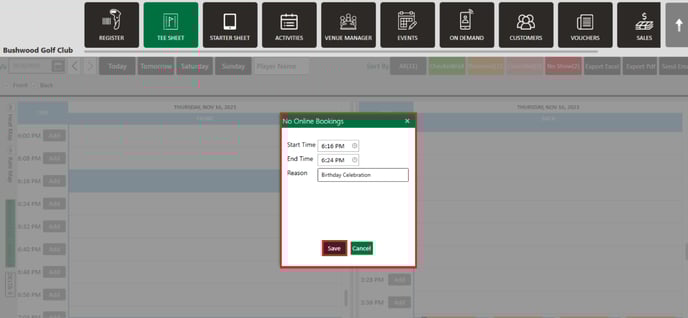
 

Method 2:  You can click on a starting time slot and drag on screen to the ending time slot. Right-click on your pre-selected times, next hover over the "Block Slot" option, and finally select one of the five options discussed above. You will be required to confirm the Start Time, End Time, and fill in a reason for the block, e.g. note "Birthday Celebration".
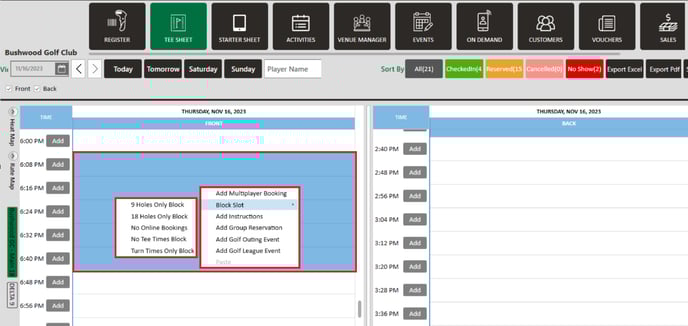
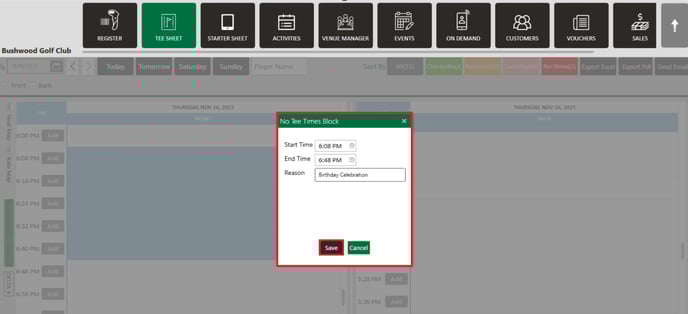
 

Step 3:
  Click ' Save' to block the tee sheet for your specified time.
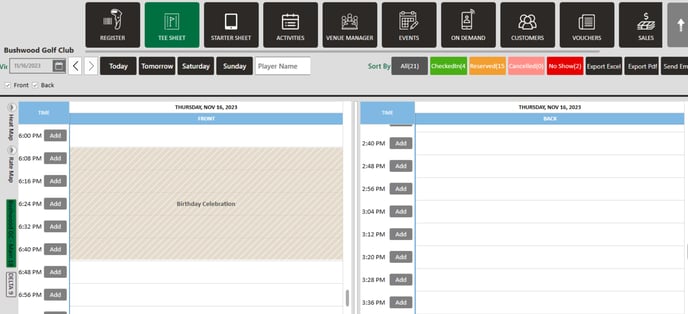
 

    • Related Articles

    • Turn Time Only Block

      Article Contents: This article gives step-by-step instructions on Turn Time Only Blocks. Step-By-Step Step 1: Select the TEE SHEET module from the module navigation menu. Step 2: Right click on the time that you want the block to start and select ...
    • Shotgun Starts

      Article Content: Shotgun Starts Are The Go-To Setup For Tournaments And Large Groups When You Want Multiple Foursomes Starting At The Same Time Across Different Holes. The System Will Automatically Calculate The Number Of Tee Times Required, Assign ...
    • Switching Between Courses

      Article Contents: This Article Provides Step-By-Step Instructions On How To Allow Staff To Toggle Between Different Golf Courses (E.G., Championship 18, Executive 9) While Preserving Tee Sheet Variables Unique To Each Course. Understanding The ...
    • Create A Group Reservation

      Article Contents: In this article we will walk through creating a new group reservation which can be used to reserve multiple tee-times at pre-setup or custom prices. Step-By-Step Step 1: Navigate to the TEE SHEET module from the top navigation bar. ...
    • Google Bookings

      Article Content: This Article Explains How Golf Clubs Should Provide And Verify Their Business Information For Onboarding With Reserve With Google (RwG). All Data Must Be Accurate, Valid, And Aligned With The Club's Google Business Profile. ...