Reserve/Booking Tee Time

Booking Confirmation

Article Contents: This article contains step-by-step instructions on sending a booking confirmation.

Step-By-Step:

Step 1:
 Select “Tee Sheet” from the main menu.

Step 2: Select the day and time you wish to book.

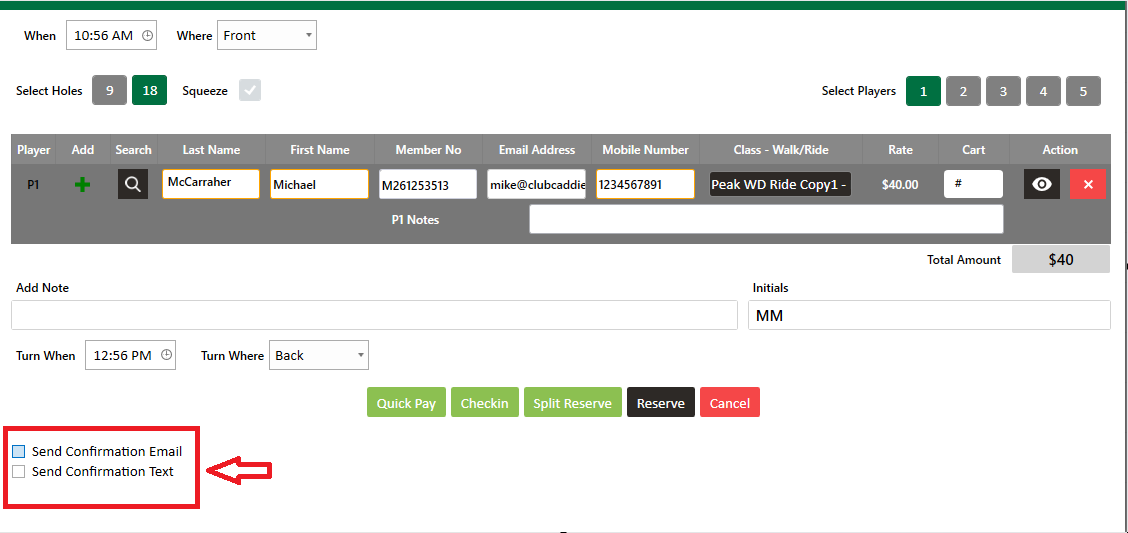
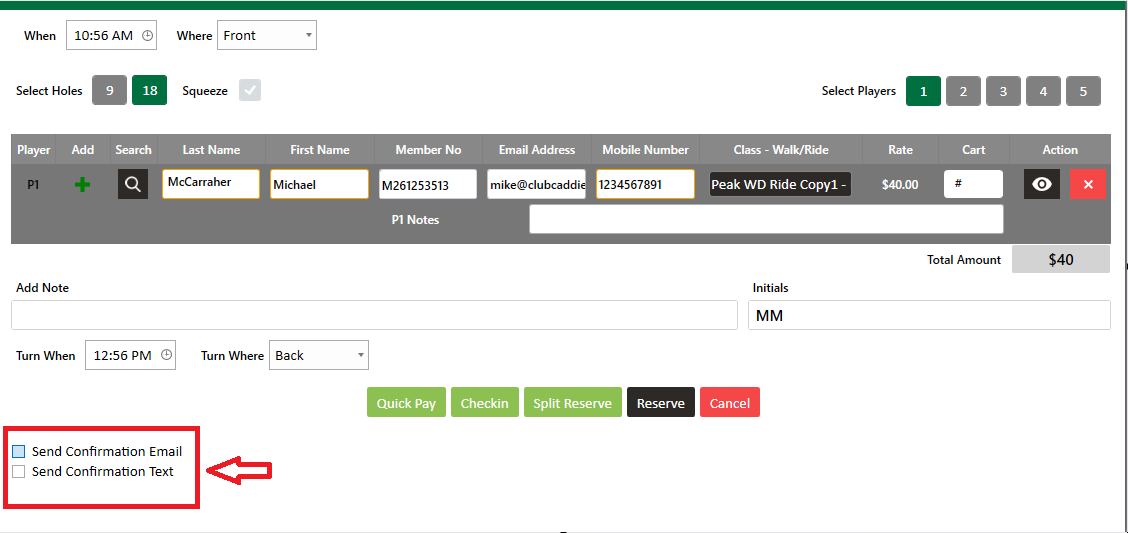
Step 3: Once you have entered the information for the tee time, there are two options on the bottom of the window - "Send Confirmation Email" and "Send Confirmation Text". You may select both options, one option, or if you don't want a notification to be sent, leave both boxes blank. Once you click "Reserve" or "Split Reserve", the tee time will be booked and the confirmation will be sent.
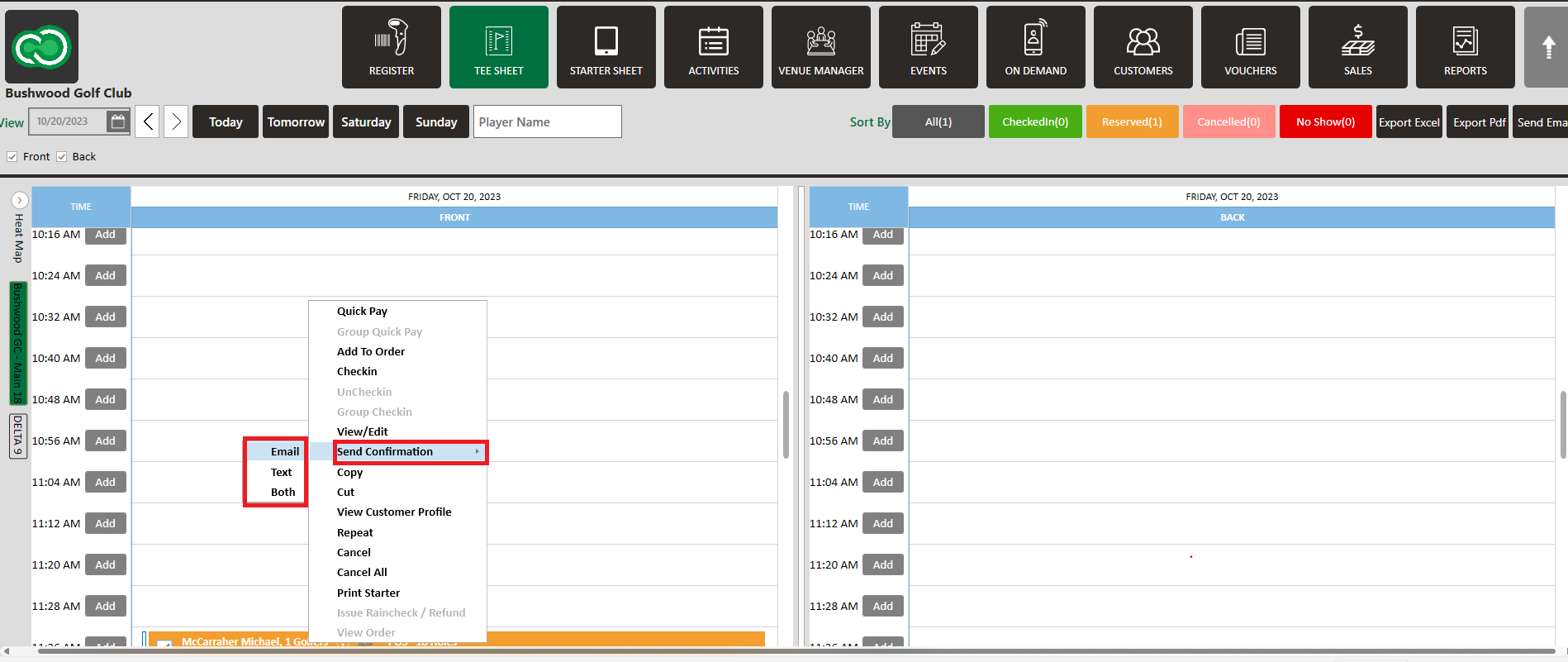
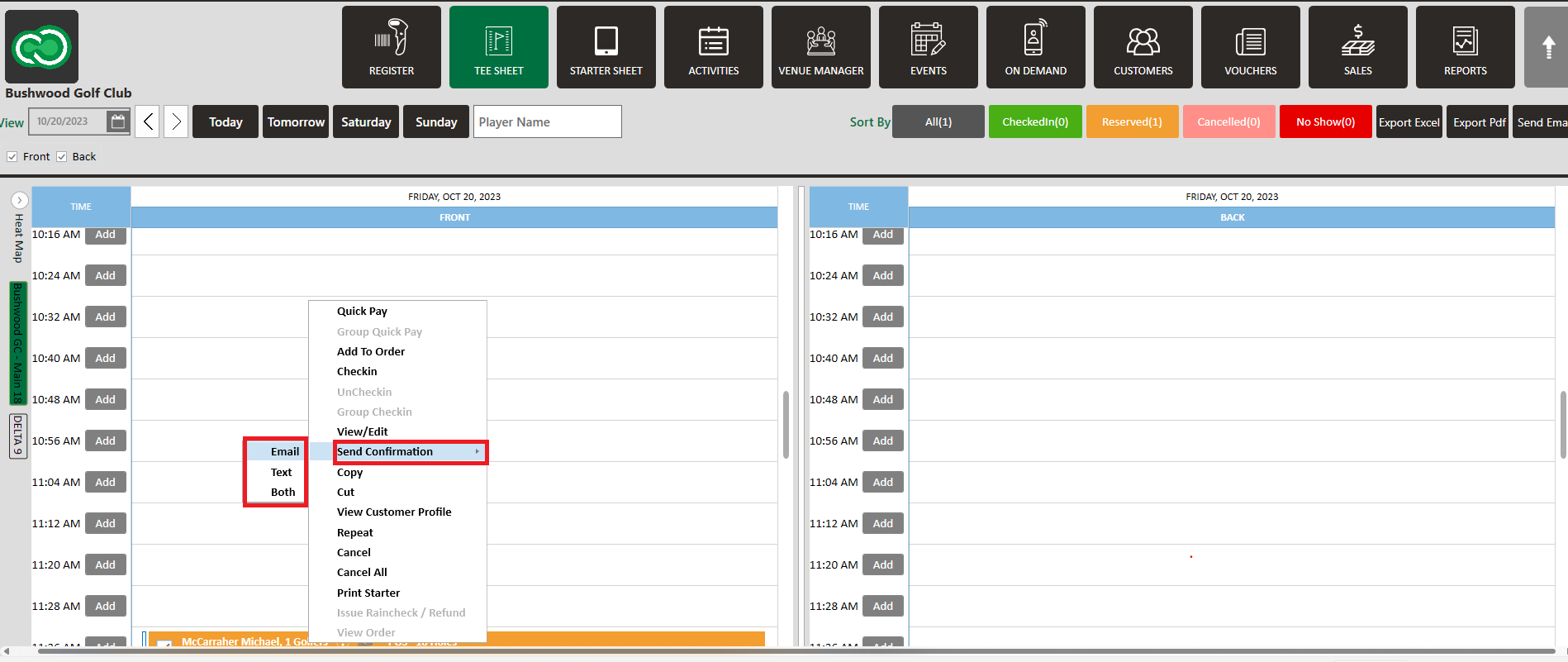
If you need to resend the confirmation, this can be done by right clicking on the reservation, Send Confirmation, and then select Email, Text, or Both.


    • Related Articles

    • Cancel Confirmation

      Article Contents: This article contains step-by-step instructions on sending cancel confirmation. Step-By-Step: Step 1: Select “Tee Sheet” from the main menu. Step 2: Right click on the booking you would like to cancel. Step 3: Select " Cancel". Step ...
    • Cut or Copy and Paste a Tee Booking

      This article contains a step-by-step guide on how to cut/copy and paste Tee Booking. Step-By-Step: Step 1 : Click on the "Tee Sheet" tab. Step 2 : Next, right-click on tee time booking that you want to cut/copy-paste and select your option. Step 3 ...
    • Switching Between Courses

      Article Contents: This Article Provides Step-By-Step Instructions On How To Allow Staff To Toggle Between Different Golf Courses (E.G., Championship 18, Executive 9) While Preserving Tee Sheet Variables Unique To Each Course. Understanding The ...
    • Add Notes to Individual Bookings

      Article Contents: This article gives step-by-step instructions on how to add notes to individual tee bookings Step-By-Step Step 1: Select the Tee Sheet module from the top navigation bar. Step 2: Open the tee booking window for the select tee time. ...
    • Add Cart Number

      Article Contents: This article summarizes how to add a cart number on the tee sheet Step-By-Step Step 1: Select “Tee Sheet” from module navigation menu at the top of the point-of-sale Step 2: Double click on tee time that you wish to add a cart ...