how to see no shows within the software

No Show

Article Contents: This article contains instructions on how to see no shows within the software.

Step-By-Step

Step 1: Understanding what a no show is -  A no-show occurs when a golfer fails to appear for a reserved tee time, which has been recorded either by the club directly or through online booking by the golfer.
 

Step 2: System Handling of No Shows - The Jonas Synergy software automatically identifies a tee time as a no-show 30 minutes post the scheduled time, provided the golfer has not checked in through the software. Note, there is no manual process to label a booking as a no-show.

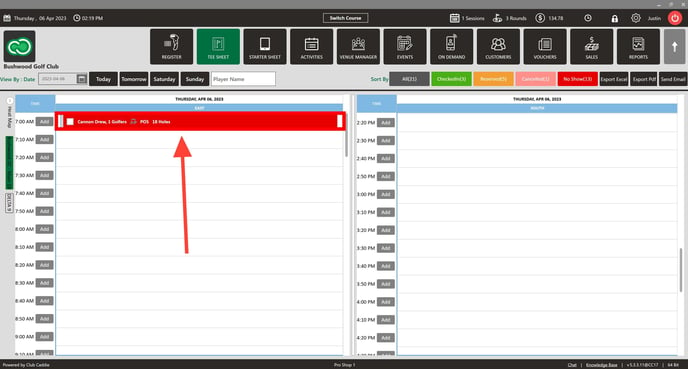
Step 3: Identifying No Shows on the Tee Sheet - The system designates the tee time in red to signal a no-show.


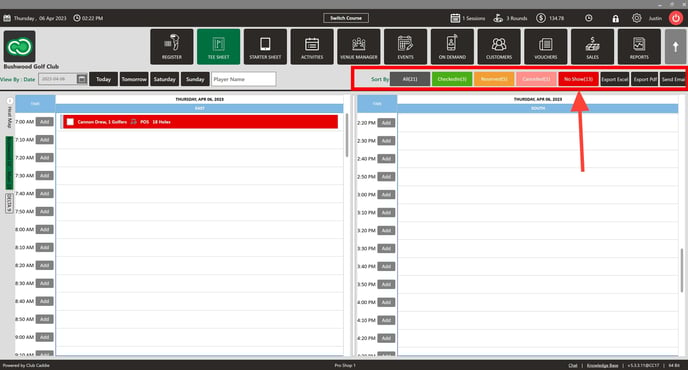
Step 4: Filtering for No Shows - To filter the tee sheet for no-shows, select the "No Show" option located in the "Sort By" section at the top right corner of the tee sheet. The "No Show" label will display the count of no-shows for the selected date, if applicable.


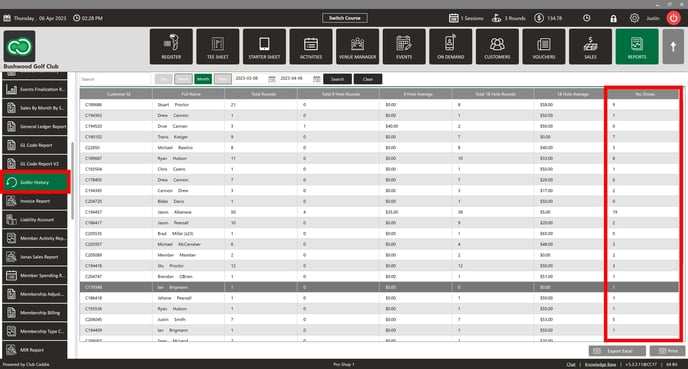
Step 5: Reviewing Golfer History for No Show Data - Access the Golfer History report to view each golfer's no-show occurrences, with the ability to filter by date.


    • Related Articles

    • Search by Player Name

      Article Contents: This article contains information on how to search by a player's name. Step-By-Step Step 1: Navigate to the TEE SHEET module from the top navigation bar (1). Step 2: Near the Select Current Date button you will find the Player Name ...
    • Filter By Status

      Article Contents: This article provides information on sorting your day's tee time bookings by their current status. Step-By-Step: Step 1: Navigate to the TEE SHEET module using the top navigation menu. Step 2: In the top right-hand portion of the ...
    • Switching Between Courses

      Article Contents: This Article Provides Step-By-Step Instructions On How To Allow Staff To Toggle Between Different Golf Courses (E.G., Championship 18, Executive 9) While Preserving Tee Sheet Variables Unique To Each Course. Understanding The ...
    • Shotgun Starts

      Article Content: Shotgun Starts Are The Go-To Setup For Tournaments And Large Groups When You Want Multiple Foursomes Starting At The Same Time Across Different Holes. The System Will Automatically Calculate The Number Of Tee Times Required, Assign ...
    • Distribution Engine Price Overrides

      Article Contents: This article shows you how to make an override special using the Distribution Engine on the Tee Sheet and control the option to not allow any other price overrides from other third-party Vendors. Step-by-Step: Step 1: Click on the ...