Step 1: Navigate to the TEE SHEET module from the top navigation bar.
Step 2: Right click on the start time and click on Add Group Reservation.
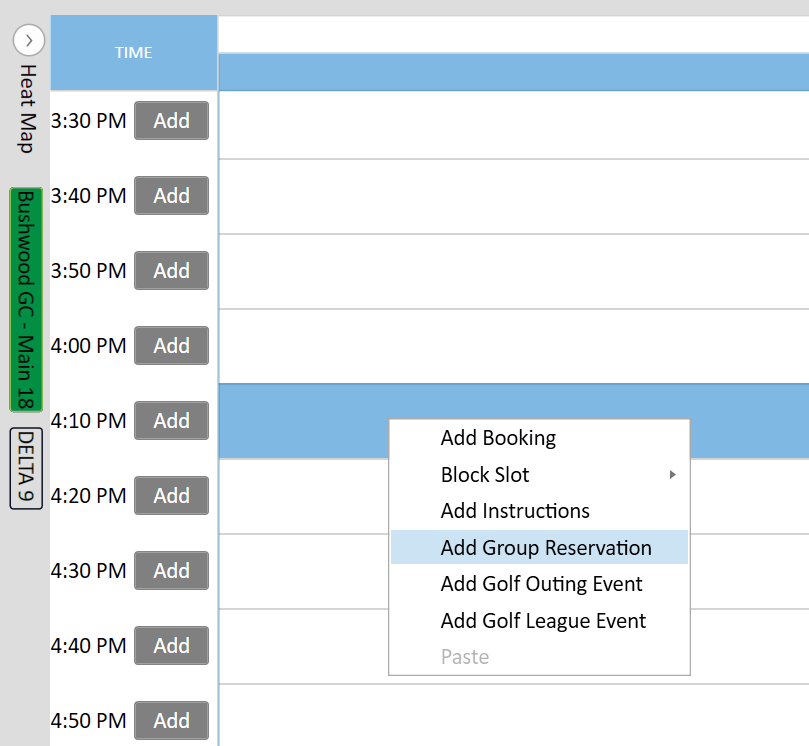

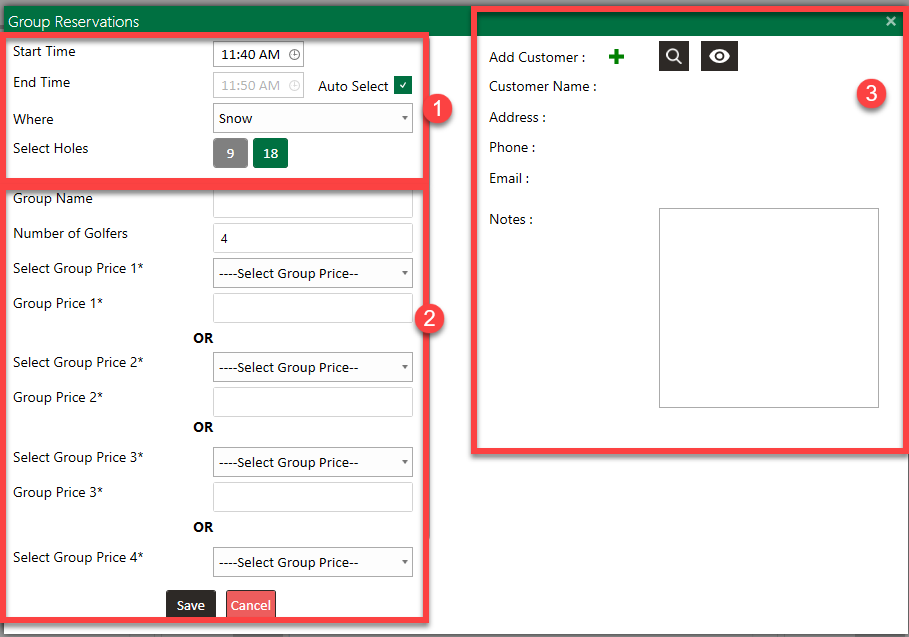
Step 3: This will open the Group Reservations window.
**Pictured Below**
Section 1 will request an input for the start time, end time, and the number of holes played by the group.
Section 2 will request a group name, number of golfers, and options for group prices.
Section 3 will request guest information if you would like to tie a main point of contact as well as any pertinent group notes.
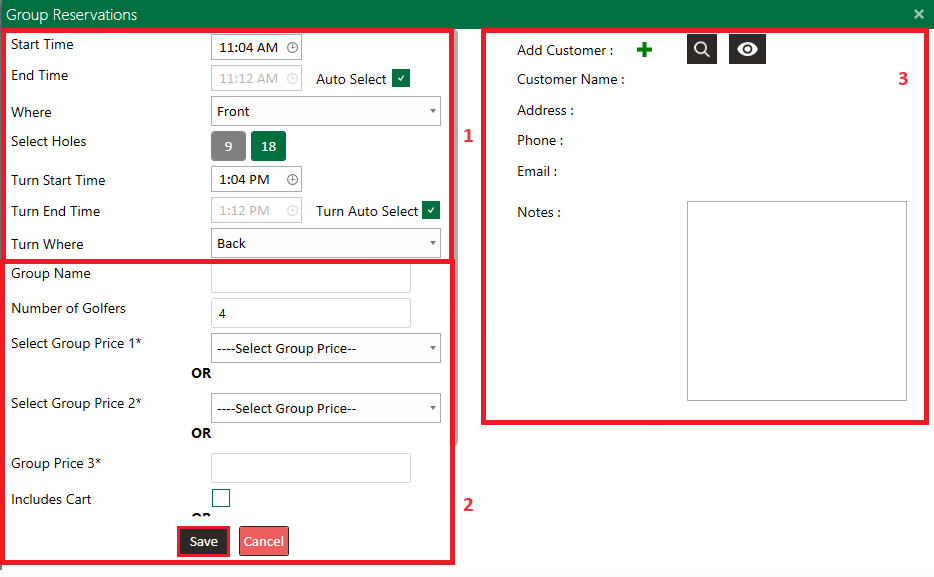
When you select a rate for Price 3 or 4, the system will now tie that price directly to the configured rate (rather than just using a flat number). If the rate includes a green fee and a cart fee, and you adjust the total price up or down, the system will apply the adjustment to the green fee only—keeping the cart fee fixed. This ensures consistency in reporting and clarity in what’s being discounted.
Example: If your rack rate is $75 ($55 green fee + $20 cart fee), and you apply a group rate of $65, Jonas Synergy will automatically allocate $45 to the green fee (down from $55), while the $20 cart fee remains unchanged.
Step 4: When you have made the appropriate changes, click on Save to create the group booking.
Checking In
Step 1: Right clicking on the group you'll be given the following options:
Check-in Price #: This pushes a single individual to the point of sale.
Check-in +: This allows you to check-in multiple individuals at different price points.
View Check-ins: This will display a list of the check-ins already made against a particular group.
Quick Pay Price #: This will push a single individual to the quick-pay screen without pushing it to the point of sale.

