How to Reserve and Book Tee Times: Step-by-Step Guide

Reserve A Tee Time

Article Contents: This article contains step-by-step instructions on reserving a new tee time within the tee-sheet module.

Step-By-Step

Step 1:
 Select “Tee Sheet” from the main menu.
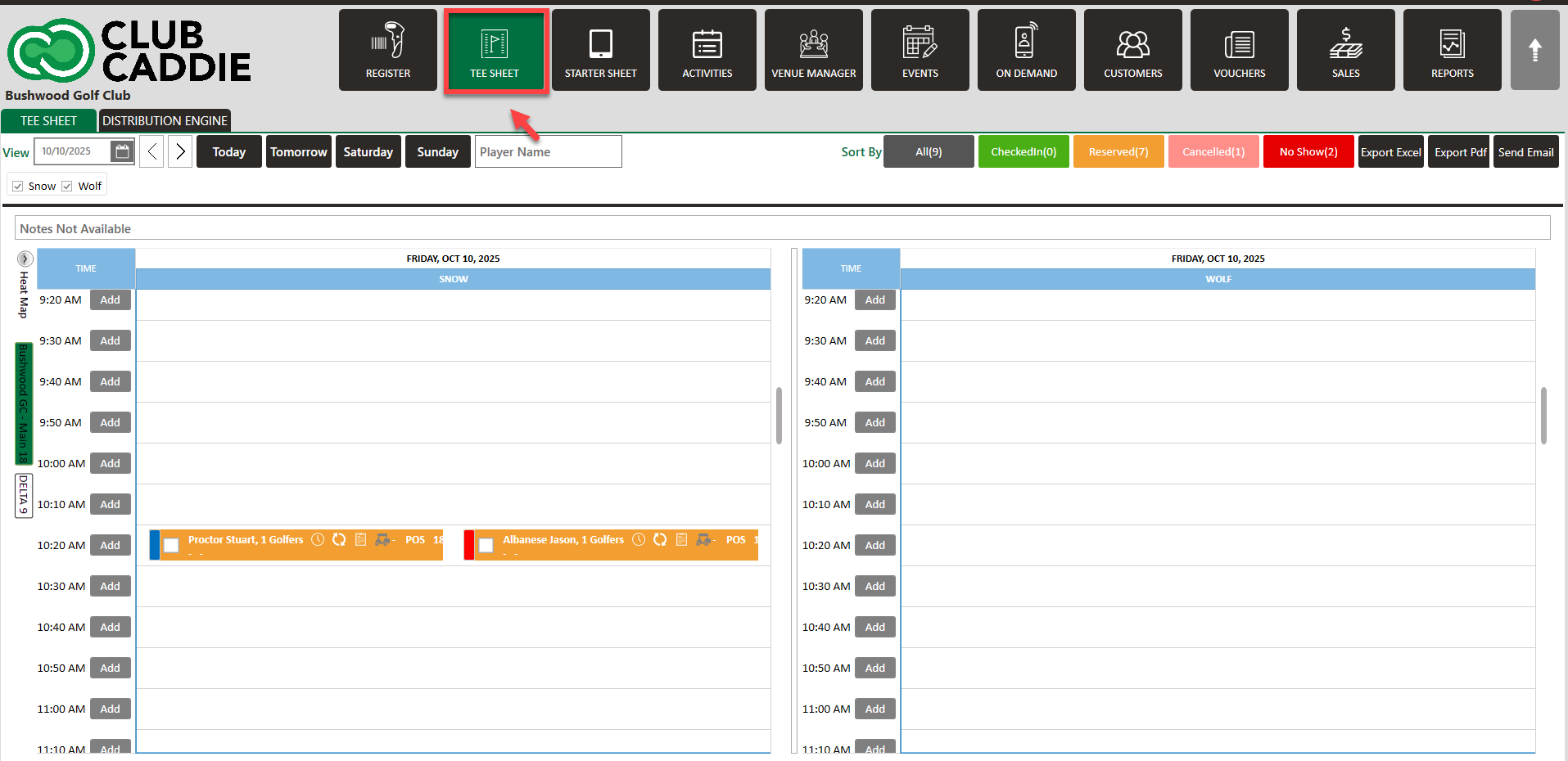
Step 2: The default date selection will be today's date.  If you wish to book for a future date, choose a date from the date selection in the top left-hand corner of the tee-sheet module. For quick navigation you can utilize "Select Current Date" to return to today.

Step 3There are 3 ways to reserve tee times:

  1. Click on the “Add” button next to the desired time slot.
  2. Right-click on a particular time slot and click on “Add Booking” in the drop-down list.
  3. Double click on the desired time slot.   
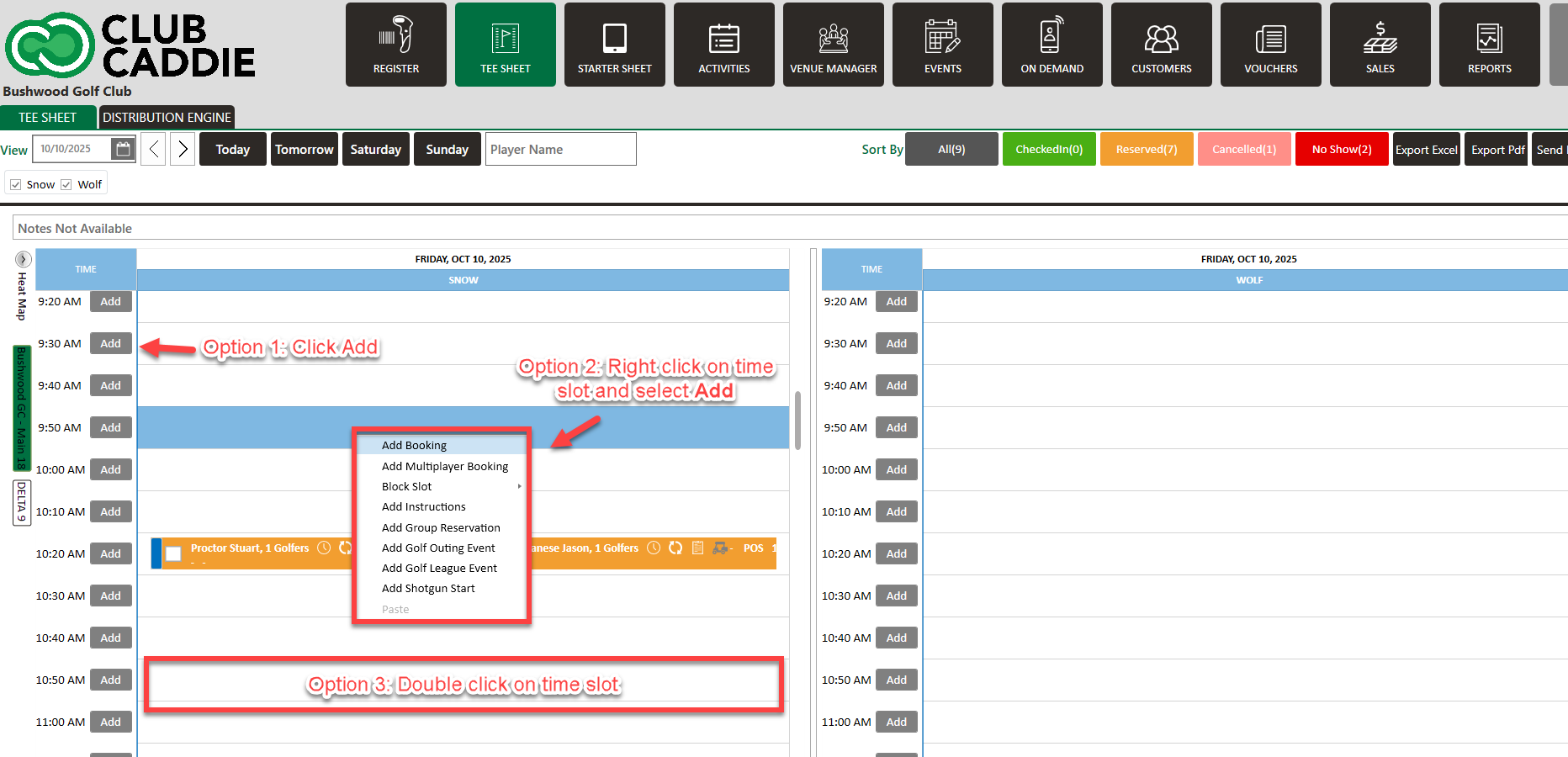
 

Note: All 3 ways above open a booking popup that contains the booking details.

 
Step 4: With the booking details pop-up open you will have a number of different options available:
  1. Select holes 9 or 18
  2. Select Players between 1 to 4 - your choices will vary depending on the facility's settings.
  3. Enter Player Details i.e. Last name, First Name, Member no., Mobile no., and Email Id
  4. Select the applicable pricing plan using the rate selection drop-down.
  5. If your facility requires a cart # be defined you may utilize the cart selection box to specify the cart number the group/player will utilize.
  6. If additional notes are required to be saved alongside the booking you may add text to the "Add Notes" field.
  7. If required, facilities have the option to require their staff to input an employee initial's within the "Initials" text box.
  8. To finalize your reservation after the applicable fields have been filled out, click on the “Reserve”  "Split Reserve" button.


    • Related Articles

    • Split Reserve

      Article Contents: This article contains information on how to Split Reserve Tee Time bookings. Step-By-Step Step 1: Go to the TEE SHEET Tab from the main menu (1). Step 2: Follow the same process to add a reservation provided in the article: " Tee ...
    • How to Squeeze a Tee Time

      Article Contents: This article contains steps on how to squeeze a tee time Step-By-Step Step 1: Navigate to the settings module (1), followed by Tee Time Information (2) in the left menu. Make sure that the Tee Times Squeeze setting is ON (3). Step ...
    • Editing Turn Time Resource

      Article Contents: This article gives step-by-step instructions on editing the turn resource. Note: You can adjust turn times and resources for 18 Holes only. Step-By-Step Step 1: Select the tee sheet module from the module navigation menu. Step 2: ...
    • Move a Tee Time

      Article Contents: This article contains step-by-step instructions on how to move a tee-time from one time slot to another using two different methods. Step-By-Step: Method 1: Drag-and-Drop Method Step 1: Click on "TEE SHEET" on the top menu. Then, ...
    • Cancel a Tee Time

      Article Contents This article contains a step by step guide on canceling or deleting a tee time from the Jonas Synergy tee sheet. Step-By-Step Step 1: Navigate to the tee sheet module from the top navigation bar. Step 2: Locate the tee time ...