Group Check-in

Multiple Guest Check In

Article Contents: This article contains information on how to make Group Check In into tee sheet.

Step By Step: 

Step 1:
 Go to the TEE SHEET module and select the time slot.


Step 2: 
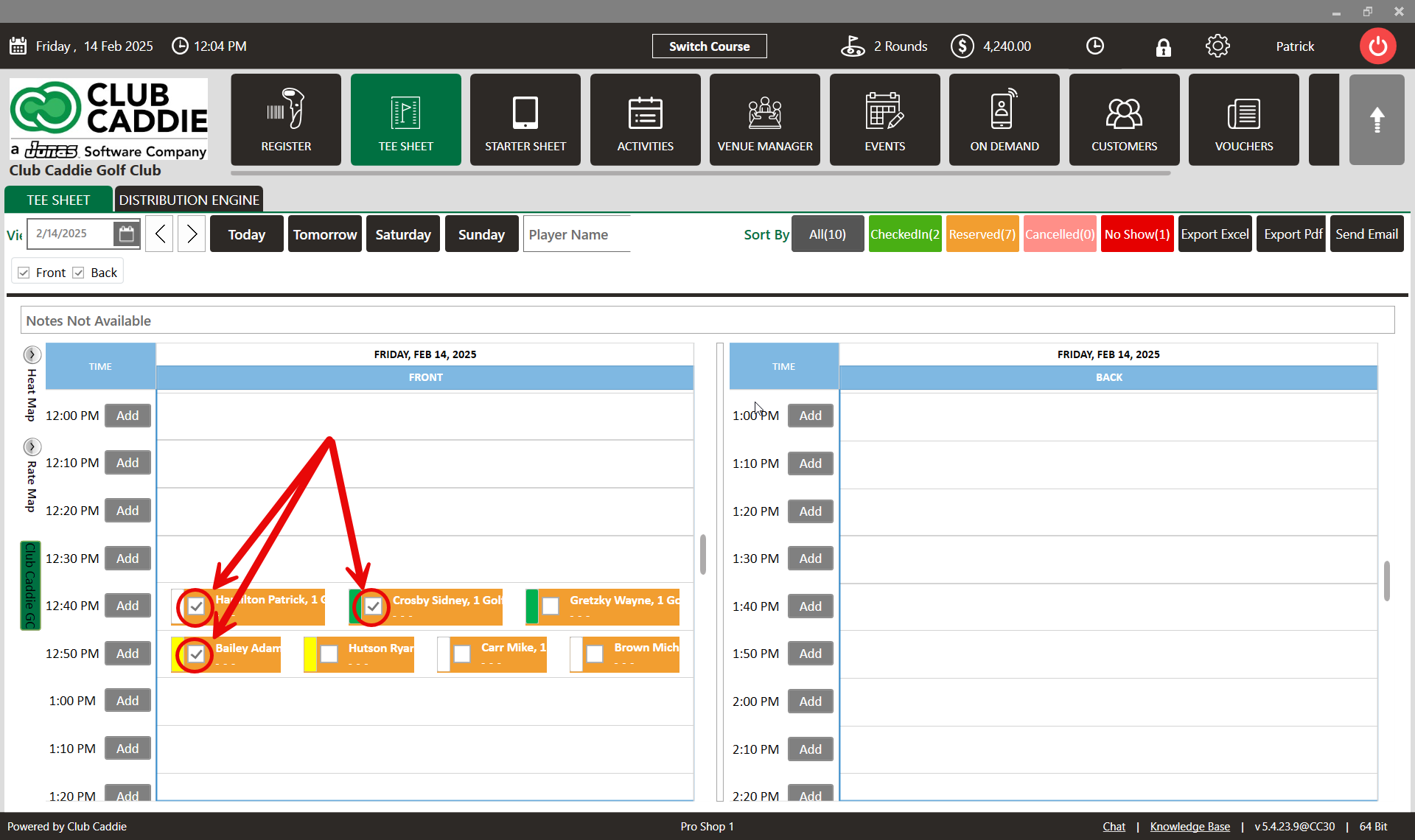
Select the players listed on the time slot. Check on the boxes on the time slot next to the player names. 
 

Step 3: Right click on the time slot and click on Group Check-In from the drop down.
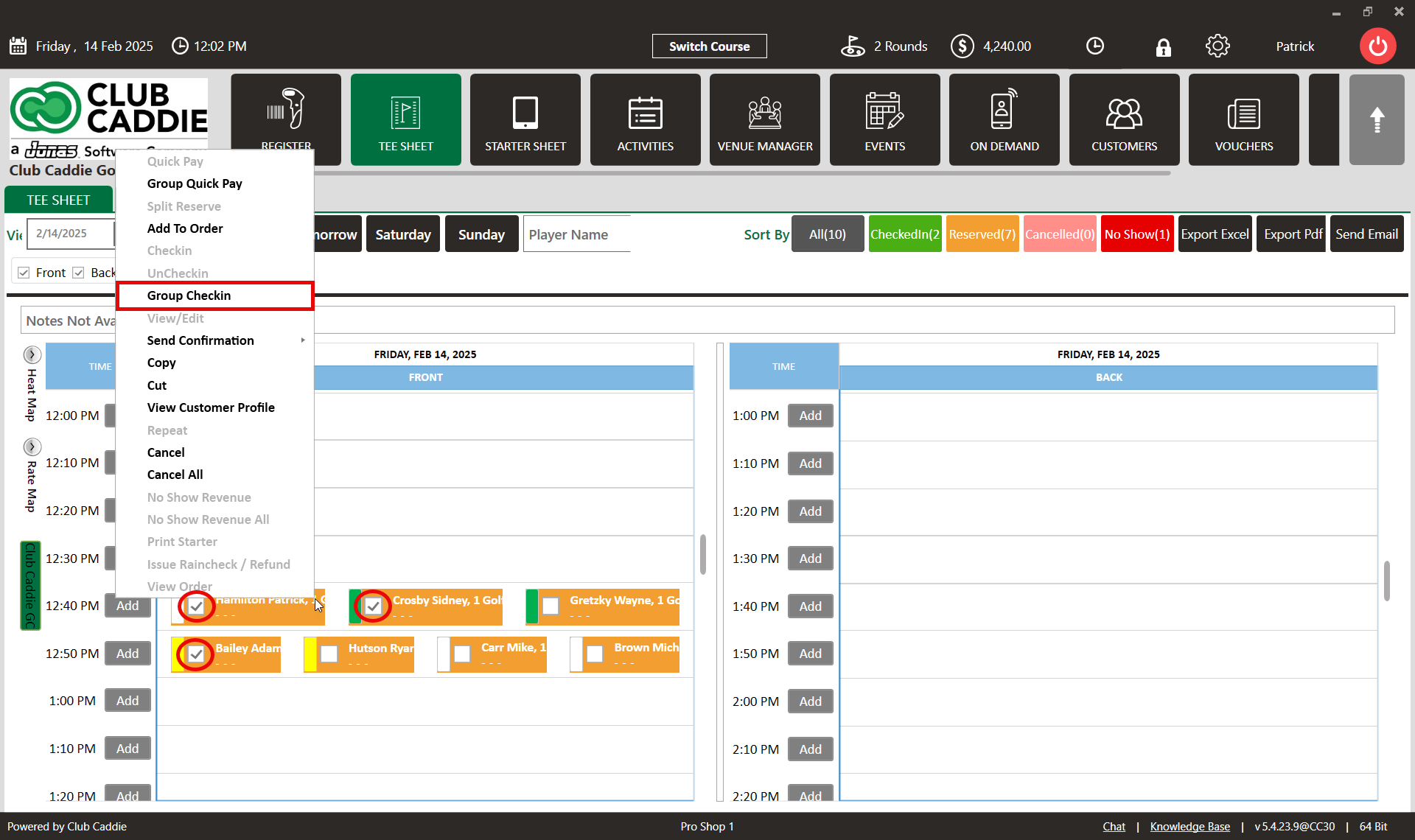
 
 
Step 4: The system will direct you to the point of sale and open Tabs for checked-in players. 
    • Related Articles

    • Assign Guest Class

      This article summarizes how to assign a class to a new Guest through the tee sheets. Step-By-Step: Step 1: Select the TEE SHEET module from the module navigation menu. Step 2: Click on Add or a time slot to open a booking window. Step 3: With the ...
    • Check In Tee Time

      Article Contents: This article contains a step-by-step guide on how to check-in a tee-time. Step-By-Step Step 1: Click on the TEE SHEET tab from the main menu (1). Step 2: Find and select the reservation from the Tee Sheet (2). Step 3 (Option a): ...
    • Issuing A Rain Check

      Article Contents:- This article provides step-by-step instruction on how to issue a Rain Check or refund a transaction directly from the tee Sheet module. Step-By-Step: Step 1: Click on the "Tee Sheet" button from the top navigation bar. Step 2: ...
    • Golf League Check-in

      This article gives step-by-step instructions on how to make a Golf League check-in within the tee sheet. Step-By-Step: Step 1: Click on the TEE SHEET from the top menu. Select the Golf League event from the time slot, then right-click on the time ...
    • Golf League Check-in

      Article Contents: This article gives step-by-step instructions on how to make a Golf League check-in within the tee sheet. Step-By-Step: Step 1: Click on the TEE SHEET from the top menu. Select the Golf League event from the time slot, then ...