Activity Resource
ACTIVITY RESOURCES ARE THE PHYSICAL LOCATIONS WHERE THE ACTIVITIES ASSOCIATED WITH A SPECIFIC ACTIVITY RESOURCE TYPE ARE PERFORMED, SUCH AS GOLF SIMULATOR BAYS FOR A GOLF SIMULATOR ACTIVITY RESOURCE TYPE.
Step-by-Step:
Step 1: Ensure the associated Activity Resource Type has already been created. If not, refer to the article on how to create an Activity Resource Type.
Step 2: Navigate to Settings > Activity Center > Activity Resource in Jonas Synergy.
Step 3: Click " ADD" in the top left corner of the Activity Resource screen.
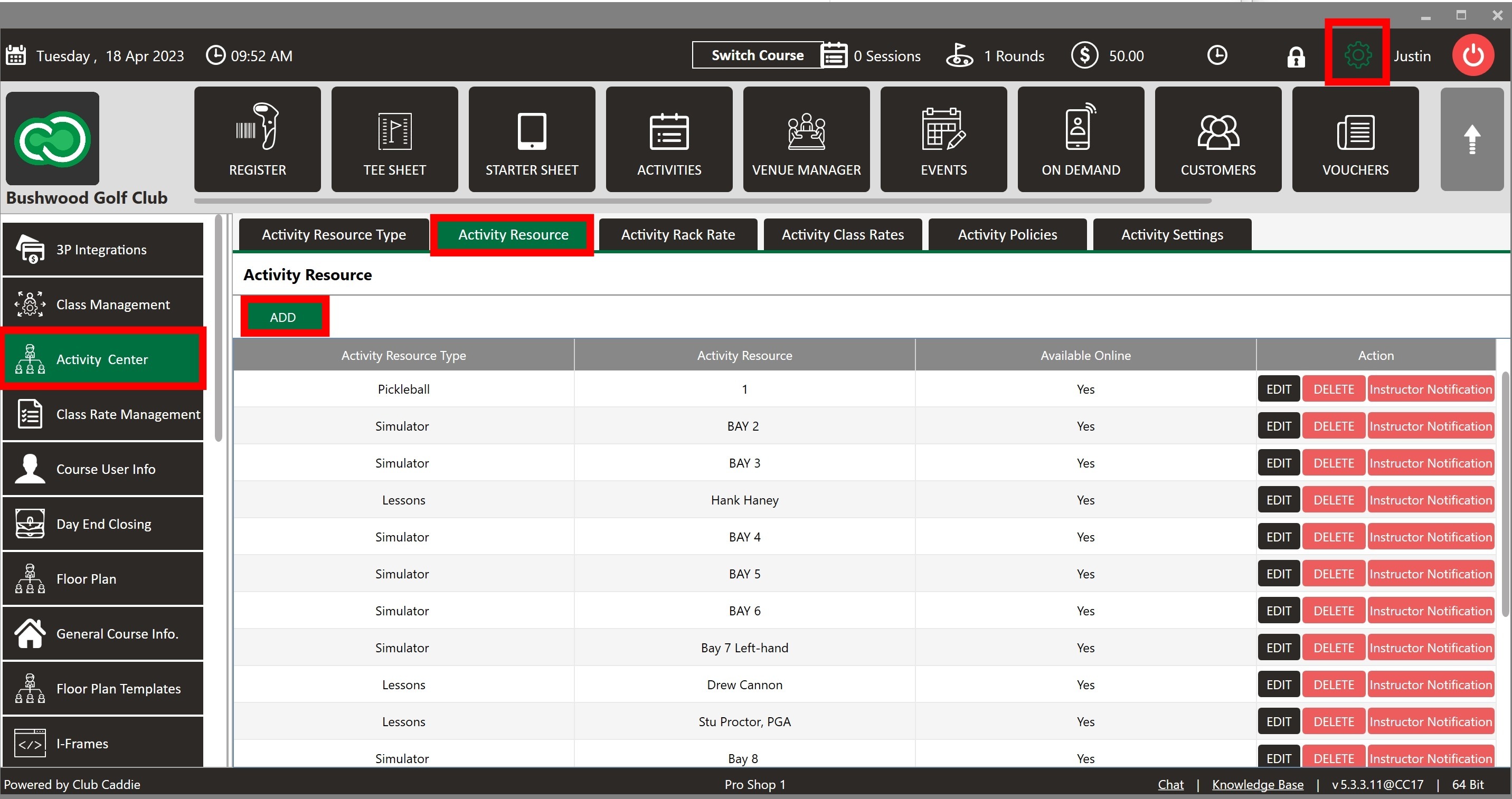
Step 4: Select the Activity Resource Type from the dropdown menu and name the Activity Resource in the " Activity Resource" field.
Step 5: Use the " Activity Online" toggle to enable or disable this Activity Resource's online booking availability.
Step 6: Click " SAVE" to save the new Activity Resource, or click "CANCEL" to discard the changes.
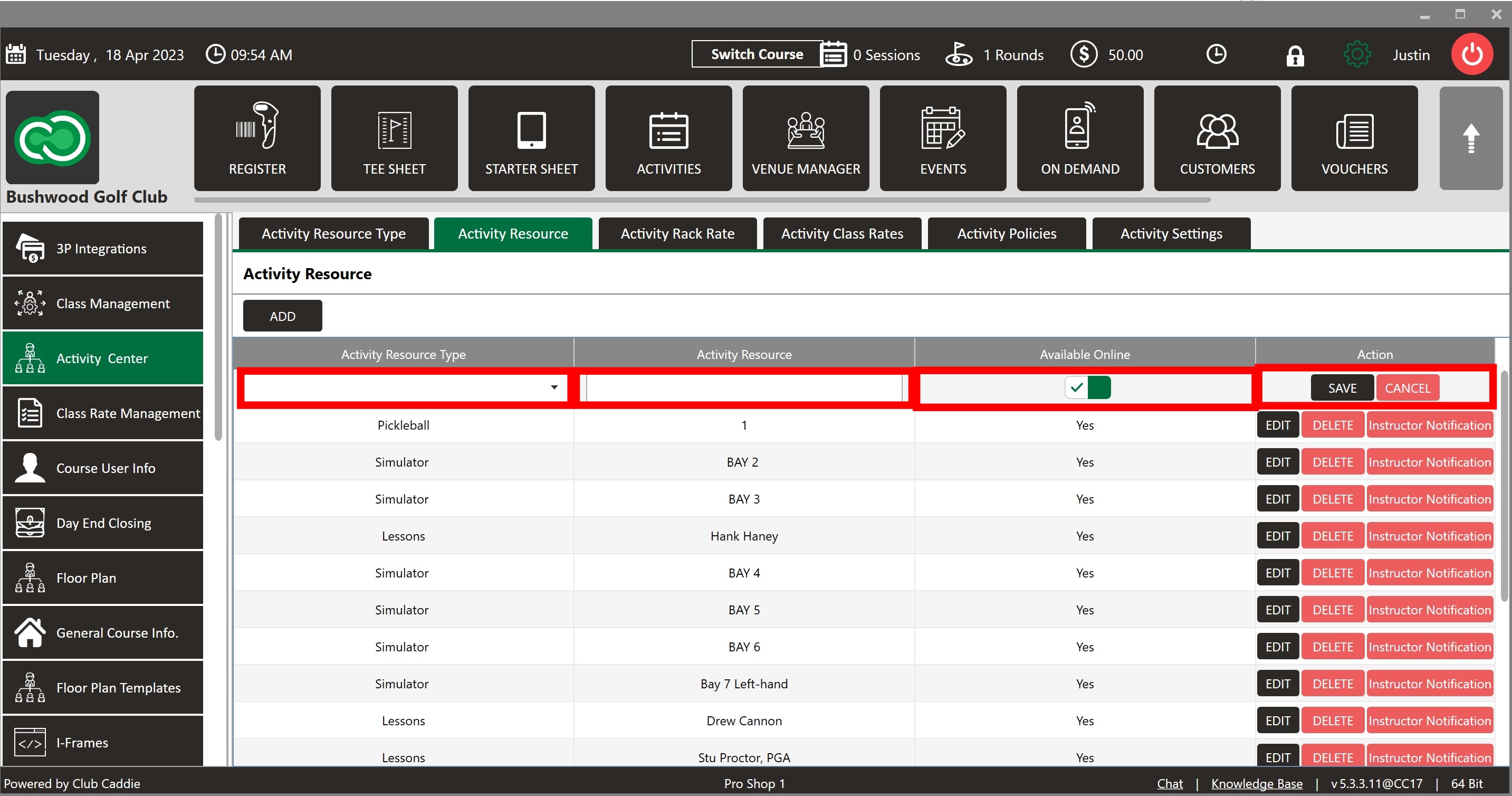
Step 7: To modify an Activity Resource, click " EDIT" on the desired entry. To delete it, click " DELETE" on the same entry.
Step 8: Click " Instructor Notification" to customize email notification settings.

Step 9: Click " ADD MAILER" to add an email address that will be Bcc'd or Cc'd on notifications. Once a new line item has been created, click " Email" to enter the information related to the " To," " Cc," and " Bcc" fields.
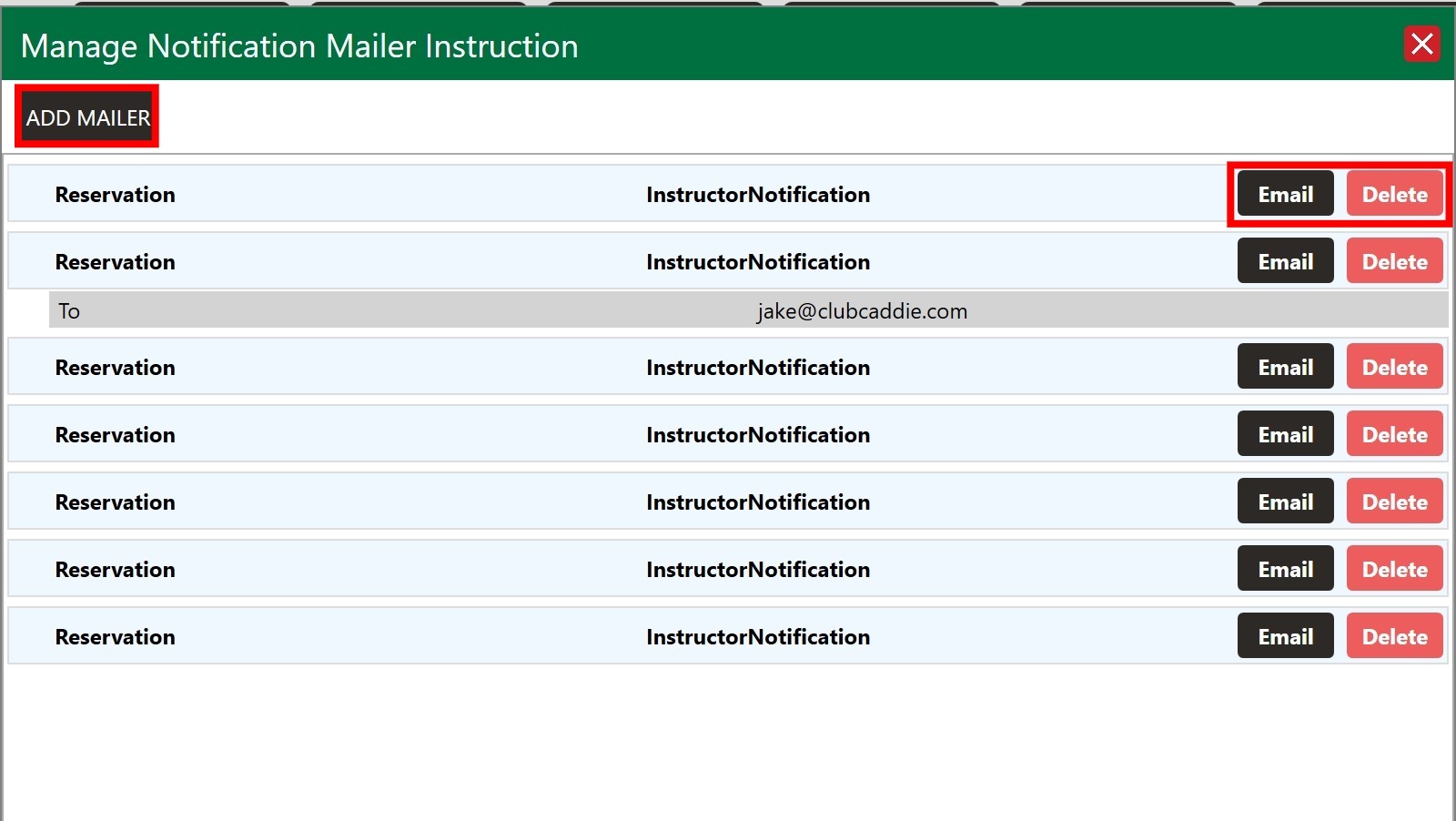
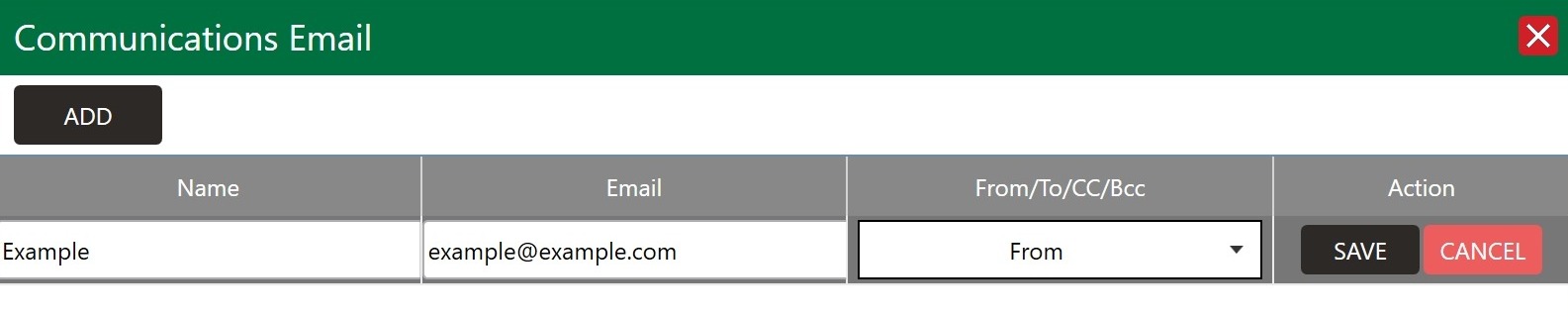
Use the " Delete" buttons to modify or remove created entries as needed.
Related Articles
Activity Booking Blended Rates
This article provides a guide on how to set blended rates for your activity booking. Blended rates are best utilized when a single rate is available for a specific given time. This Strategy essentially eliminates the need to set up individual Rates ...Resource Instructor Assignment
Article Content: This article provides a guide on how to tie an instructor to an activity resource. This is helpful for your employees to be notified via email of a booking for a certain activity resource. Step-By-Step: Step 1: Navigate to Settings ...Settings Overview
Article Contents: This article contains an overview of the Activity Center, including its functions and features for managing various activities and resources within the Jonas Synergy software. Overview: Step 1: The Activity Center acts as the ...Rack Rates
This article contains step-by-step instructions on how to add, edit, and search for Activity Rack Rates in the Activity Rack Rate Management section of the Activity Center in Jonas Synergy. BEFORE ADDING RACK RATES, ENSURE RESOURCE TYPES HAVE ALREADY ...Dependent Blocks
This article provides a step-by-step guide on how to set dependent blocks in your activities. Step-By-Step: Step 1: Navigate to Settings, then click on Activity Center from the left-hand-side menu, followed by the Activity Resource tab along the top ...