Creating or Removing Sub-Members
Step-By-Step:
Step 1: Select the Guest module from the module navigation menu. Select Members from the left-hand menu.
Step 2: The system will open a MEMBERS LIST window where a list of members can be viewed. Members can be searched by their Membership ID and Name by inputting data in the search text box and then clicking Search.
Step 3: Double click on a member and the system will generate a Guest PROFILE window. The window displays a complete Guest and Member profile and changes can be made.
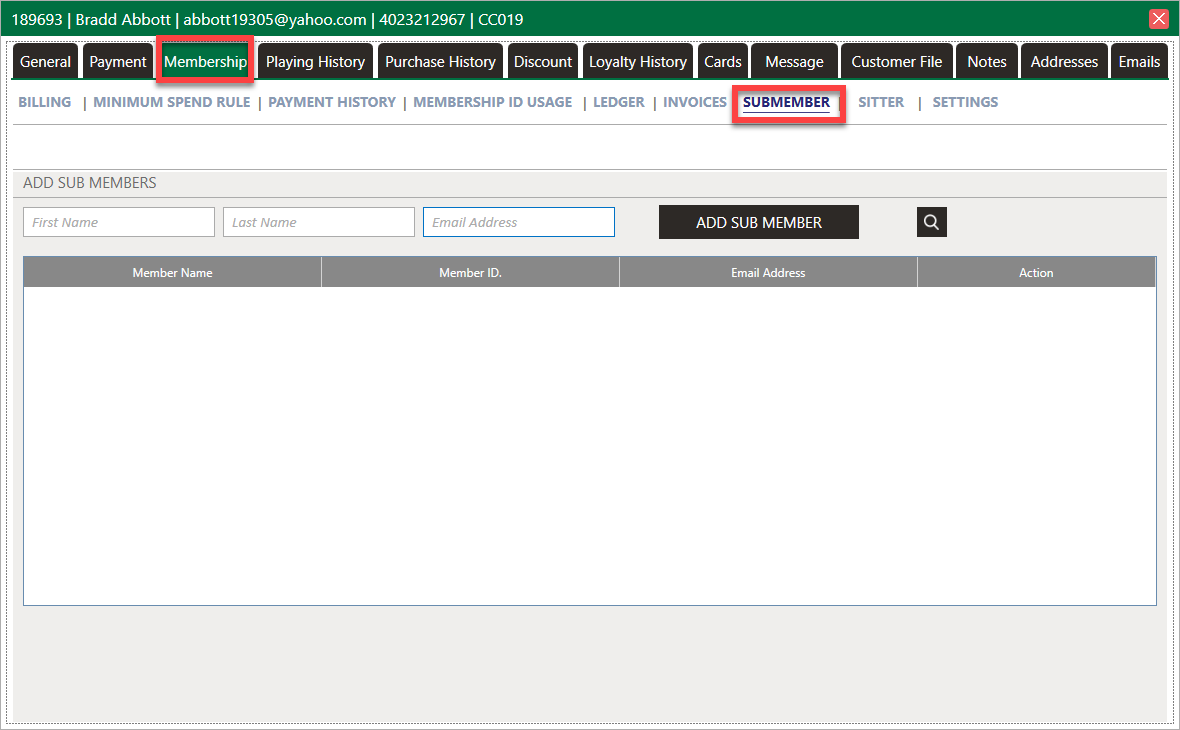
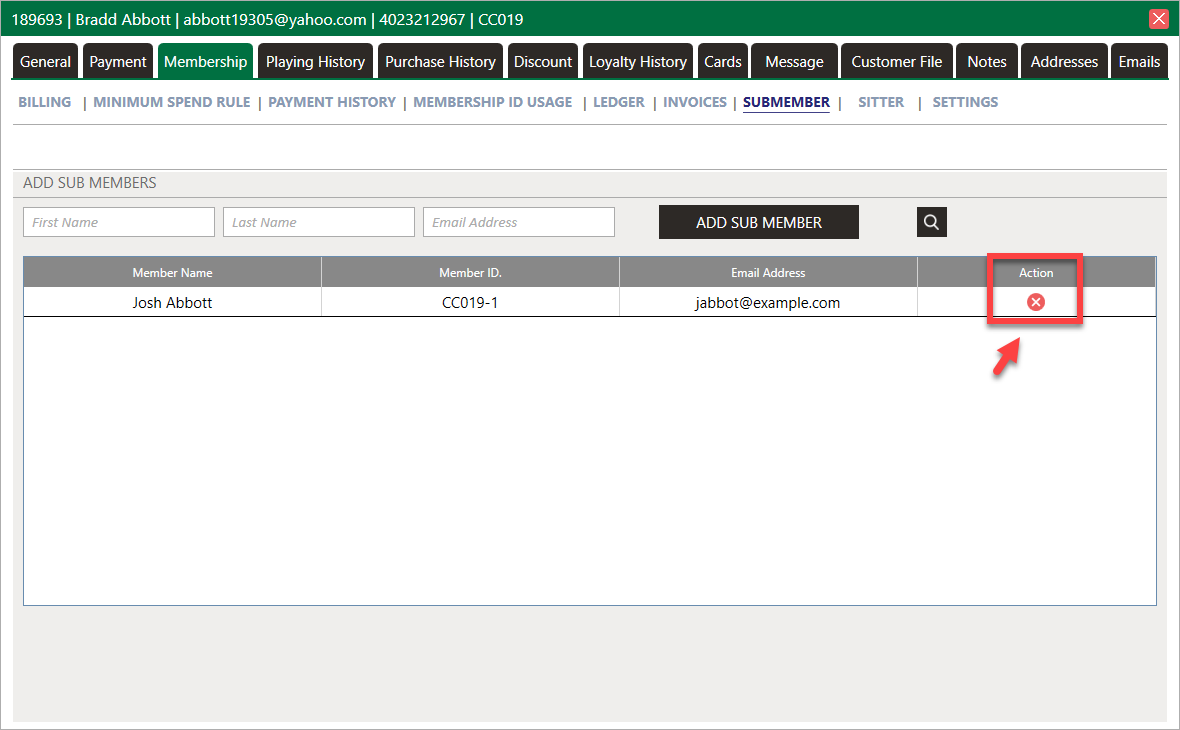
Step 4: In the Guest PROFILE window, select SUBMEMBER under the Membership tab. Enter the necessary info then click ADD SUB MEMBER. To delete the sub-member, click the red "x" and the sub-member will be get deleted.
Related Articles
Add a Sub-Member
Article Contents: This article explains how to add sub-member to the primary members. Step-By-Step: Step 1: Click on the "Guests" then click on "Members". Step 2: Select Particular member that you want to add sub-member and click on Action -> ...Guest Module - Members and Portal features
Article Contents: This article contains step-by-step instructions on Guest Module Focusing On The Member And Portal Features. Step-By-Step: Step 1: To view an ad hoc statement, click on "Account Statement," which will download a PDF statement with ...Display Members Discounts on Inventory Labels
This Article Explains How To Display Member Discounts Directly On Inventory Labels In Jonas Synergy. Enabling This Feature Allows Both Staff And Customers To Clearly See The Discounted Pricing Available To Members, Helping Promote Transparency And ...Notifying Members of the Membership Portal
We recommend sending members an email with step-by-step instructions to access your facility's membership portal. Depending on enabled features, members can view transactions, invoices, payments, as well as book tee times and activities. Step 1: ...Ending a Membership
This article provides step-by-step instructions on how to completely end a membership. This includes expiring membership classes, expiring minimums if applicable, and removing charging privileges. Step-By-Step: Step 1: Expire Membership Classes. 1.1 ...