Options in Emailing Guests
Step-By-Step:
In Jonas Synergy, there are two primary methods to send messages to your Guests: directly from the tee sheet or via the Messaging Center. Each option is outlined in Steps 1 and 2 below.
Additionally, Jonas Synergy offers an integrated email marketing service, providing enhanced tools and flexibility for operators to communicate more effectively with their Guests (steps 3 and 4).
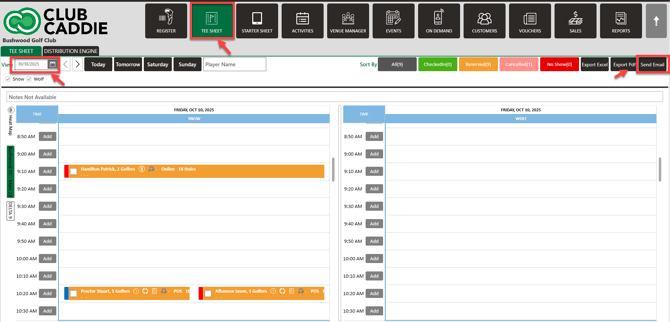
Step 1: To email players scheduled on the tee sheet for a specific day, navigate to the Tee Sheet module, select the desired date, and click Send Email.
For detailed instructions on how to email from the tee sheet, click here.
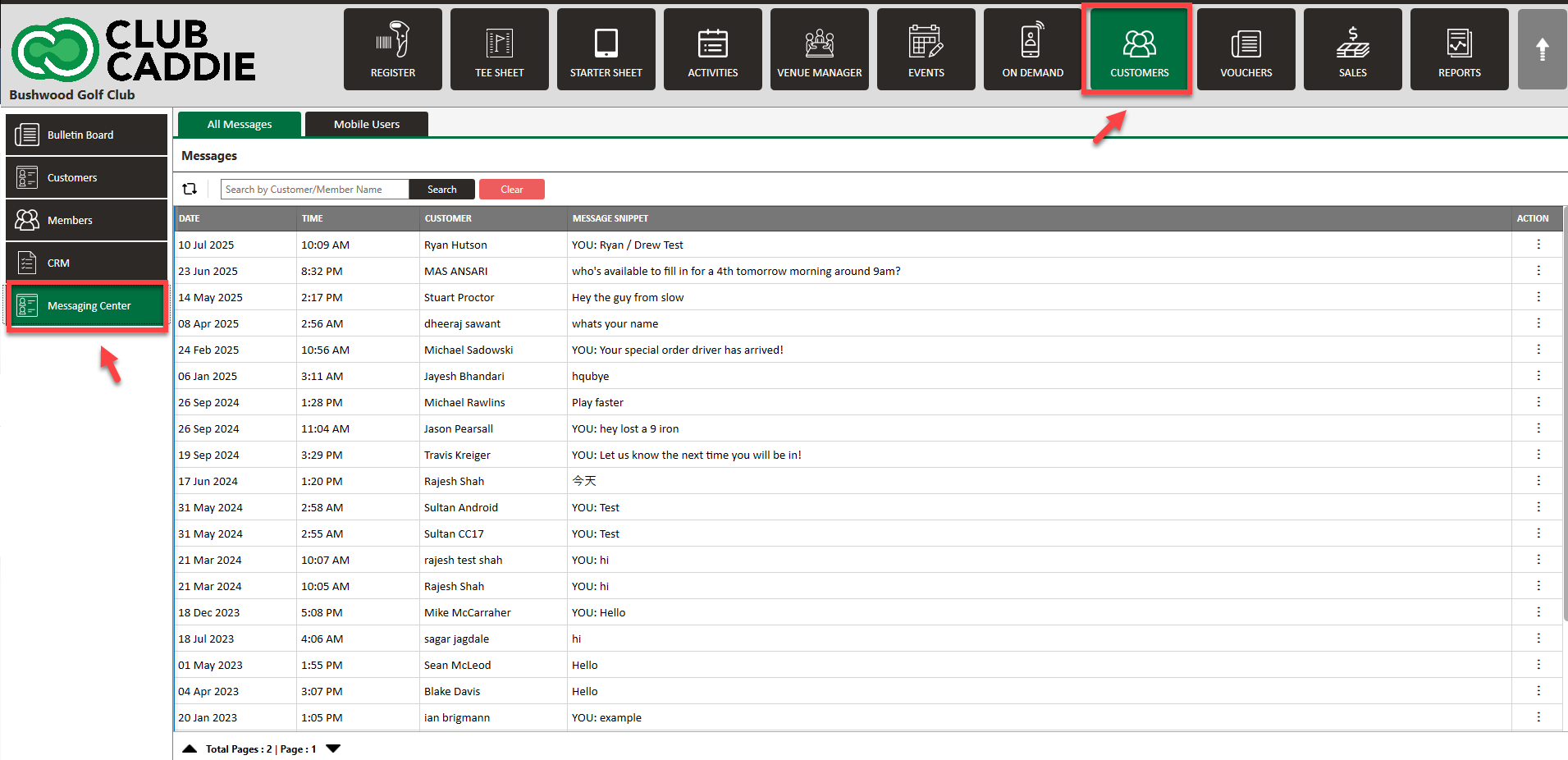
Step 2: The Messaging Center: this consolidates all Guest communications in one place, allowing for easier management of messages and quick access to Guests.
To learn more about how to use the Messaging Center, click here.
This enables POS Users to have 2-way communication with Mobile App Users. When a new message is received from a Mobile App User, there will be a notification in the POS in the Guests Module > Messaging Center
Step 3: Email Marketing: Please click on this link to get started with our email marketing or contact our sales team by clicking here to discuss how our software can help your facility.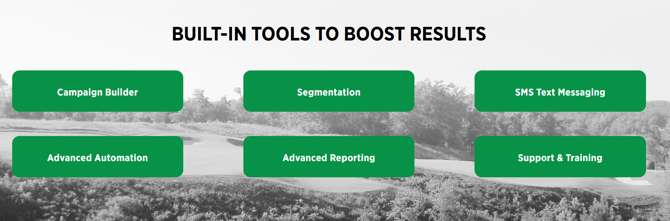
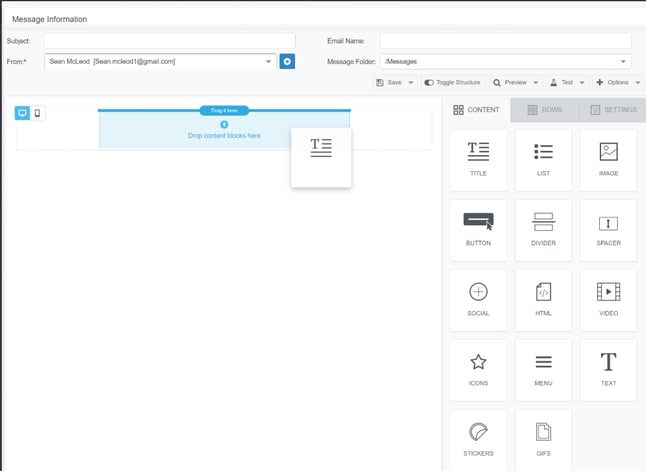
Step 4: If you do have our email marketing program, click here to learn how to get your first email started.
Related Articles
Merging Guests
Article Content: This Article Provides Steps On How To Utilize The Merge Guests Tool That Allows Staff To Consolidate Duplicate Or Secondary Guest Profiles Into A Single Master Record. This Unified Profile Includes Total Play History, Purchases ...Discount Rules for Guests / Members
Article Content: This article instructs on how you can set a Discount Rule to a specific Member/Guest through the Guest Profile. Step-by-Step Guide: Step 1: Click on the "Guests" tab from the row of headers. Click on the "Guests" option in the ...Mass and Multiple Membership Adjustment
Article Contents: This Article Provides Step-By-Step Instructions On How To Use The Membership Tool In The Guests Module To Perform A Mass Membership Adjustment And A Multiple Membership Adjustment. A Mass Adjustment has the option to "select all" ...Search, Add or View Customer Profile
This article covers how to Search/Add/View Guest profiles Step-by-Step: Step 1: Click on the “Guests” tab from the top navigation bar. Step 2: Select "Guests" from the left row of the window and click on the "ADD Guest" button. Step 3: Then the ...Add Guest to Group
This portion summarizes how to Manage Groups and Add Guests to a Group. Step-By-Step: Step 1: Click on the Guests Tab (1) from the header of the window. Click on CRM (2) from the left row of the window, then select Manage Groups (3) where you can see ...