Reserved Tee Times
Step-By-Step:
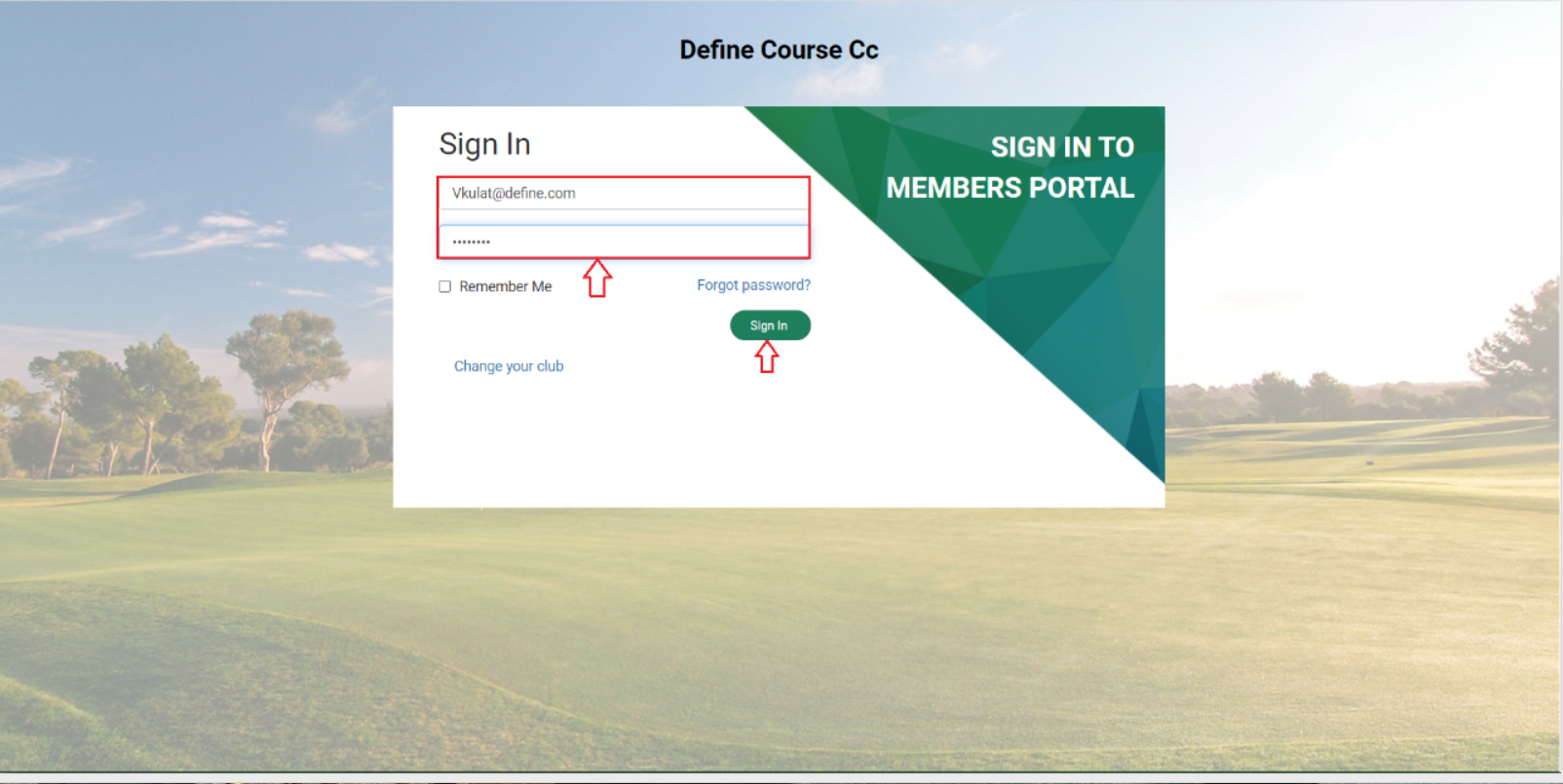
Step 1: The member must sign in to the member portal.
Step 2: Once a member has signed in, they can see the “Reserved Tee Times” option at the bottom of the screen, and if they click on it, they will get a reserved Tee Times window.
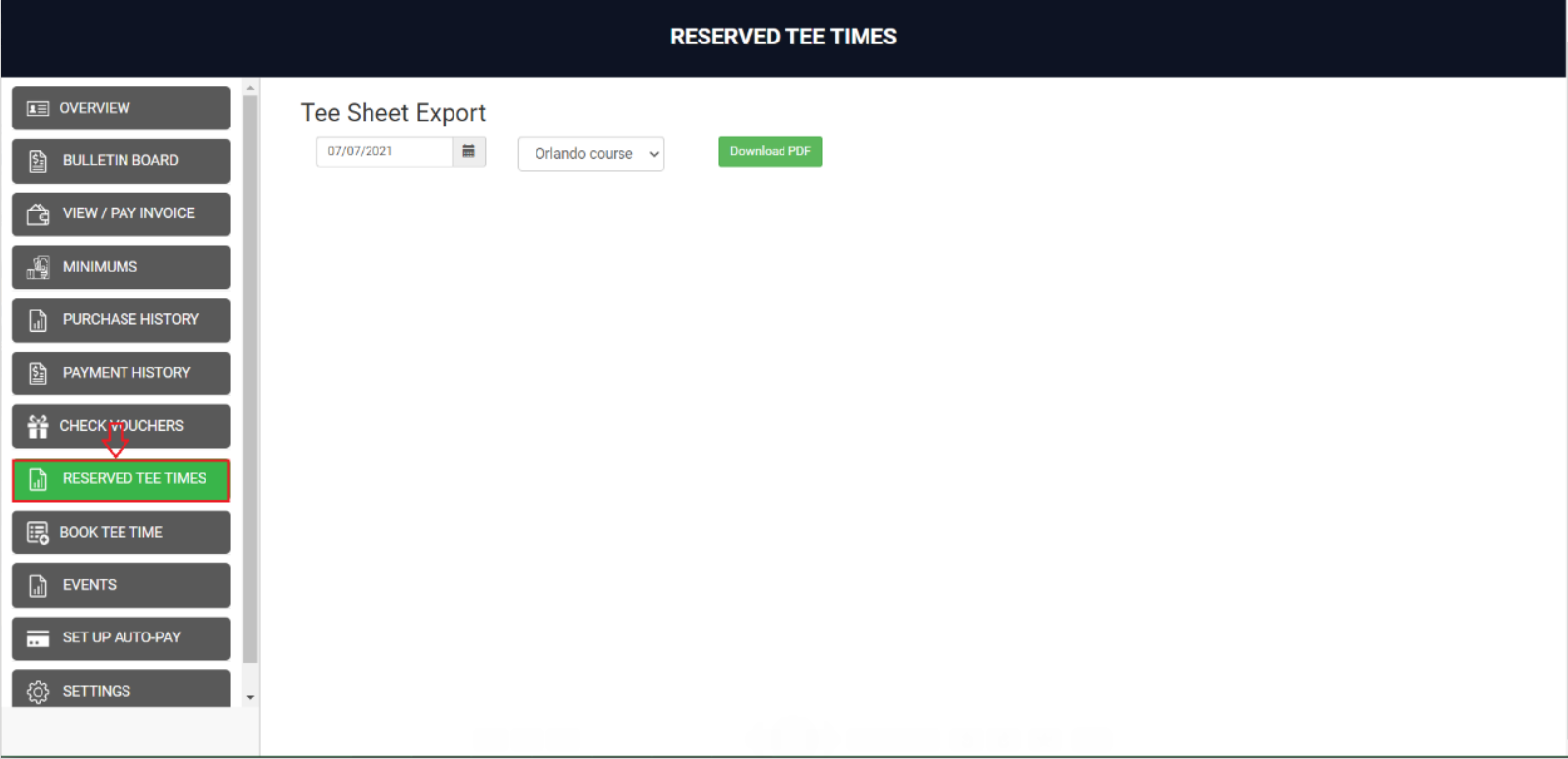
Step 3: Members can filter "Reserved Tee Time" by date and course.
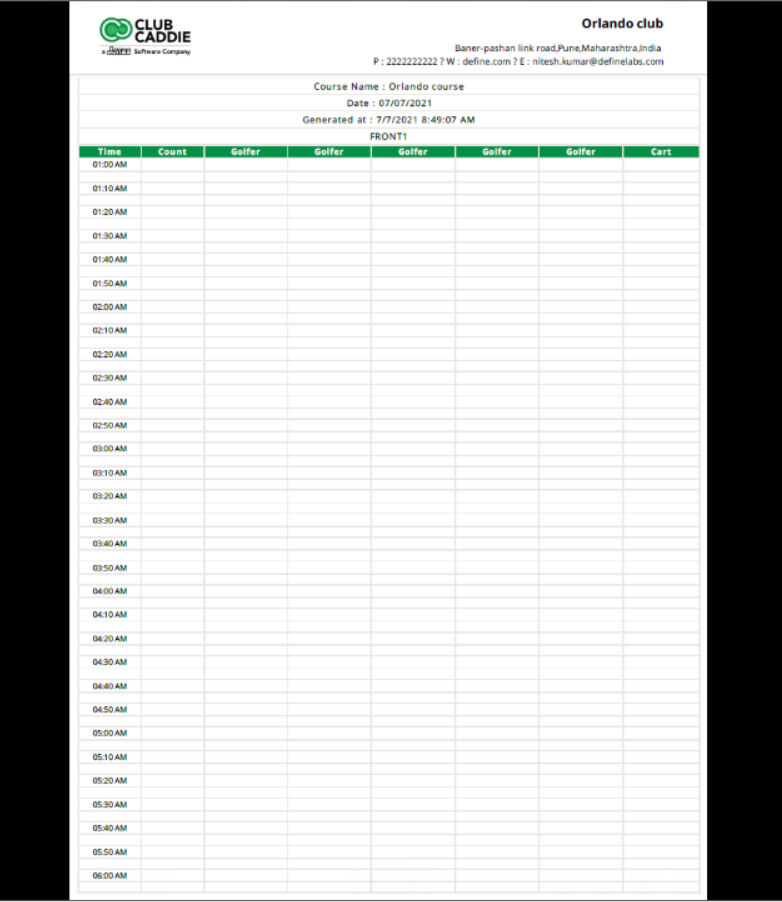
Reserved Tee Times is an Viewable Export of the Tee Sheet.
Related Articles
How to Cancel a Tee Time
Article Contents: This article contains step-by-step instructions on how to cancel a tee time through the membership portal. Step-By-Step: Step 1: A list of options is available within the member portal along the left-hand menu. Select My Reserved ...Edit Rates
Article Contents: This article explains how to edit player information or rates after a booking has been made, allowing for adjustments to player details or the rates applied. Step-By-Step: Step 1: Log on to your member portal. Then select My ...Book Tee Time
Article Contents: This article explain how to book tee time from membership portal. Step-By-Step: Step 1: Open membership portal in your browser then login to member's account. Step 2: Click on "BOOK TEE TIME". Step 3: Select a slot that you want to ...Membership Portal Builder
Article Contents: This article gives an overview of the Membership Portal Builder. Step-By-Step: The membership portal is a website that allows you to create and manage club members who can access exclusive content, resources, and services. A ...Notifying Members of the Membership Portal
We recommend sending members an email with step-by-step instructions to access your facility's membership portal. Depending on enabled features, members can view transactions, invoices, payments, as well as book tee times and activities. Step 1: ...