Step-By-Step:
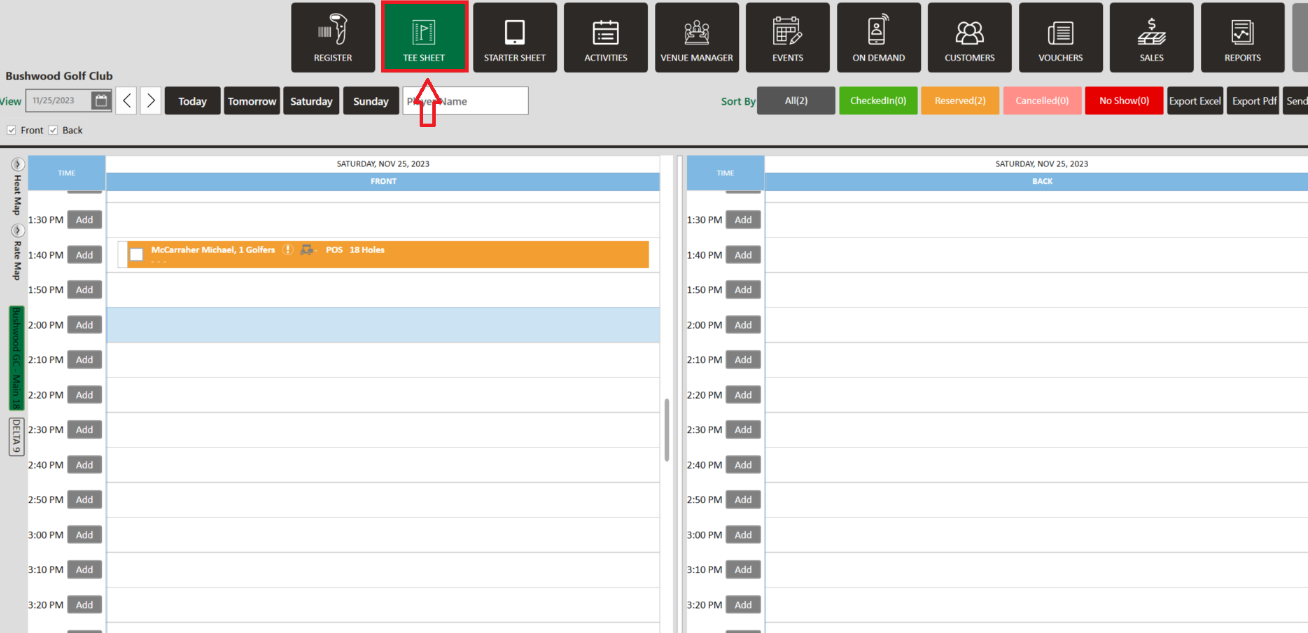
Step 1: Click on the "Tee Sheet" button from the top navigation bar.
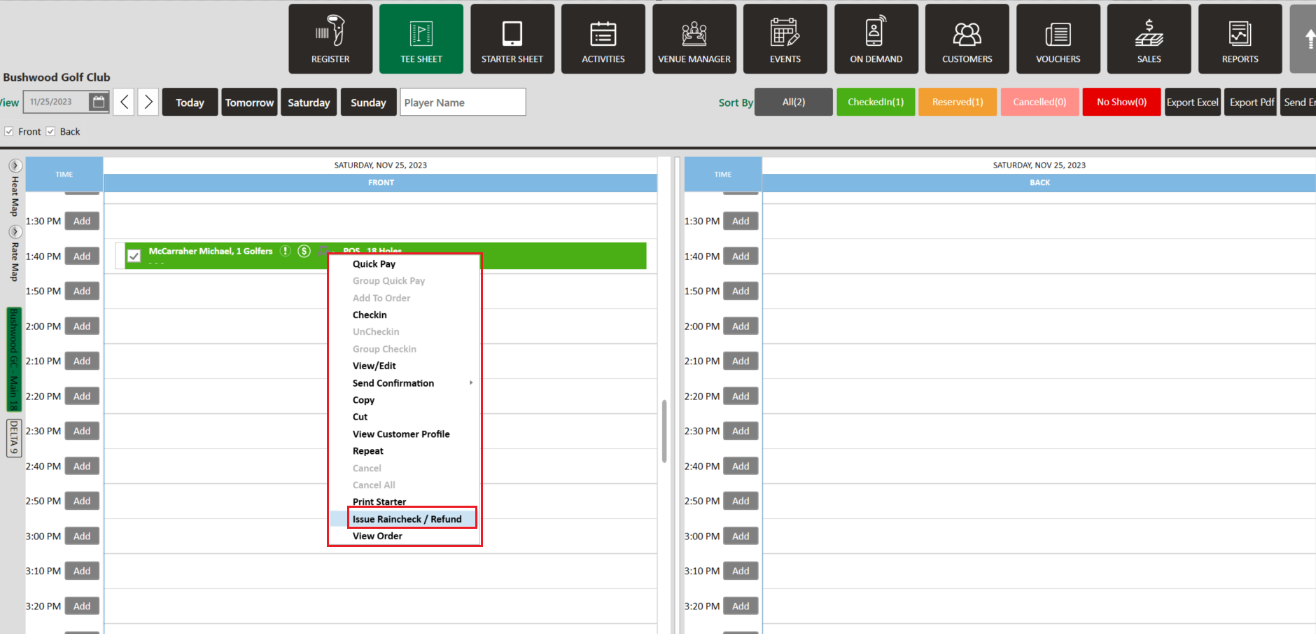
Step 2: Right-click on the desired tee-time and from the drop-down list select, "Issue Rain check / Refund". This will open the order details window.
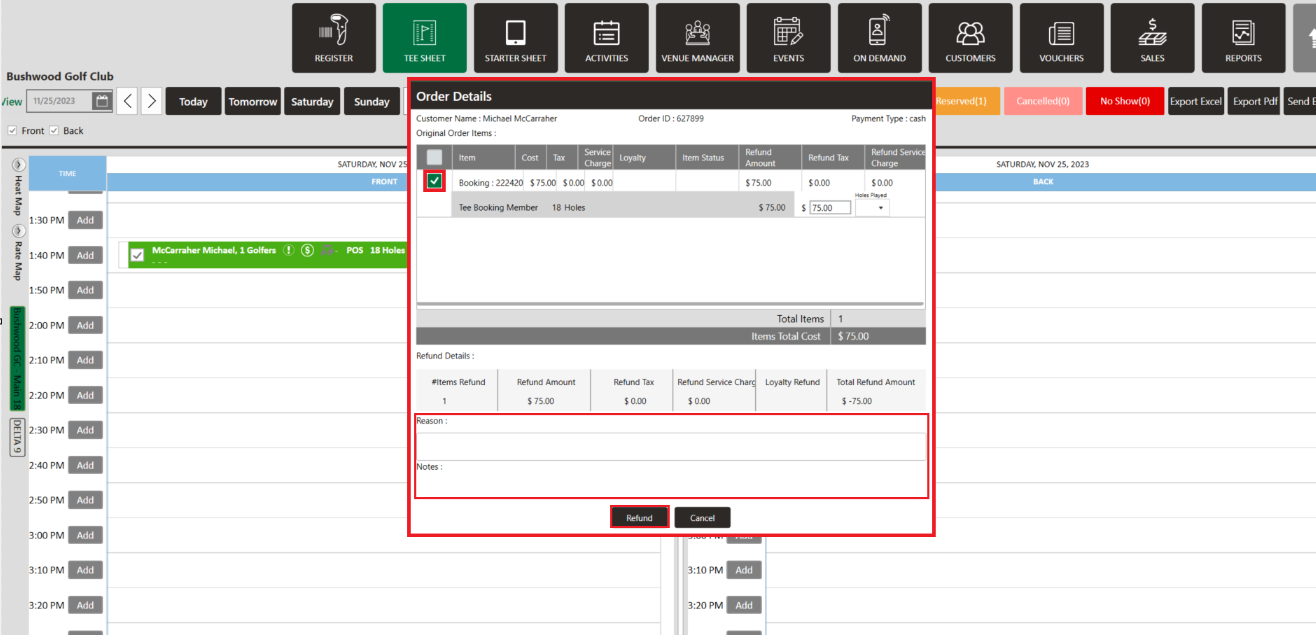
Step 3: Select the individual items from within the order summary that need to be refunded. If applicable, you may leave a note in the "Refund Reason" text box that will save on the original, newly created order, and the return/refund report.
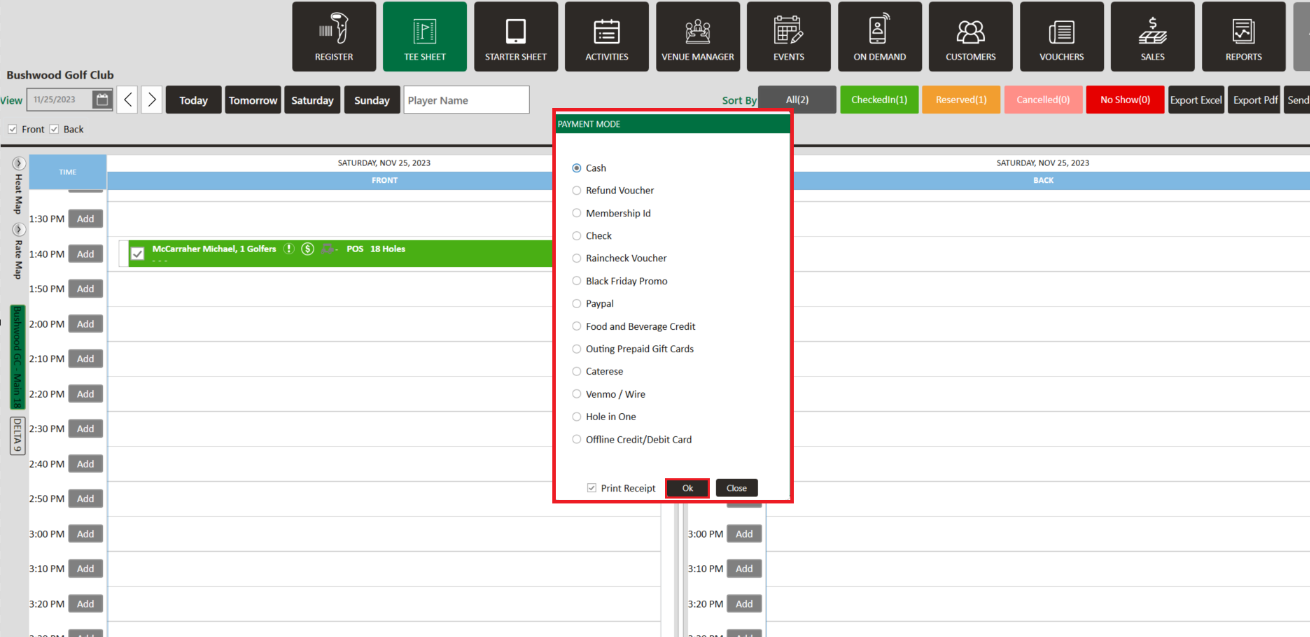
Next, click on the "Refund" button to open the payment method selection screen. Selecting the "Rain-check Voucher" will require you to enter a voucher number before selecting the "Ok" button to continue processing the refund order.
Next, click on the "Refund" button to open the payment method selection screen. Selecting the "Rain-check Voucher" will require you to enter a voucher number before selecting the "Ok" button to continue processing the refund order.
You are able to edit the individual refund/rain-check amounts associated with each of the items if you wish to only issue a partial refund.
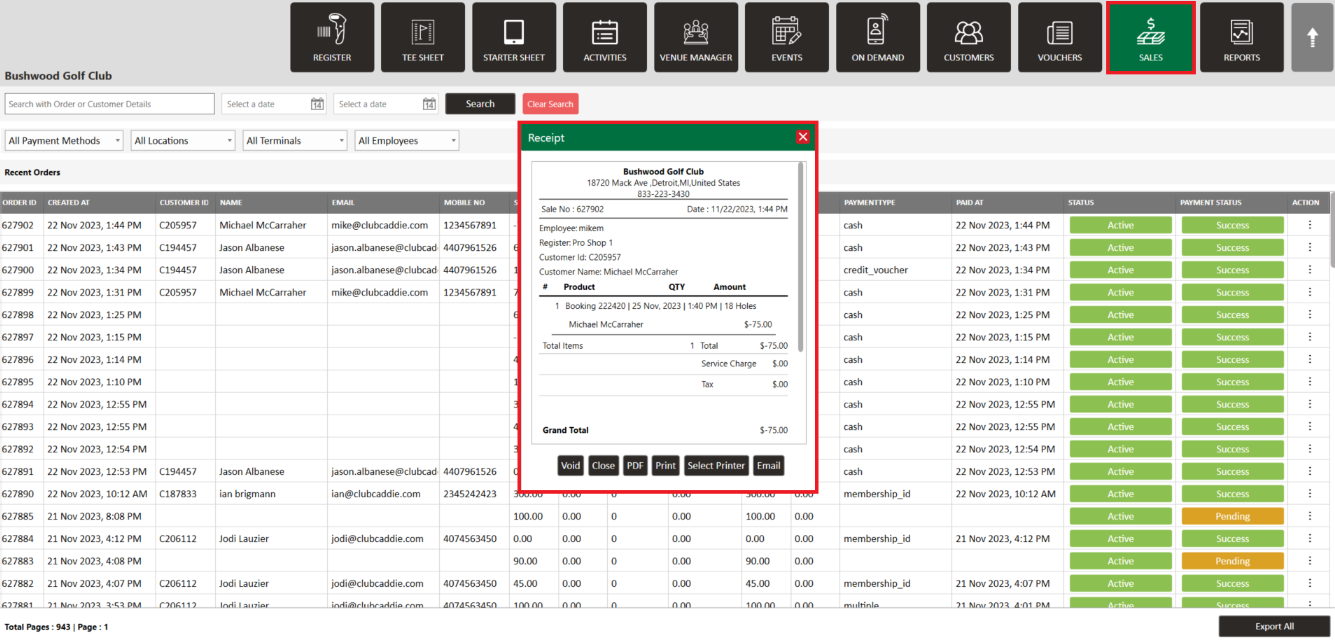
Step 4: For reference, to view the refund order, navigate to the sales tab from the top navigation menu.
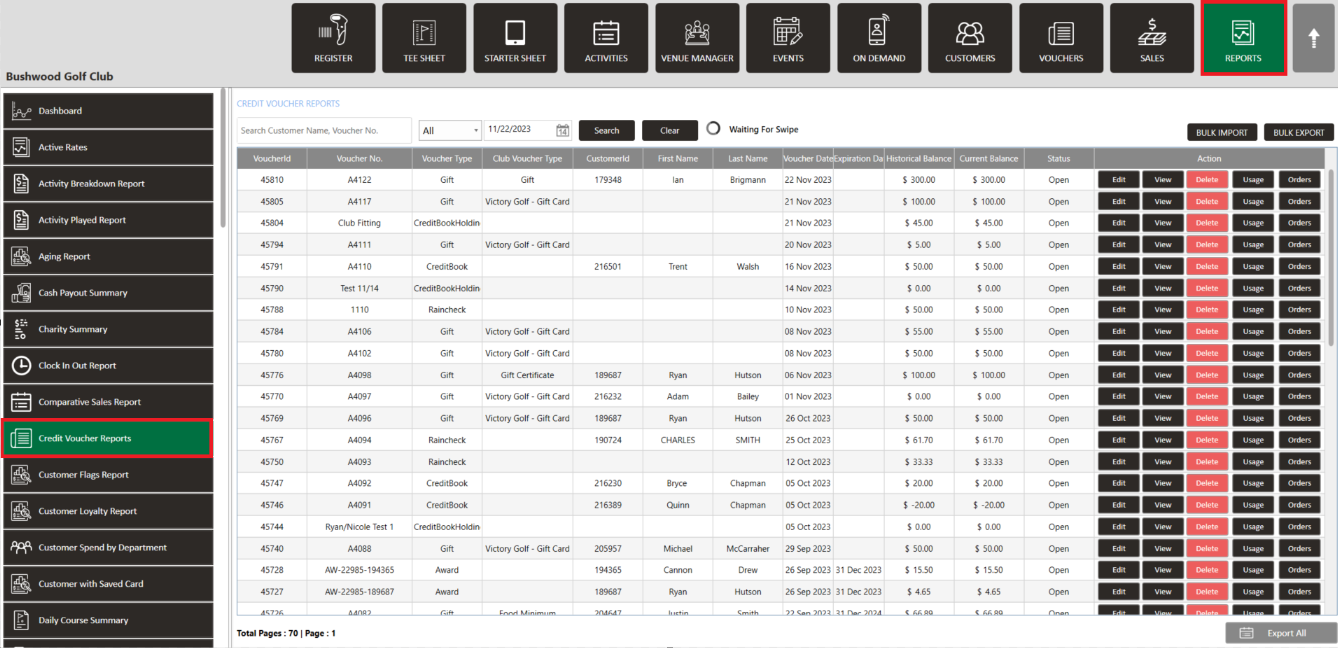
Step 5:- To view the reports related to cancellations and refunds. Click on the “Reports” module from the top navigation menu. On the left-hand of the screen, click on the “Credit Voucher Report” button from the row on the left. You will see the the order (Rain-check Voucher) and just click on the view button.