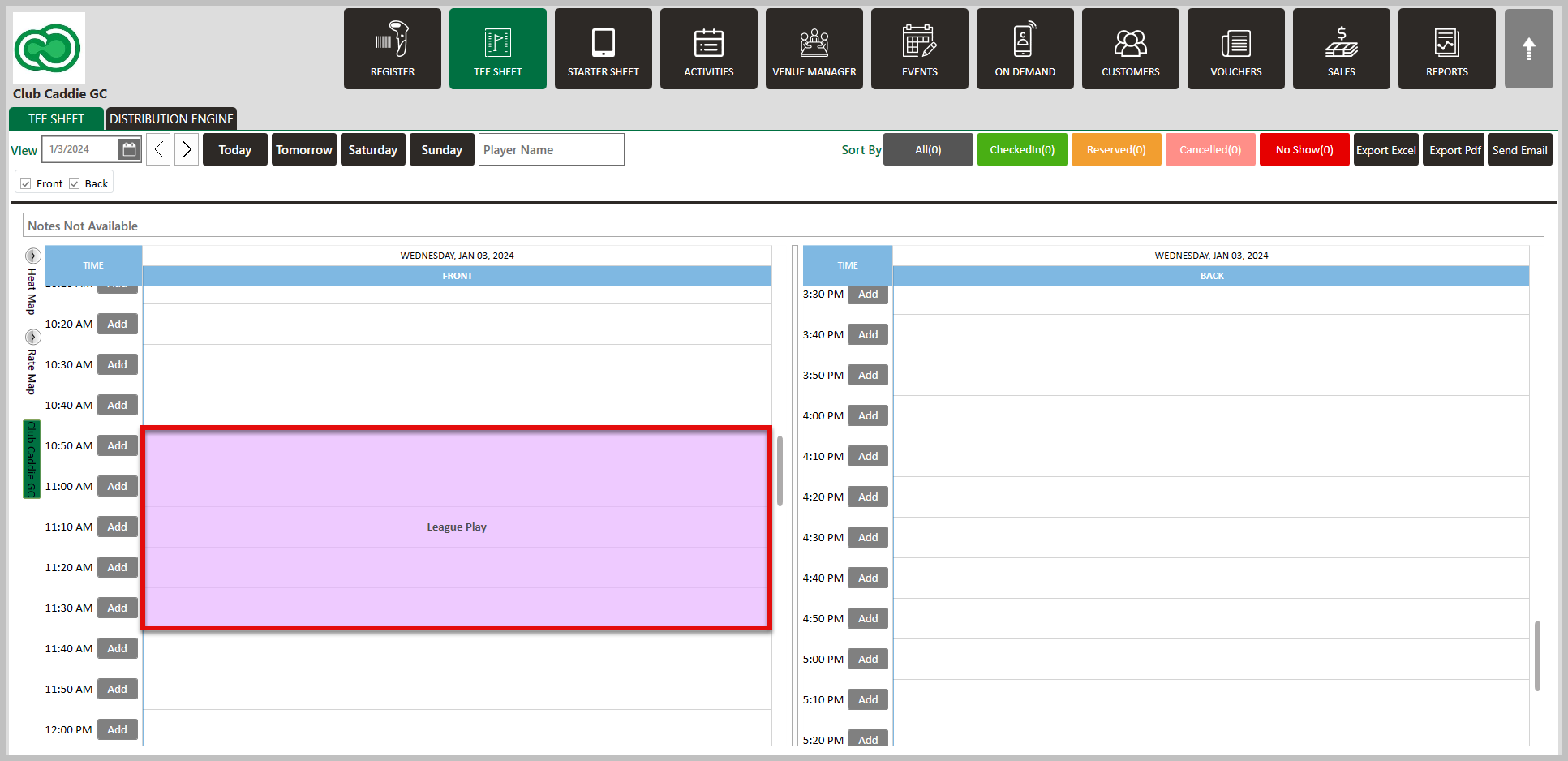
Tee- Sheet-Blocking Turn Times for 18 hole Tee Times

Turn Time Only Block

Article Contents: This article gives step-by-step instructions on Turn Time Only Blocks.

Step-By-Step

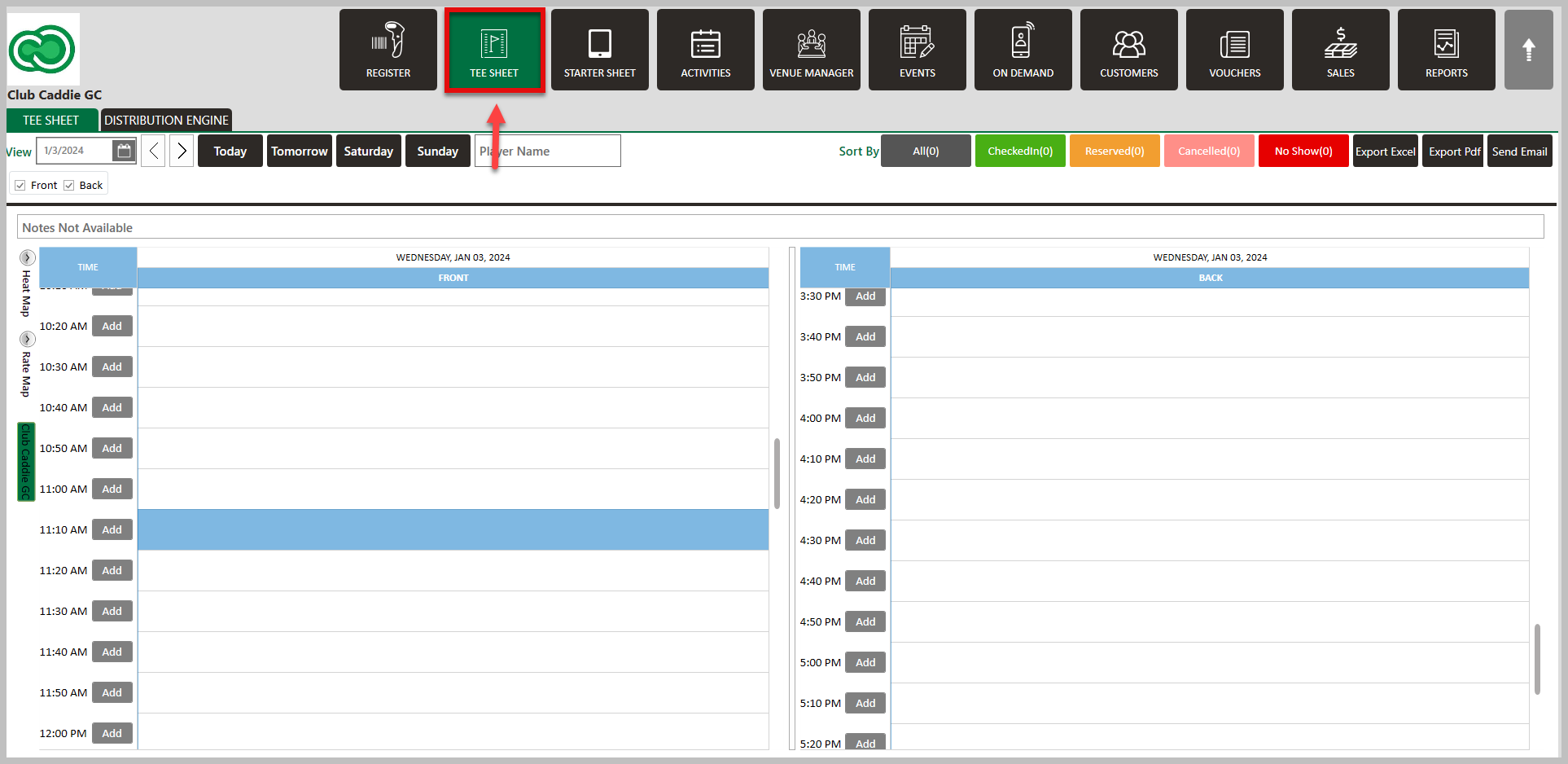
Step 1: Select the  TEE SHEET  module from the module navigation menu. 
 
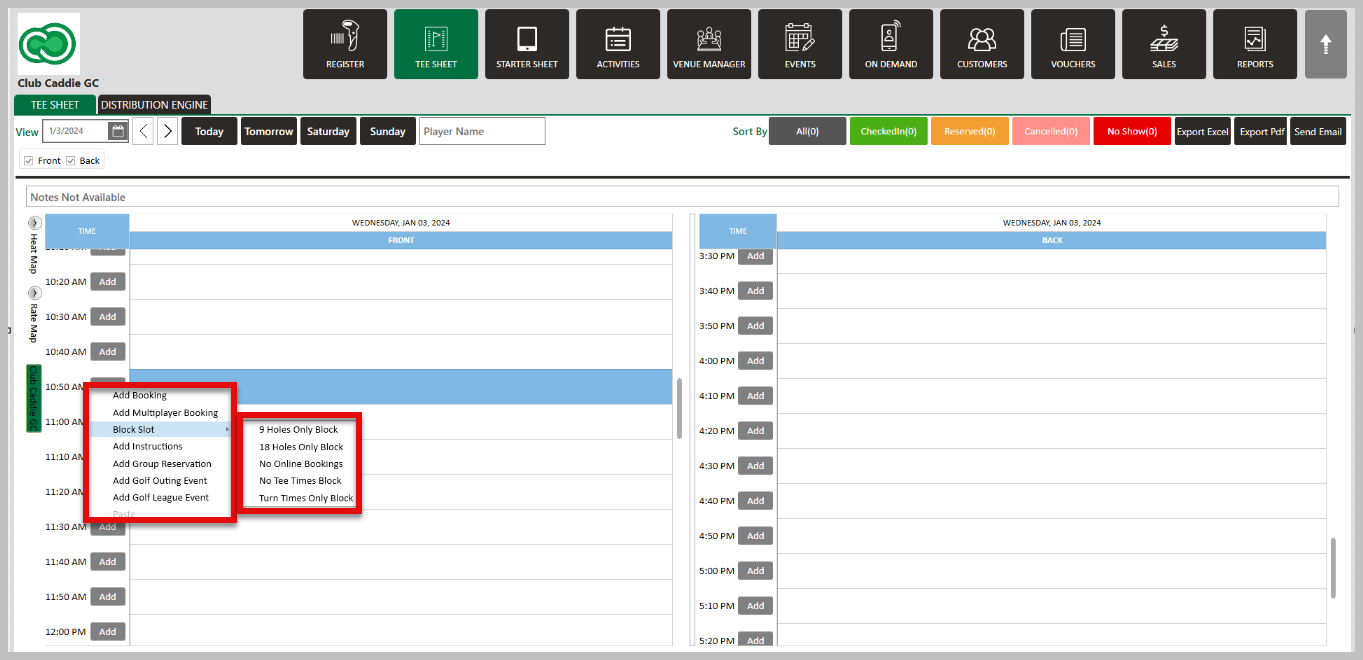
    Step 2: Right click on the time that you want the block to start and select  Block Slot, then  Turn Time Only Block.
     
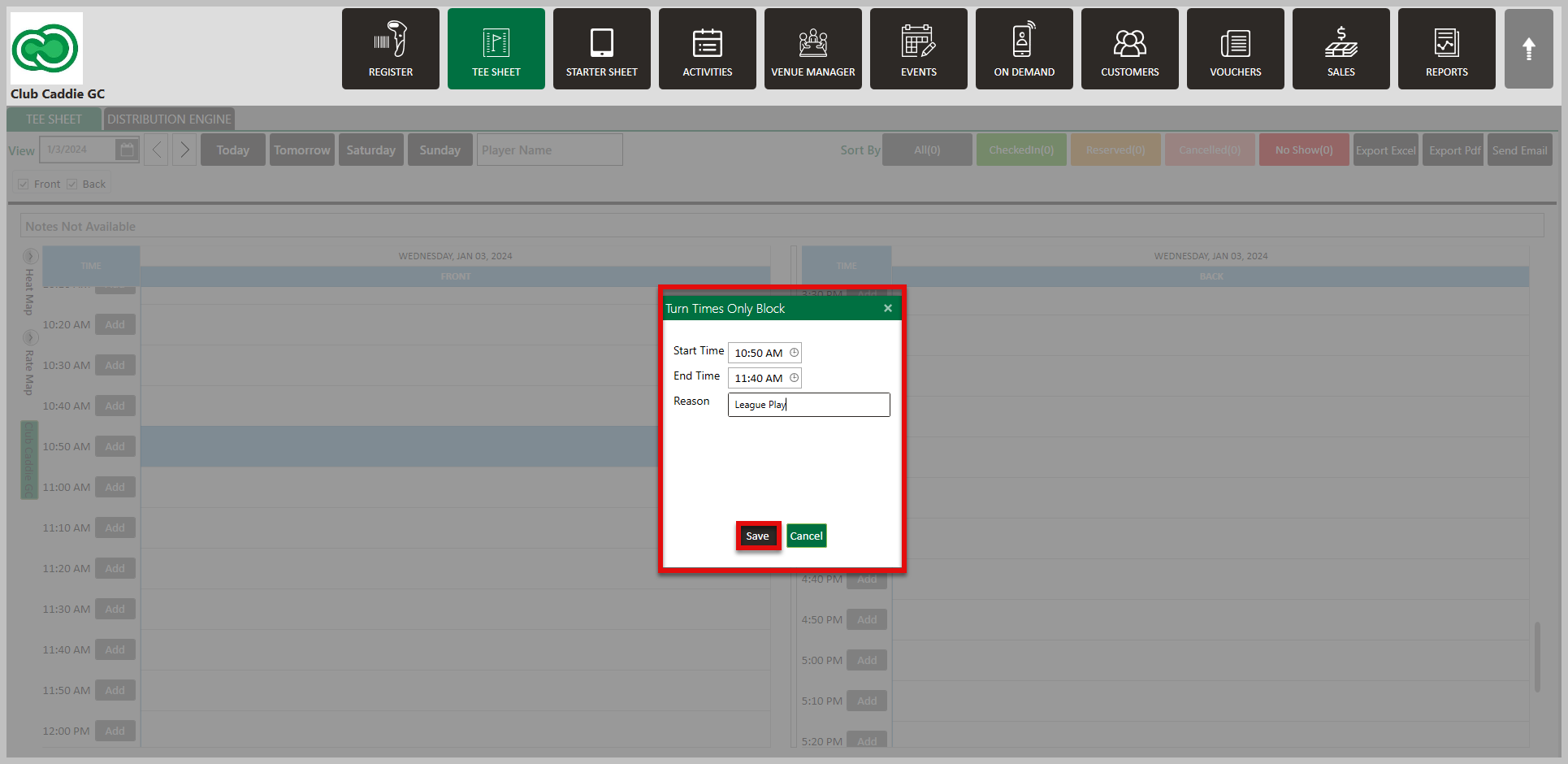
    Step 3: Enter the  Start Time and  End Time that you want to block. There is also a section for  Reason which will be displayed on tee sheet for the blocked time. Click  Save. 


      • Related Articles

      • Creating a Block

        Article Contents: This article contains step-by-step instructions on blocking tee times for all online channels and informing employees of the booking restrictions. Step-By-Step Step 1: Click on the ' TEE SHEET ' module from the navigation menu. Step ...
      • Editing Turn Time Resource

        Article Contents: This article gives step-by-step instructions on editing the turn resource. Note: You can adjust turn times and resources for 18 Holes only. Step-By-Step Step 1: Select the tee sheet module from the module navigation menu. Step 2: ...
      • Move a Tee Time

        Article Contents: This article contains step-by-step instructions on how to move a tee-time from one time slot to another using two different methods. Step-By-Step: Method 1: Drag-and-Drop Method Step 1: Click on "TEE SHEET" on the top menu. Then, ...
      • Cancel a Tee Time

        Article Contents This article contains a step by step guide on canceling or deleting a tee time from the Jonas Synergy tee sheet. Step-By-Step Step 1: Navigate to the tee sheet module from the top navigation bar. Step 2: Locate the tee time ...
      • Edit Tee Time

        Article Contents: This article contains step by step instructions on how to edit a tee booking through the tee sheet. Step-By-Step Step 1: Access the TEE SHEET tab from the main menu. Step 2: Locate and select the reservation on the Tee Sheet. Step ...