How to Perform a Ledger Adjustment
Step-By-Step:
Step 1: Click on the Guest module along the top row.
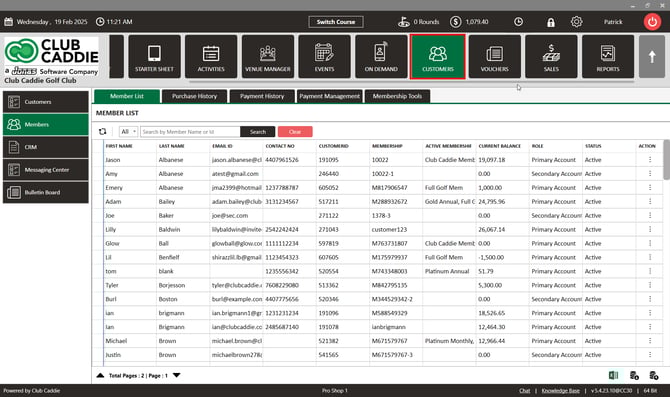
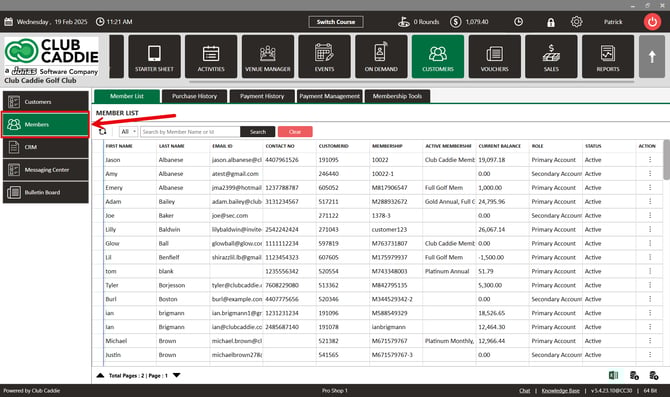
Step 2: Select the Members list in the left-hand menu, then click on the action button and View/Edit for the member you wish to adjust
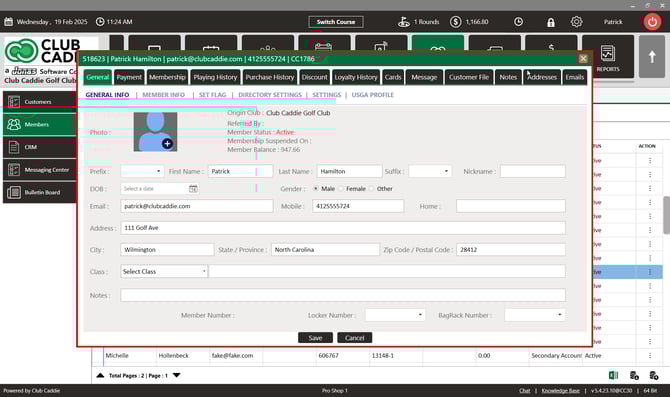
Step 3: Click on the Membership tab from the top navigation menu, then select Ledger.
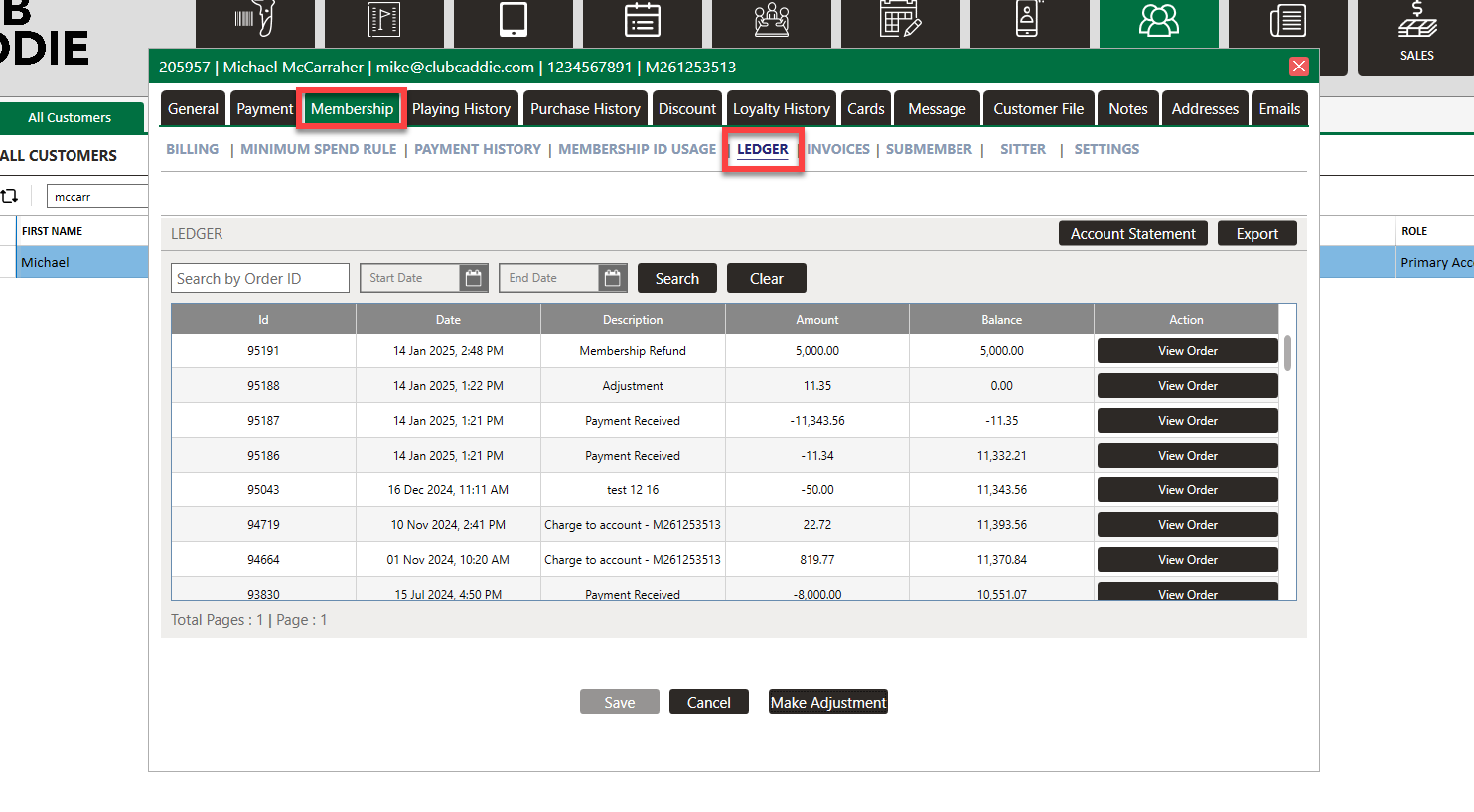
Step 5: Click Make Adjustment option on the bottom of the window.
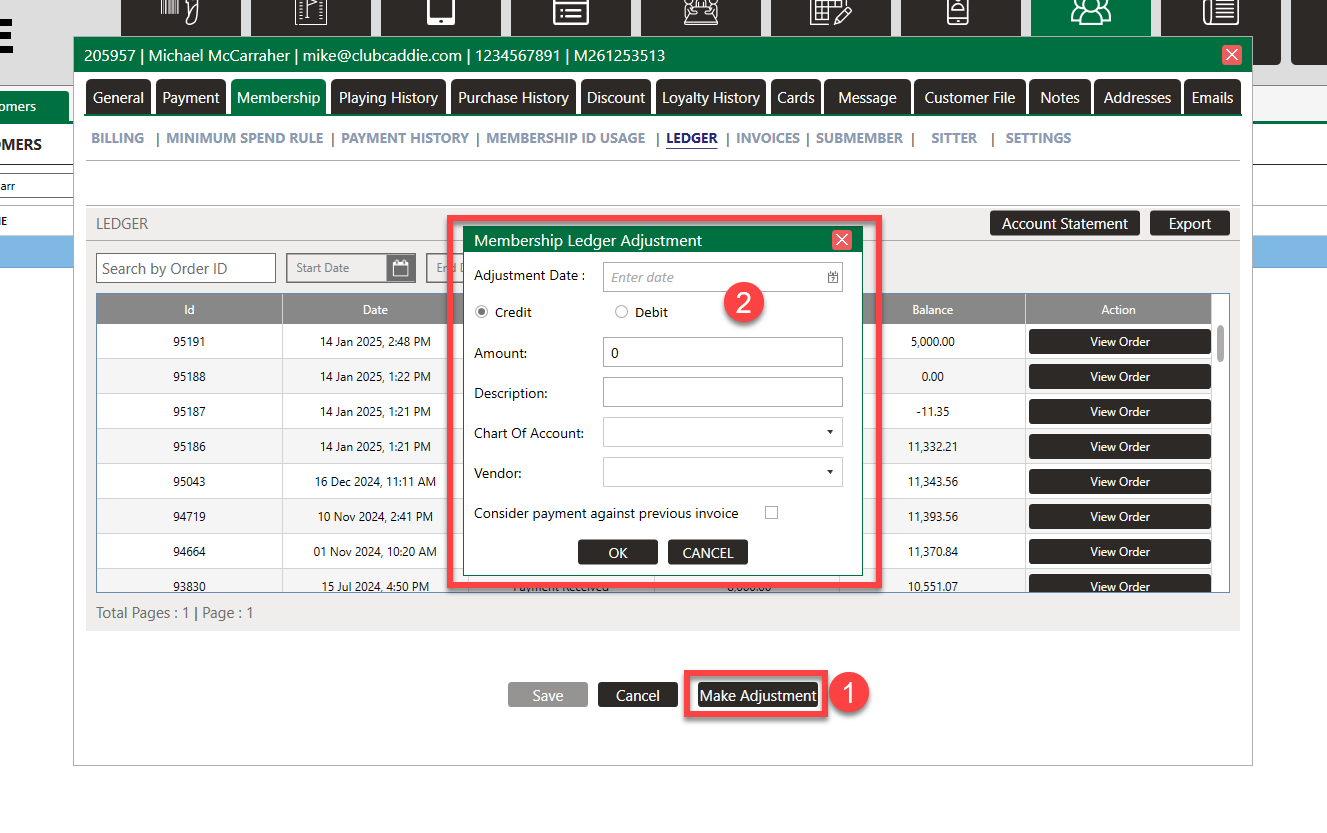
Step 5: Enter the fields and once its correct, click OK. - Select Credit to reduce the members bill and select Debit to increase the members bill.
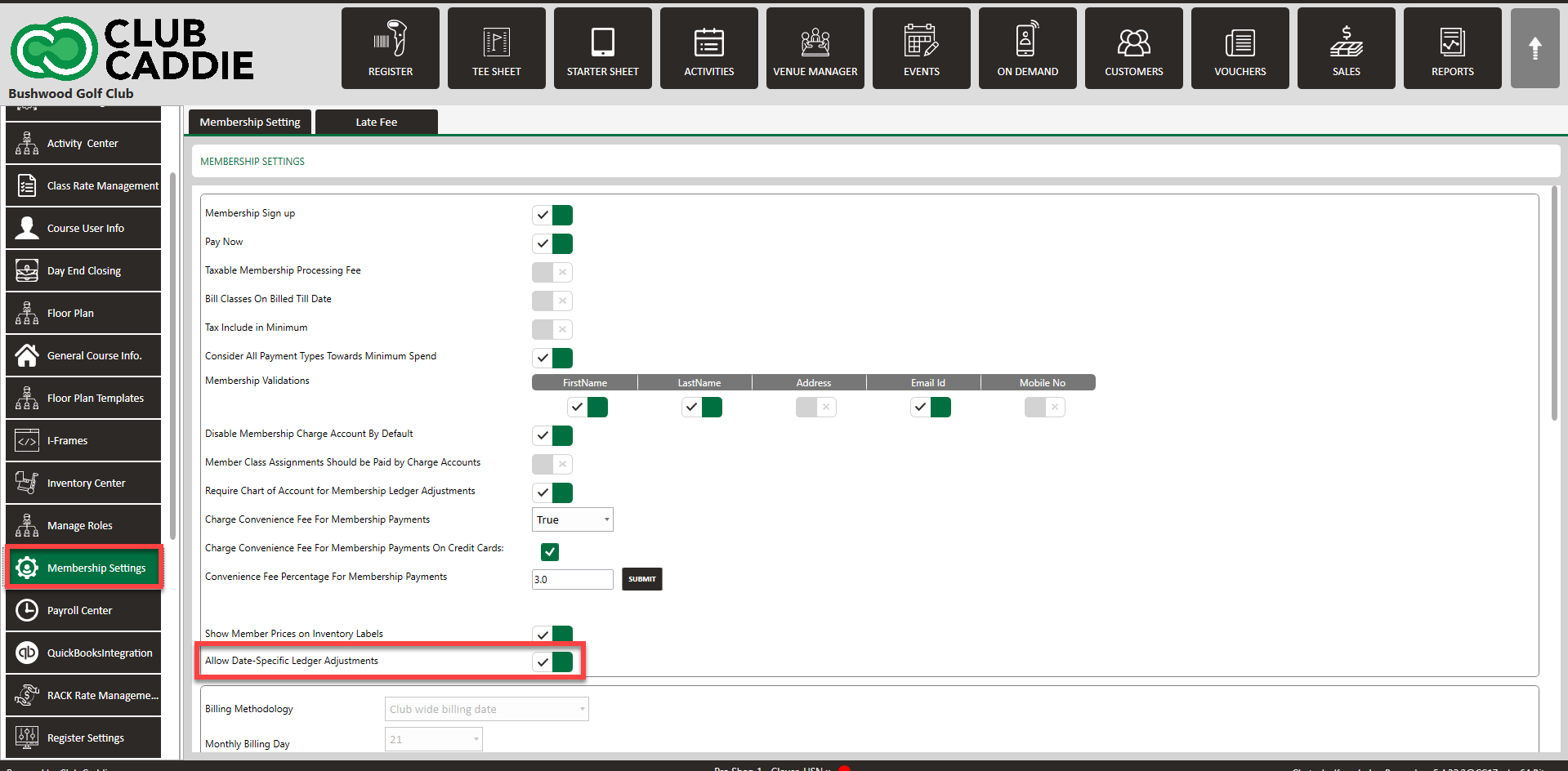
You can enter a past date to backdate the adjustment, the backdate setting must be toggle on in Settings > Membership Settings, and if you use QuickBooks and there is a dated ledger adjustments prior to last QuickBooks sync, you will not be able to retro prior to the last QuickBook sync.
Please note: sub member membership ID charges will appear on the primary member ledger.
Related Articles
Member Ledger
This article summarizes Member Management-Member Ledger Step-By-Step: Step 1: Click on the "Customers" tab located at the top navigation bar. Step 2: Select the "Members" tab from the left-hand navigation menu, you will find the “Members List” in the ...Payment Management
Article Contents This article explains the detailed use of payment management. Step-by-Step: Step 1: Click on the Guests (1) module, then select Members on the left (2). Step 2: Click on the Payment Management tab (1). Select a particular member (2) ...Membership and Billing Setup
Article Contents: This article provides a step-by-step guide to setting up and managing memberships in Jonas Synergy. It covers creating guests, signing up members, configuring membership classes, billing and payment settings, generating invoices, ...Guest Module - Members and Portal features
Article Contents: This article contains step-by-step instructions on Guest Module Focusing On The Member And Portal Features. Step-By-Step: Step 1: To view an ad hoc statement, click on "Account Statement," which will download a PDF statement with ...Minimum Spending Requirements by Department
This article summarizes the minimum spend rules by class or Guest for any department's spending. Step-By-Step: You can set a minimum spend rule across an entire class or alternatively set up a Guest-specific spend rule on any department. To Set ...